

Excel lets you remove an opening password through Encrypt with Password. Open the file with its current password, clear the password field and save. Reopen that copy; Excel should stop asking for the password.
Use Excel installed on your Windows PC for these steps. If the spreadsheet opens but won't let you edit cells or rearrange sheets, it has a different kind of protection. The later sections explain those settings.
Open the right copy with its current password
Find the workbook you want to change and open it with its password. Excel needs to open the file before it can remove encryption, the protection that locks its contents. If you've forgotten the password, ask the owner for help first.
Check the filename and where it's saved. An email attachment and a copy in Documents may look identical, but they're separate files. Changing one doesn't change the other.
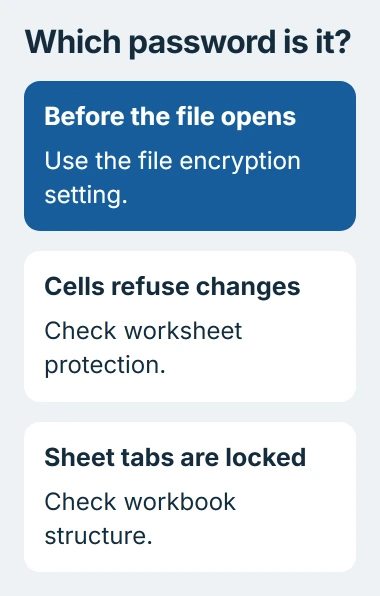
Status: Excel's Windows encryption controls checked November 3, 2026. The removal uses the existing password; sheet and workbook-structure protection remain separate settings.
Microsoft says file encryption prevents access to the contents without the password. Its Excel protection guide explains how this differs from restrictions on editing an open file.
If you need both versions, make a copy before changing the password setting. I'd keep the protected original until you've checked the new copy, especially if someone else sent you the workbook.
Give the copy a name you'll recognize later. That makes it easier to pick the unprotected file when you need it, without accidentally sending the original again.
Clear the password in the encryption dialog
In Excel for Microsoft 365, Excel 2024 or Excel 2021 on Windows, use the file controls rather than the Review tab. Microsoft's file-encryption instructions identify this menu.
- Select File, then Info for the open workbook.
- Choose Protect Workbook and open Encrypt with Password.
- Click inside the Password field. Select everything in that field and delete it, leaving the box completely empty.
- Select OK to close the dialog, then save the workbook with Ctrl+S.
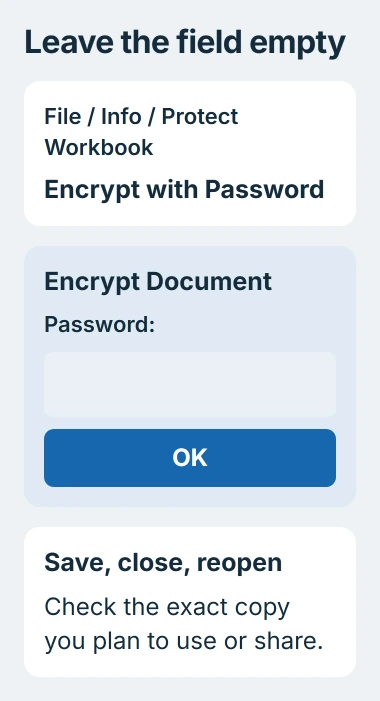
The command is still called Encrypt with Password when your file already has a password. It opens the current setting, so you don't need a separate Remove Password command.
Leave the field empty, without even a space. Excel counts a space as a character, so putting one there would change your password instead of removing it.
An owner confirmed these steps in a Microsoft Q&A discussion. They needed to remove the file's encryption before setting it again.
To leave the password off, stop after clearing it and saving. Enter a new password only if you want to keep the file protected.
Reopen the saved workbook and check it
Close the workbook after saving, then open it from the location where you saved the changed copy. Its worksheets should appear without an opening-password prompt.
Reopening the saved copy catches an easy mistake: changing one file and checking another. Find it by its folder and full filename, since similar entries in Excel's Recent list can be hard to tell apart.
If a password prompt still appears, read what it asks for. Excel's passwords for opening files, making changes and unprotecting sheets use different settings.
If Excel still asks for a password before opening, check that your changes saved to that file. A save error, canceling a file-replacement prompt or saving elsewhere can leave the original encrypted file unchanged.
Once the workbook opens, check a few cells and sheets you recognize. You shouldn't need to export to another format or rebuild the workbook to remove its opening password.
Keep the usual workbook format when you save. Exporting as CSV saves cell data but won't keep your complete Excel workbook, so don't use that as a way to remove the password.
When the file opens but cells or sheet tabs stay locked
A cell-editing warning belongs to worksheet protection. Use the steps for unlocking a protected sheet if typing into selected cells is blocked after the file opens.
If Rename, Move or Copy, or similar sheet-tab commands are disabled, check workbook structure protection. That setting controls changes to the sheets themselves.
Microsoft documents these as separate protection levels. Removing the opening password leaves sheet and structure protection in place. If some edits are still blocked, that doesn't mean the password removal failed.
For example, a workbook can open without a password while its formulas stay protected from accidental edits. You might want that when sharing a report people need to read without changing its calculations.
A Microsoft sign-in prompt or a message about your organization's access rules is separate too. Removing an Excel password doesn't change OneDrive sharing permissions or let someone open a file your organization has restricted.
If File and Info aren't available
Check where you've opened the workbook: a browser, a preview window or the installed Excel app. The Windows menus in these steps won't appear in an email preview or a browser's file viewer.
Open the file in your installed Excel app to change the password. Microsoft states in its workbook guide that the web app can't add, change or remove passwords.
Excel on a Mac has different menus; a missing File > Info screen doesn't mean the app is damaged. If you can't use Windows desktop Excel, ask the file's owner for a copy with the password removed.
If the controls are unavailable in desktop Excel on a work computer, give IT the exact message and the file's location. They can check its access rules without guessing which password you mean.
When the current password is unknown
Ask the author for the password that opens the file, or for a copy with that password removed. A sheet password they used to protect formulas may not unlock the file itself.
Microsoft can't retrieve a forgotten Excel password. Check your own password records and any earlier accessible copy before paying for a recovery service or uploading the workbook to a website.
Once you've removed the password, anyone with access to that saved copy can open it. Keep that in mind when choosing where to save it and who to send it to, especially if it holds personal or business information.
If you need to restore protection later, the Excel password setup procedure uses the same encryption dialog. That changes the saved copy again; it won't recall copies already shared.
The Short Version
Open the workbook with its password, empty the Password field in the encryption dialog, and save. Reopen that saved copy to check it. If you still can't edit cells or sheets, those restrictions have their own controls.

Isaac Smith is the founder and editor of PC Glance, a website that covers computers, laptops, and technology. He is a tech enthusiast and a computer geek who loves to share his insights and help his readers make smart choices when buying tech gadgets or laptops. He is always curious and updated about the latest tech trends.