
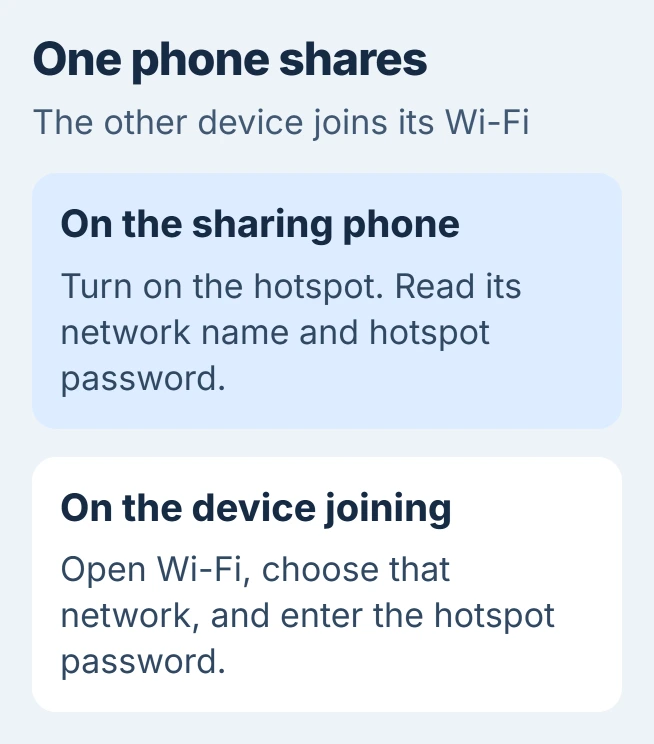
Switch on the phone's hotspot, choose its network in the other device's Wi-Fi list, and enter the hotspot password. Start with the phone that's sharing its internet so you can read the network name and password before joining.
The phone shares internet from its mobile plan. Your laptop, tablet, or second phone connects to it through Wi-Fi, so you'll use different settings on each device.
Prepare the phone that will share its internet
Check that the sharing phone can open a webpage using cellular data. If it can't, fix that connection first. The other device can connect to the hotspot and still have no internet if the phone can't get online.
Check that your mobile plan includes hotspot use before a laptop downloads updates through your phone. Google says carriers can limit this kind of sharing, also called tethering, or charge extra for it.
Status: checked November 3, 2026. These are the current Apple, Google and Microsoft connection steps. Hotspot availability and data allowance depend on your carrier.
Keep the devices close together for the first connection. Have the sharing phone's settings open, unless its owner has already given you the hotspot name and password.
When the sharing phone is an iPhone
Open Settings > Personal Hotspot. On some iPhones, you'll find it under Settings > Cellular > Personal Hotspot. Switch on Allow Others to Join, then read the Wi-Fi Password on that page.
Leave that screen open until the other device connects. Apple says the hotspot uses the iPhone's device name; if several similar names appear, check Settings > General > About > Name, then return to Personal Hotspot.
If you can't turn the switch on, use the checks for a dimmed iPhone hotspot. Changing the password on your laptop won't help until the phone and plan let you turn sharing on.
When the sharing phone uses Android
Open Quick Settings with a downward swipe and tap Hotspot. Touch and hold that tile to see its settings, including the network name and password. Some phones show Set up Wi-Fi hotspot before those details.
On Pixel, the full route is Settings > Network & internet > Hotspot & tethering > Wi-Fi hotspot. Turn Use Wi-Fi hotspot on. Other manufacturers can use different labels for the same feature.
Google's Android hotspot instructions describe the Quick Settings route. If the tile is missing, use the Quick Settings edit control to add it or search Settings for hotspot.
Keep password protection enabled. Removing it isn't necessary for an ordinary connection, and anyone nearby who knows the network name could otherwise try to use your mobile allowance.
Join from a Windows laptop
Use the laptop's Wi-Fi controls to join your phone. The Windows Mobile hotspot page is for creating a network that other devices can join.
- In Windows 11, click the taskbar group containing the network, sound, or battery icons.
- Turn Wi-Fi on if needed, then open Manage Wi-Fi connections beside the Wi-Fi control.
- Select the hotspot name shown on the phone and click Connect.
- Enter the phone's hotspot password and choose Next. Wait for the network to show as connected.
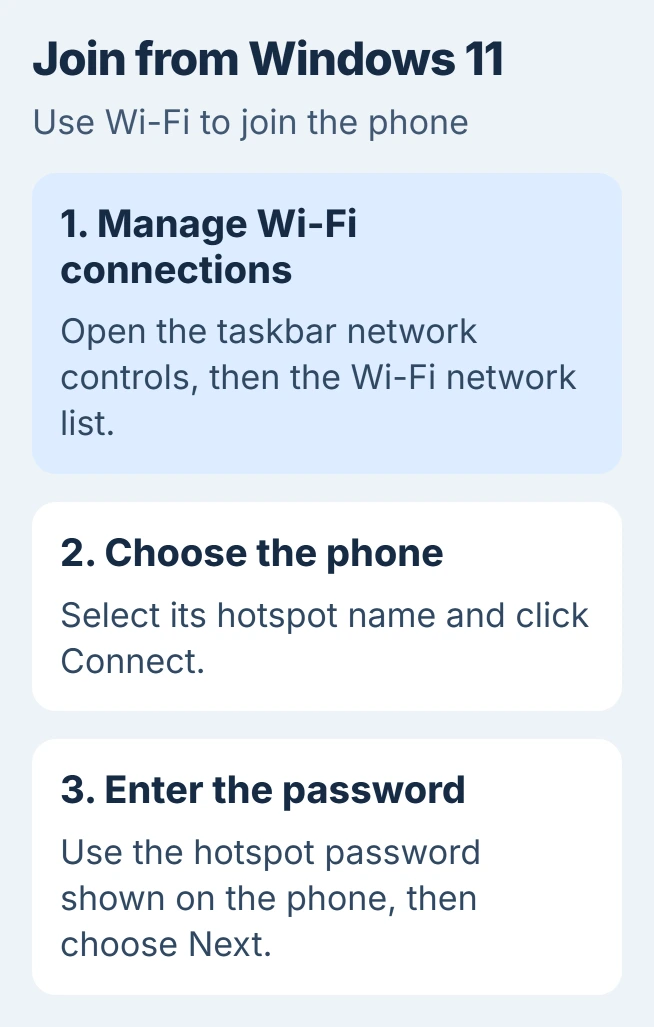
Microsoft documents the Windows steps in its Wi-Fi connection guide. On Windows 10, open the taskbar network icon, select the network, and follow Connect and Next.
Once Windows connects, open a new webpage. This checks that your laptop can reach the phone and the phone can reach the internet. Seeing a saved network name alone doesn't tell you whether either connection is working.
If you only connect the laptop to your phone occasionally, I'd leave automatic connection off. That avoids joining the phone unexpectedly when another connection disappears.
Join from a Mac, iPad, or another phone
On a Mac, open Wi-Fi from the menu bar, Control Center, or System Settings. Select the hotspot's name and enter its password when asked. Wait for the connection before testing a webpage.
On an iPhone or iPad, go to Settings > Wi-Fi, tap the hotspot name, and enter its password. Apple's Personal Hotspot connection page describes both Mac and mobile-device routes.
On another Android phone, open its Wi-Fi network list. Pixel places this under Settings > Network & internet > Internet. Choose the sharing phone's hotspot and enter the password from that phone, not your home router's password.
Apple devices can also use Instant Hotspot if they meet Apple's account and connection requirements. This can let you join without a password prompt, even though the network is password-protected.
For a friend's phone or a Windows laptop, use the ordinary name-and-password connection. You don't need to sign another person's Apple or Google account into the device just to join their Wi-Fi hotspot.
If the hotspot isn't listed or the password is refused
Read the hotspot name from the sharing phone and make sure sharing is still on. Refresh the other device's Wi-Fi list. On Windows 11, use Refresh network list to scan again if your hotspot hasn't appeared.
For an iPhone hotspot, stay on Personal Hotspot while trying the connection. Re-read the password there, including capital letters. The phone's unlock passcode and Apple Account password aren't the hotspot password.
If you connect successfully but the connection later drops, use the hotspot-disconnection checks. Those steps address a lost connection once you've already joined the right network.
If the hotspot won't turn on, ask your carrier whether the plan you're using supports it. If another device can join but your laptop can't, tell the laptop maker that and include the exact connection error.
Use a cable when the computer has no working Wi-Fi
For an iPhone and Windows PC, install the current Apple Devices app or iTunes, connect the phone by USB, and enable Allow Others to Join. Accept the phone's Trust prompt if it appears.
On Android, connect the USB cable to make USB tethering available. On Pixel, look under Network & internet > Hotspot & tethering. This has its own switch, separate from Wi-Fi hotspot.
Google's Pixel tethering page says Android USB tethering isn't supported with Mac computers. Use Wi-Fi for that combination instead of assuming any charging cable can provide internet.
When you're done, turn off the phone's hotspot or tethering switch. If you used a cable, unplug it too. That ends the connection so your computer won't keep using the phone's mobile plan.
The Short Version
Enable sharing on the phone, then join its network from the other device's Wi-Fi list. Use the hotspot password displayed on the sharing phone. Test a webpage after connecting, and stop sharing when you're finished.

Isaac Smith is the founder and editor of PC Glance, a website that covers computers, laptops, and technology. He is a tech enthusiast and a computer geek who loves to share his insights and help his readers make smart choices when buying tech gadgets or laptops. He is always curious and updated about the latest tech trends.