
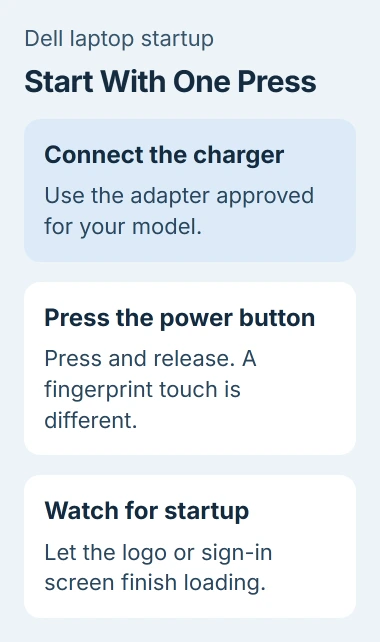
To turn on a Dell laptop, connect its charger, open the lid, and give the power button a brief press. Some models put a fingerprint reader in that button, so a plain-looking square near the keyboard may be the control you're looking for.
A new laptop can need its charger for the first start even when the battery has some charge. Once the Dell logo or Windows sign-in screen appears, stop pressing the button and let startup finish.
Find the button on your particular Dell
Check the keyboard's upper-right area and the strip around it. On some convertible laptops, the button sits along a side edge instead. The exact position depends on the model, so don't assume another Dell's layout matches yours.
A fingerprint reader built into the power button does two jobs. Press it to start the laptop; rest a finger you've already set up on the reader to sign in later. Just touching the reader won't press the button.
For example, Dell's Inspiron 15 3530 manual shows a power button with an optional fingerprint reader. That's the layout for this model; other Dell keyboards can differ.
If you still can't find the button, read the model name or Service Tag on the laptop's underside. Enter it at Dell Support to open the owner's manual, then look for Views, Top, or Set up your computer.
Look for the drawing that labels the laptop's outside controls. You don't need power-button replacement instructions just to find the button, so leave the case closed.
Connect the charger before the first start
Plug your laptop's supplied or approved charger into a working outlet. If the wall cord detaches from the adapter, seat it fully in the adapter. Then connect the charger's laptop plug to the charging socket.
An older Dell may have a round charging socket; another model may use USB-C. Check the charger against your laptop's specifications. A plug can fit without the charger being suitable.
I'd use the laptop's own adapter for this first start. That rules out an unsuitable phone charger, dock, or borrowed cable before you decide the laptop isn't responding.
Dell's 3530 setup instructions explain that the battery can enter a power-saving state. Connecting the adapter helps start the laptop from that state.
Look for visible damage to the cable and socket before plugging them in. A frayed lead or damaged plug needs replacement or repair; don't hold it at an angle to make the laptop start.
Press once, release, and watch the screen
With the lid open, press the power button, then release it. Watch for the Dell logo, keyboard lighting, a status light, or a change on the screen as your laptop starts.
Don't keep the button held while waiting for Windows. A long hold is used for forced shutdown or certain model-specific recovery procedures. It isn't the normal way to start a working laptop.
Your laptop doesn't have to make fan noise to start successfully. Watch the screen instead of waiting for a sound or expecting every keyboard to light up.
The Dell logo means the laptop has started. If an update appears next, keep the charger plugged in and follow the instructions on that screen instead of pressing power again.
If you've used the laptop before, startup normally takes you to your Windows account. Click or tap the lock screen if needed, then sign in using one of the options shown.
Finish setup on a new laptop
A brand-new Dell may show Windows setup instead of a desktop. Choose your region and keyboard layout, connect to your network when asked, and continue through the account and privacy screens.
Leave the charger plugged in throughout setup. Windows may restart the laptop as it makes changes; you don't need to press the power button to start setup again.
Read the account prompts before entering your details. Setup can differ on a personal laptop and one supplied by work or school. For a work or school laptop, follow its setup instructions and use your assigned account.
If you can see the Windows sign-in screen, the power button has done its job. If sign-in fails, give support the error message so they can help with your account.
Wake a sleeping laptop with a brief press
If you recently closed the lid, the laptop may be asleep. Open the lid and try a key or the touchpad. If it remains asleep, give the power button a brief press and release it.
Supported wake methods vary between computers. Some respond to a key or mouse; others need the power button.
If your open apps return, the laptop has woken from sleep. If it was fully shut down, it goes through startup first. Either route can ask you to sign in.
If the machine is already running but ignores a short press, check its assigned power-button action. Windows can be set to take no action when you press it.
Follow the response if startup doesn't finish
With no screen, lights, or other response, start the checks for a computer receiving no power. Keep the charger model and any charging-light behavior handy.
If the lights come on without a picture, check the display or startup. A stuck Dell logo means Windows hasn't loaded yet. Write down any repeated beeps or blinking lights exactly so you can describe them to Dell Support.
Give support your Service Tag and tell them what you last saw on screen. They can then decide whether to check the charger, test the display, or repair startup instead of assuming the power button is broken.
The Short Version
Find the button, connect the correct charger, and press briefly. Wait for setup or sign-in. If nothing responds, check the power supply; if an error appears, get help with that part of startup.
Checked November 4, 2026.

Isaac Smith is the founder and editor of PC Glance, a website that covers computers, laptops, and technology. He is a tech enthusiast and a computer geek who loves to share his insights and help his readers make smart choices when buying tech gadgets or laptops. He is always curious and updated about the latest tech trends.