
Hiding a photo on iPhone removes it from the normal Photos views and keeps it in the Hidden album. Touch and hold the picture, choose Hide, and confirm; then check that the album still requires Face ID, Touch ID, or your passcode to open.
The picture stays on your phone, so you can bring it back later. A separate setting removes the Hidden album itself from view without deleting its contents.
Move the selected pictures into Hidden
Open Photos and find the photo or video you want to hide. Touch and hold its thumbnail, tap Hide, then confirm when the message appears.
If the picture is already open, tap More, shown as three dots, then choose Hide. Check that the message asks to hide the item before you confirm.
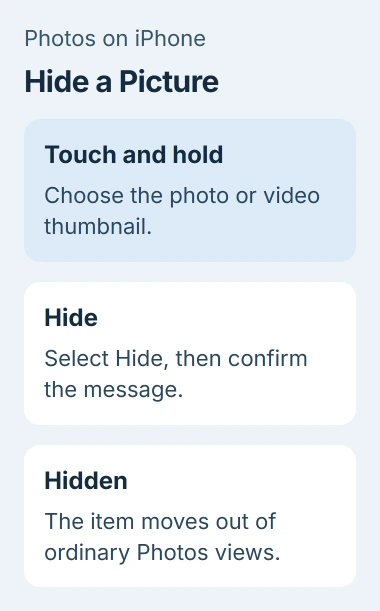
Apple's Hidden album instructions explain that hidden items leave the other Photos views, including ordinary albums and the Home Screen photo widget. The pictures stay in your library.
To hide several items together, open your library or the collection they're in. Tap Select, mark the photos and videos you want to hide, then choose More > Hide and confirm.
Check the marked thumbnails before confirming. It's easy to select a nearby screenshot or similar-looking photo by accident, and every selected item will disappear from normal browsing.
When you return to the library, the selected items should no longer appear there. If a similar picture remains, open it and check whether it's a different copy before repeating the action.
Open Hidden to check where the photos went
In current Photos layouts, tap Collections, find Utilities, and open Hidden. Tap View Album, then unlock it with Face ID, Touch ID, or your passcode as your iPhone asks.
If your older Photos layout doesn't have Collections, scroll to Utilities or look under Albums. You're looking for Hidden in either case; its location can differ between iOS versions.
Open a picture in Hidden to check that you moved the right one. You can come back here to view it without returning it to the main library.
If Hidden opens but is empty, it has no pictures to show. If you can't find the album at all, check whether its visibility setting is off or you're looking in the right part of Photos.
For a photo that disappeared before you used Hide, work through the missing-photo checks. That guide also covers other reasons a library can look incomplete.
Keep the album locked
Go to Settings > Apps > Photos and check Use Face ID, Use Touch ID, or Use Passcode, depending on the phone. Keep that protection turned on.
Apple says Hidden is locked by default on iOS 16 and later. If someone previously turned the setting off, hiding a picture alone won't turn it back on for you.
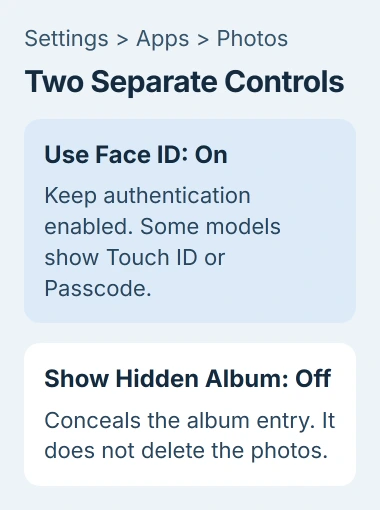
Hidden uses your phone's existing Face ID, Touch ID, or passcode, as shown in the Photos user guide. You don't create a separate password for this album.
Someone who knows your iPhone passcode may be able to open Hidden. If that matters to you, change who can use the passcode. Hiding the album doesn't give it a second password.
I'd check the lock before handing someone an unlocked phone to show them pictures. Moving photos out of the main grid and locking the album they move to are separate settings.
Remove the Hidden album from view
Return to Settings > Apps > Photos and turn off Show Hidden Album. If your Photos settings group album controls under Albums, open that group to reach the switch.
Return to Photos and check Utilities. Hidden should be gone from the list, but the photos are still saved inside it.
Show Hidden Album decides whether the album appears in Photos. The Face ID, Touch ID, or passcode setting decides who can open it, so keep that lock on even when the album isn't listed.
When you want to see those pictures, turn Show Hidden Album back on in Settings. Open Hidden in Photos and unlock it as usual. The pictures don't need importing again.
If the switch has a different name or location, find your iOS version in Settings > General > About. Give Apple Support that version when asking where to find the Photos control.
Know what changes on your other devices
With iCloud Photos on, hiding a picture also hides it across that library on your other devices. That means it won't stay in the normal photo grid on your iPad or Mac.
Hiding a photo doesn't free up storage. The file stays in Hidden, ready to return to the main library without downloading another copy.
For storage cleanup, use the separate photo deletion and iCloud checks. Decide whether you want privacy or removal before using the trash button.
Hiding a photo in Photos doesn't hide copies you've sent in messages, exported to Files, or saved in other apps. Check those copies too if the picture needs to stay out of casual view.
Put a hidden picture back when you're ready
Open Photos > Collections > Utilities > Hidden, tap View Album, and unlock it. Touch and hold the picture you want back in the main library, then tap Unhide.
If the picture is open, choose More > Unhide. For a group, tap Select, choose the items, then use More and Unhide. Check that the pictures have returned to your library.
If the picture is absent from both Hidden and the library, check Recently Deleted. Contact Apple Support if the controls are missing or the album won't unlock with the passcode your phone accepts.
The Short Version
Use Hide to move pictures out of normal browsing, then keep the album locked. Turn off Show Hidden Album to hide its entry too. Unhide returns pictures to the main library; hiding them doesn't delete them.
Checked November 4, 2026.

Isaac Smith is the founder and editor of PC Glance, a website that covers computers, laptops, and technology. He is a tech enthusiast and a computer geek who loves to share his insights and help his readers make smart choices when buying tech gadgets or laptops. He is always curious and updated about the latest tech trends.