
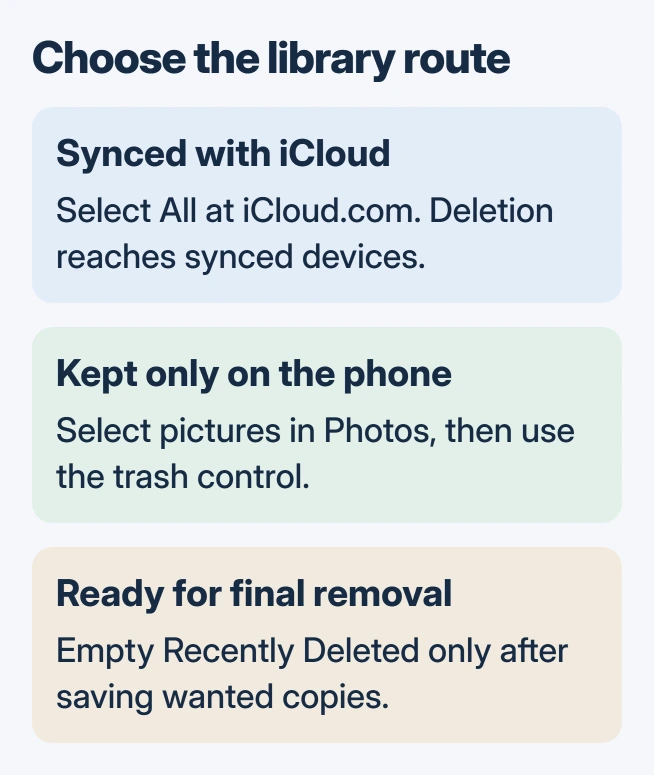
Deleting all photos from an iPhone depends on whether they sync with iCloud. Select a synced library in full at iCloud.com/photos. For pictures kept only on the phone, use Photos and swipe across thumbnails to select them.
With iCloud Photos enabled, deleting pictures also removes them from the other devices syncing that library. Make a separate copy of anything that should survive before selecting the whole collection.
Save a copy outside the library being deleted
Apple's photo archive instructions describe downloading pictures from iCloud.com or exporting them from Photos on a Mac. Keep that copy in a separate folder or drive, then open some files to check it.
On a Mac, select the pictures in Photos and use File > Export. A second device syncing that iCloud Photos library receives deletions too, so keep the export separate.
Status: Apple photo deletion, iCloud selection and archive guidance reviewed November 1, 2026. No library was accessed, exported or deleted for this article.
If the goal is extra phone space while keeping the pictures, use the iPhone photo-storage settings instead. Deleting a library is a different decision from reducing its local storage use.
Select the synced library at iCloud.com
Check Settings > your name > iCloud > Photos on the iPhone to establish whether Sync this device is enabled. Apple's iCloud Photos setup guide uses that label for the syncing switch.
Continue with the web method only for pictures present in that synced library. It cannot select photos that have not uploaded from the phone.
- Sign in at iCloud.com/photos with the iPhone's Apple Account.
- Open the photo library, rather than an individual album or a limited search result.
- On iPhone or iPad, tap Select > Select All. On a computer, press Command+A on Mac or Ctrl+A on Windows.
- Review the selected pictures, choose the trash control and confirm Delete.
Apple documents these platform-specific selection controls in its iCloud storage guide. After deletion syncs, the same items leave the iPhone library. Photos stored only on that phone need the device method.
Remove pictures directly in the Photos app
Open Photos and go to Library. Tap Select, then drag a finger across the thumbnails to mark multiple pictures. Continue through the collection until the intended items are selected, then tap the trash control and confirm.
Apple says this swipe selection is supported in its photo deletion instructions. For a large library, work in manageable selections so it is possible to review what will be removed.
A gray trash button can mean those pictures were synced from a computer. The photo-removal blocker guide explains how to remove that source instead of repeatedly selecting an undeletable album.
Decide whether to empty Recently Deleted
Normally, deleted photos remain recoverable for 30 days. To remove them permanently, open Photos > Collections > Utilities > Recently Deleted, tap View Album if shown and authenticate.
Tap Select, then use More > Delete All with no individual pictures selected. If a partial selection is active, tap Cancel, then Select again. Read the confirmation before accepting it; permanent removal cannot be undone there.
Apple states an exception to the recovery window: exceeding the iCloud storage limit can make deleted pictures disappear immediately. Do not use Recently Deleted as the only copy of something valuable.
For a library that still will not clear, tell Apple Support which selection method failed and whether the items came from a computer or a Shared Library. Preserve the exact message before trying further deletions.
The Short Version
Keep an archive first, then select synced pictures at iCloud.com or local pictures in Photos. Permanent removal is a separate step. With iCloud Photos, other devices receive the deletions too.

Isaac Smith is the founder and editor of PC Glance, a website that covers computers, laptops, and technology. He is a tech enthusiast and a computer geek who loves to share his insights and help his readers make smart choices when buying tech gadgets or laptops. He is always curious and updated about the latest tech trends.