
A Windows 11 PC lagging after a reset may still need updates and hardware drivers. Finish Windows Update and restart first. Then check the graphics driver if scrolling, video or games feel much worse than before.
Resetting reinstalls Windows, but it doesn't replace a slow drive or add memory. Think about whether the PC became slow after this reset or whether you're seeing the same slowdown you wanted to fix.
1. Finish the updates before judging the fresh installation
Open Settings > Windows Update and select Check for updates. Install the updates offered for your PC, then save open files and restart if prompted. Reopen Windows Update afterward to check its current status.
Downloading an update doesn't finish installing it. If Windows Update still asks for a restart, do that before comparing how quickly your apps open now with how they worked before the reset.
Microsoft recommends updates and optional drivers in its performance troubleshooting. That's especially useful when you're setting the PC up again after a reset.
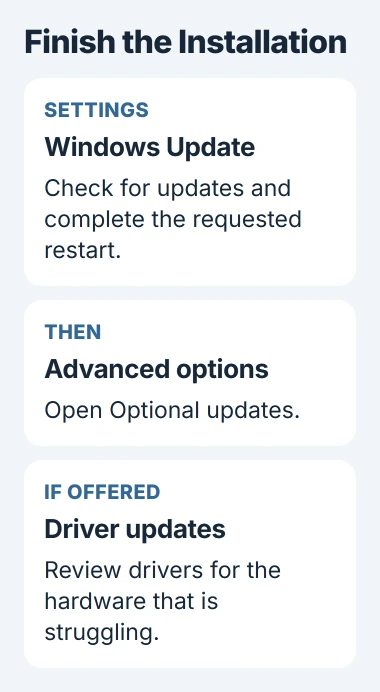
Next, open Advanced options > Optional updates. Expand Driver updates if you see it, and check for drivers for the hardware that's struggling. Windows doesn't install those automatically with your regular updates.
If Windows Update keeps showing an error, deal with it before resetting again. Use the Windows update installation checks for an update that has stalled; that's a different problem from a working but slow desktop.
Start these checks after the reset finishes and you can sign in. Don't force your PC off while it still shows reset progress, even if it pauses or the screen goes dark.
2. Replace a basic graphics driver when one is listed
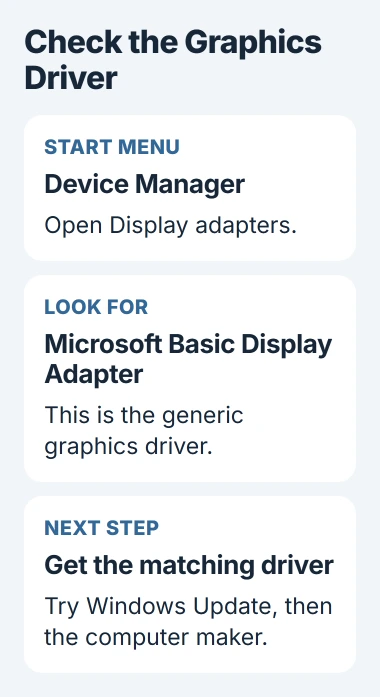
Right-click Start, open Device Manager, and expand Display adapters. Check each entry. If you see Microsoft Basic Display Adapter, Windows is using its general-purpose driver for that graphics device.
That driver can draw the desktop, but it isn't the same as the manufacturer's full graphics driver. The basic display adapter explanation describes the difference.
Try Windows Update first. If it can't find the driver, check your computer maker's support information for your exact model and Windows version. A laptop may need drivers for both built-in graphics and a separate graphics chip.
Use the driver installation routes to find the official driver instead of an unrelated updater app. Install the driver for your hardware, restart if asked, then check the adapter's name again.
Try scrolling a page, moving a window or playing the same video again. If those improve but copying files is still slow, the display is working better. You'll still need to check what's keeping the storage busy.
If Device Manager already shows the graphics hardware you expect, check what's keeping the PC busy next. You've ruled out the basic driver, though another driver could still have a problem.
3. See which job is keeping the computer busy
Press Ctrl+Shift+Esc to open Task Manager, then select Processes. While the lag is happening, sort by CPU, Memory and Disk in turn. Note which app or process keeps returning to the top.
CPU shows how busy the processor is, Memory shows the working space apps use, and Disk shows activity as files are read or written. Check all three rather than guessing from how loud the fan sounds.
If an update installer is running, let it finish, restart, then try the slow task again. The Windows Modules Installer explanation helps you recognize that entry in Task Manager.
If OneDrive is bringing files back, pause it and check whether the PC speeds up. Open the cloud icon's settings menu, select Pause syncing, and choose how long. Make sure OneDrive shows it's paused before repeating the slow task.
Use Resume syncing afterward. The pause and resume controls let you make this comparison without unlinking the account or deleting its folders.
If your desktop responds faster while syncing is paused, the file transfer is keeping the PC busy. Let it finish when convenient. If the pause makes no difference, resume syncing and check the process that stays busy.
Don't stop an unfamiliar system process just because its usage is high. Note its name first. Interrupting a maintenance task can leave the setup unfinished and the cause of the slowdown unchanged.
4. Compare the desktop before restored apps take over
Think about when the slowdown returned. If Windows ran smoothly just after the reset but slowed down when you reinstalled your usual apps, check those apps first.
In Task Manager, open Startup apps. Turn off automatic startup for optional apps you don't need when you sign in, then restart and compare. Keep your security protection and any hardware tools you rely on enabled.
This doesn't uninstall the apps. Open them manually one at a time and notice when the lag returns. That gives you a more useful result than removing everything and wondering which change mattered.
I'd keep a short list of what you restored and when the machine slowed down. Then you can tell support which app you added before the lag returned, instead of just saying the fresh installation feels slow.
Your reset choices also affect which apps come back. The reset options can restore the changes your PC maker made, including its apps. Check what's installed now.
5. Check what the reset couldn't change
Open Task Manager > Performance and select the system disk, then Memory. Note the drive type and installed memory. Compare those details with the workload you're trying to run.
If your PC was slow before the reset and still runs short of memory or keeps the drive constantly busy, resetting again won't give you more memory or a faster drive. Use the general slow-PC checks to decide what to check next.
Also open Settings > System > Storage. Restored files and newly installed apps can fill your drive again. Look through the large files and temporary-file categories before choosing what to remove.
If your PC still lags, run the maker's diagnostic checks. Tell support how you reset it, your model and Windows version, and what Task Manager shows while it's slow.
If the drive reports errors or freezes during simple file operations, back up your files before more repairs. Ask the computer maker or a repair technician to check storage before attempting another reset.
The Short Version
Finish updates and replace a basic graphics driver if one is listed. Use Task Manager to check busy apps, sync work and memory use. Compare restored apps, then request hardware checks if the fresh installation stays slow.
Checked November 4, 2026.

Isaac Smith is the founder and editor of PC Glance, a website that covers computers, laptops, and technology. He is a tech enthusiast and a computer geek who loves to share his insights and help his readers make smart choices when buying tech gadgets or laptops. He is always curious and updated about the latest tech trends.