
A Lenovo ThinkPad keyboard that stops typing may be blocked by a Windows setting or a driver problem. Restart and check Filter Keys first, then try the keyboard in the startup settings to see whether it also fails outside Windows.
Keep a USB keyboard handy if you have one. If you don't, the on-screen keyboard lets you sign in and reach the settings while you work through the checks.
1. Restart and get a way to type
Save your work, then use the mouse or touchpad to choose Start > Power > Restart. This reloads Windows and its device software, so it's a useful first check if your keyboard stopped working after sleep or docking.
Disconnect the dock and any external keyboard for this test. Try the built-in keyboard after the restart. If it works on the laptop alone but fails again with the dock connected, follow the ThinkPad dock checks.
At the sign-in screen, click Accessibility near the lower-right corner and turn on On-Screen Keyboard. Click its keys with the mouse to enter your password or PIN.
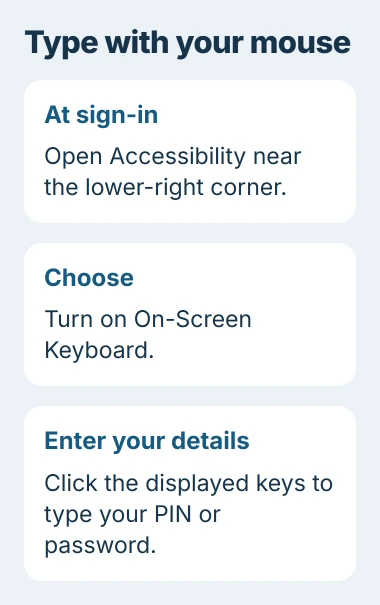
After signing in on Windows 11, open Settings > Accessibility > Keyboard and enable On-Screen Keyboard. Windows 10 puts the setting under Settings > Ease of Access > Keyboard.
Follow the on-screen keyboard instructions to type with a mouse; you don't need a touchscreen. A USB keyboard can also get you through these steps while the built-in keys aren't working.
2. Turn off Filter Keys if short presses disappear
Open Settings > Accessibility > Keyboard in Windows 11. Find Filter keys and switch it off for a typing test. In Windows 10, use the Keyboard page under Ease of Access.
Filter Keys changes how Windows handles quick or repeated key presses. It can make working keys seem broken, especially if holding a letter types it but a quick tap does nothing.
Open Notepad and type a short line using several letters. If quick taps work now, Filter Keys was ignoring those presses. Check its shortcut options if the same problem keeps coming back.
Sticky keys is different: it lets you press shortcut keys one at a time, such as Shift followed by a letter. Turn it off if Shift or another shortcut key seems to stay active after you release it.
Lenovo recommends both checks in its ThinkPad keyboard troubleshooting. If they don't help, check whether the keys type the wrong characters or don't type anything.
3. Correct the layout if the wrong characters appear
If pressing a key types the wrong symbol, the keyboard is still responding. Check the taskbar's language indicator and choose the layout that matches your keyboard, such as US or United Kingdom.
In Windows 11, open Settings > Time & language > Language & region. Open the options for your installed language, then check the keyboards listed there. Keep the layout you actually use and remove an accidental extra layout if needed.
Try the keys that typed the wrong characters, especially quotation marks and symbols near Enter. If they now match the labels on your keys, the layout was the problem and you don't need to change the driver.
If only the function keys fail, check your model's key symbols and Fn settings. A brightness or microphone shortcut that doesn't work needs different checks from letter keys that won't type.
4. Check whether it responds before Windows loads
Restart the ThinkPad and press F1 repeatedly at its logo to open the startup settings, sometimes called UEFI BIOS. If your model first shows a prompt to interrupt startup, follow that prompt.
Firmware is your laptop's startup software, separate from Windows. Use the built-in keys to move around its menu without changing any settings, then choose the option to discard changes when you exit.
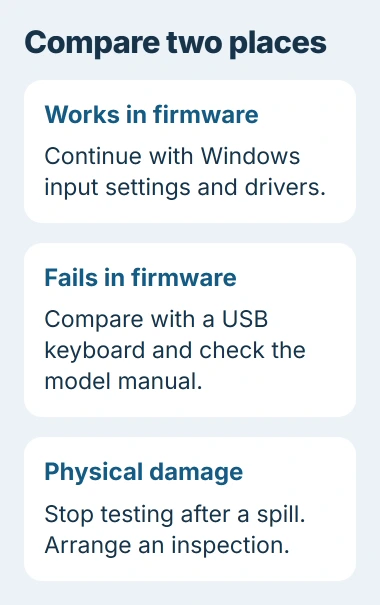
If the built-in keys work in that menu but not in Windows, try the driver and update checks next. If a USB keyboard works in the same menu but the built-in one doesn't, changing the Windows layout probably won't help.
If you miss the startup prompt once, try again using your model's manual; that alone doesn't mean the keyboard is broken. You can also open the menu with a USB keyboard, then compare how both keyboards work there.
I'd make this comparison before removing drivers. It helps you decide whether to keep checking Windows or arrange a hardware inspection, without opening the laptop.
5. Reinstall the keyboard device and check updates
With a mouse or working keyboard, open the Start button's right-click menu and choose Device Manager. Expand Keyboards, open the built-in keyboard's Properties, and read Device status on the General tab.
Unplug extra keyboards so their entries don't get in the way. If you still can't tell which entry is the built-in keyboard, use your model's support information to identify it before uninstalling anything.
If that keyboard's status shows a problem, right-click its entry and choose Uninstall device. Restart Windows so it can detect the keyboard again, then try typing before making another change.
Next, open Lenovo Vantage. In the device area, choose System Update > Check for updates to see what's available for your ThinkPad. The menu wording may differ in your edition of Vantage.
Install the updates for the affected device and restart when asked. The general Windows driver guide explains why an update chosen for that device helps more than a program that replaces all your drivers at once.
If Vantage offers a firmware update, follow its power instructions and let it finish. Try the keyboard again afterward so you know whether that update helped.
6. Arrange service for damage or failed keys
Several dead keys together, keys that stick, or failure in the firmware menu can mean a keyboard or connection fault. Note which keys fail and whether an external keyboard works so you can tell the repair technician.
After a spill, turn the ThinkPad off, unplug the charger and arrange an inspection. Leave it off instead of repeatedly powering it on to test the keys while it's wet.
If a dry laptop still fails, give Lenovo support the ThinkPad model and serial number. A USB keyboard can keep you working while they check the warranty and the replacement procedure for that model.
The Short Version
Restart without the dock, check Filter Keys and confirm the layout. Compare the built-in keyboard in firmware and Windows before reinstalling its device. Keys that also fail outside Windows need a hardware check, especially after damage.
Checked November 4, 2026.

Isaac Smith is the founder and editor of PC Glance, a website that covers computers, laptops, and technology. He is a tech enthusiast and a computer geek who loves to share his insights and help his readers make smart choices when buying tech gadgets or laptops. He is always curious and updated about the latest tech trends.