
A stuck HP Wi-Fi button doesn't always stop you from connecting. Check Airplane mode and the Wi-Fi switch in Windows first to see whether the keyboard button or the adapter needs attention.
An orange light doesn't tell you everything. HP models use different keys and lights, and some lights cover several wireless devices at once. Watch what changes in Windows when you press the key.
1. Switch Wi-Fi on from Windows
Open Settings > Network & internet in Windows 11. Turn Airplane mode off, then open Wi-Fi and turn it on. In Windows 10, you'll find these pages under Settings > Network & Internet.
If Wi-Fi appears and stays on, open the list of available networks. Choose yours and enter its password. If it connects, you can use Wi-Fi and deal with the keyboard shortcut separately.
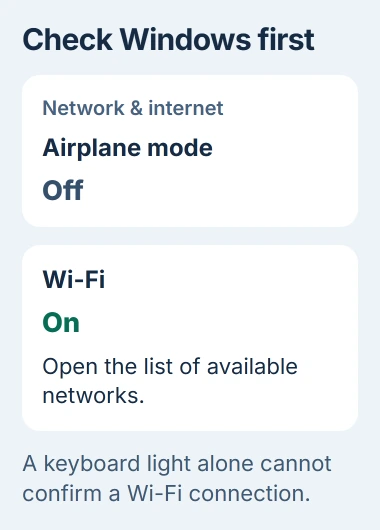
If Wi-Fi is missing entirely, continue to Device Manager in step 3. If it switches itself off again, note whether Airplane mode also changes. That result is more useful than repeatedly pressing the wireless key.
If other networks appear but yours is missing, your laptop is detecting Wi-Fi. Check that your router is available and uses a band your laptop supports. The wireless button isn't preventing it from seeing networks.
If your network shows No internet, Wi-Fi has connected. The problem is getting online through that network, so pressing the wireless button again won't fix it.
2. Match the wireless key to your HP model
Look for a wireless or airplane symbol on your keyboard. Older notebooks may have a separate switch. Match the symbol to your model's manual, since HP doesn't use the same function key on every laptop.
That button turns wireless connections on or off; it doesn't choose a network for you. You'll still need to pick your network in Windows.
HP lists F12 as the wireless and Airplane mode key in this notebook manual. With Action Keys mode turned off, you need to hold Fn while pressing it.
Press the identified key once and watch Windows' network settings. If your model needs Fn for that function, hold Fn while pressing that key. Stop toggling once Airplane mode is off and Wi-Fi is on.
You can try the Fn combination without changing the laptop's BIOS settings. Leave the keyboard mode as it is and watch whether the matching Windows setting changes.
On some older HP models, amber means all wireless devices are off. White can mean that just one is on, including Bluetooth. Check your network connection in Windows even if the light is white.
If Windows connects but the keyboard light doesn't change as you'd expect, make a note of it. The shortcut or light needs checking; Windows has already found and used the Wi-Fi adapter.
I'd use the Windows switch to get connected first. Then the key can be checked without interrupting a working connection every few seconds.
3. Enable the wireless adapter if Windows disabled it
Right-click Start, choose Device Manager, then expand Network adapters. Look for an adapter whose name mentions wireless or a Wi-Fi standard. The Ethernet and Bluetooth entries are for other connections.
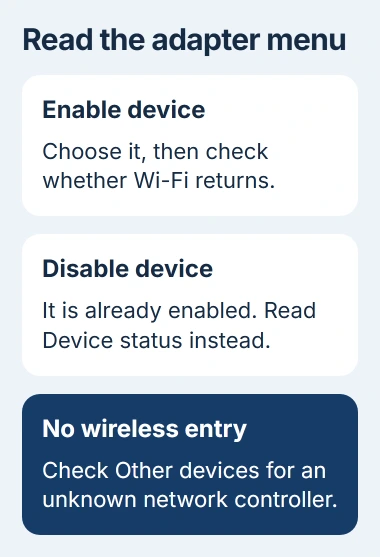
Right-click the identified Wi-Fi adapter. If the menu offers Enable device, choose it. Return to Settings and check whether the Wi-Fi control and nearby networks have appeared.
If the menu instead offers Disable device, the adapter is already enabled. Leave it enabled and open Properties to read Device status. Copy any error code before moving to the driver checks.
The Device Manager error-code guide explains numbered warnings. The fix depends on whether Windows disabled the device, its driver can't start or the hardware is missing.
If the wireless adapter isn't listed, look for an unidentified network controller under Other devices. Missing software can prevent Windows from showing the expected Wi-Fi name and switch.
Don't remove unrelated adapters to tidy the list. Keep Ethernet available if you're using that connection to download the wireless driver.
4. Restart the service that manages Wi-Fi
Windows uses WLAN AutoConfig to manage wireless network connections. A problem with this service can leave the Wi-Fi controls unavailable even though the laptop has wireless hardware.
Microsoft lists restarting it among the checks for a missing Wi-Fi option. Press Windows + R, type services.msc, and press Enter.
Find WLAN AutoConfig, right-click it and choose Restart. If it isn't running and the menu offers Start, try that instead. Check the network list again after the service starts.
If the service won't start, write down the error. If IT manages your work or school laptop, send them that message before changing service settings. Their rules may control how the laptop connects wirelessly.
A normal laptop restart is also useful if the controls have become stuck. Save your work and choose Start > Power > Restart, then check the Settings switch before testing the physical key again.
5. Repair the driver with a replacement ready
If the adapter reports an error, or the trouble began after an update, get the Wi-Fi driver for your exact HP product number and Windows version. Laptops in the same family can have different wireless hardware.
Use HP's official support download for that product, or a driver offered through Windows Update. The driver-source guide explains how to avoid choosing software just because its name looks similar.
Save the installer on your laptop or a USB drive before uninstalling the adapter. If Wi-Fi is your only connection, use another computer to download it. That way, you can finish the repair without internet access.
Open the adapter's Device Manager menu and choose Uninstall device. Follow the removal prompt, then restart. Windows tries to put the adapter back; run your saved HP installer if you still don't have a working driver.
Check for nearby networks once installation finishes. If they return, connect and test a page. If the adapter still reports an error, keep its exact code for HP support instead of repeating the same reinstall.
6. Leave a network reset until the simpler checks fail
Save Network reset until the switch, adapter, service and driver checks haven't helped. It removes and reinstalls network adapters with default settings, so you may need to set up VPN software or virtual networks again.
In Windows 11, open Settings > Network & internet > Advanced network settings > Network reset. In Windows 10, open Network & Internet > Status > Network reset. Select Reset now, confirm, and let the computer restart.
Reconnect afterward and check the Wi-Fi control and wireless key. If the adapter is still missing, or Wi-Fi works but the key does nothing in Windows, tell HP those results and your full product number.
A reset won't tell you which part needs replacing. HP can check the switch, keyboard and wireless card with its diagnostic tools or inspect the laptop, especially if the trouble started after damage or a repair.
The Short Version
Turn Airplane mode off and Wi-Fi on in Windows, then try your HP key with Fn if needed. If Wi-Fi is missing, check the adapter and service. Save the matching driver before uninstalling anything; leave Network reset until last.
Checked November 4, 2026.

Isaac Smith is the founder and editor of PC Glance, a website that covers computers, laptops, and technology. He is a tech enthusiast and a computer geek who loves to share his insights and help his readers make smart choices when buying tech gadgets or laptops. He is always curious and updated about the latest tech trends.