
An HP laptop joins Wi-Fi through Windows: switch Wi-Fi on, choose the network name and enter its Wi-Fi password. The keyboard's wireless key only controls the radio; it doesn't choose the network or enter the password for you.
Use the Windows 11 or Windows 10 steps that match your screen. A missing Wi-Fi control and a rejected password need separate checks, while Connected, no internet means the laptop has joined the network but can't get online through it.
Gather the Wi-Fi name and current key
Find the network name you want to join. It may be printed as Wi-Fi name or SSID on a home router's label. Use the current name if someone changed it after the router was installed.
The password is the Wi-Fi or wireless security key, not your Windows sign-in PIN. The password for changing router settings is separate too. Don't assume any password printed on the label will connect your laptop to Wi-Fi.
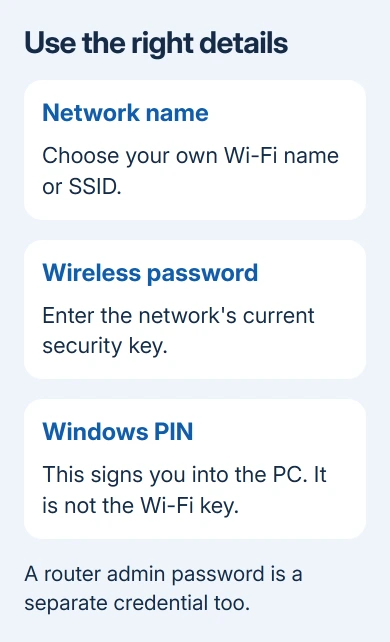
At work, school or a hotel, ask the network operator for the approved network and sign-in method. Some managed networks use an account, certificate or setup instructions instead of a shared home-style Wi-Fi password.
Make sure you're within range of the router before beginning. If two similar names appear, confirm which one belongs to your network. A strong signal from a neighboring network doesn't mean that's where you should enter your password.
For a home router with a label, check capitalization carefully and distinguish similar characters. Enter the password as written. If it was changed, request the current wireless key from the router owner.
Join the network in Windows 11
Select the group of network, sound or battery icons beside the clock. This opens Quick Settings. Check that Airplane mode is off, then turn Wi-Fi on if its tile is currently off.
Open the available-network list using the control beside the Wi-Fi tile. The main tile turns Wi-Fi on or off; the control beside it opens the list of networks. Clicking the tile repeatedly won't select your router.
Select your network's name, then choose Connect. Select Connect automatically if you want the laptop to rejoin this network whenever it's in range. Leave it unselected for a one-time connection if you prefer.
Type the Wi-Fi key, then choose Next. Wait for Windows to complete the connection. The network should change to a connected state rather than repeatedly asking you to enter the key.
The same connection can be managed through Settings > Network & internet > Wi-Fi. That's useful when Quick Settings looks different after a Windows update or you're more comfortable following a named settings page.
Open a normal website once the connection finishes. Seeing a network in the list only means your laptop can detect it. Check for both a connected status and a page that loads: you need to know you've joined Wi-Fi and can get online.
Microsoft says the connection instructions cover Windows 10 and Windows 11. They apply to HP laptops too: Windows selects the network, while the HP key controls its radio.
Use the Windows 10 network menu
Select the Network icon near the clock. Depending on the current connection, it can look like a disconnected network symbol or a wireless signal icon. Open the hidden notification icons if necessary to find it.
In that panel, enable Wi-Fi and disable Airplane mode. Choose the correct network name and select Connect. Enter its password, select Next, then wait for the connected status.
Windows 10 may ask whether the PC should be discoverable by other devices on the network. Choose No for a public network. Use Yes only for a trusted private network where you want to share with other devices.
The settings route is Settings > Network & Internet > Wi-Fi. Windows 10's capitalized Internet and its separate network flyout differ from Windows 11, but the network name and password you need are the same.
Windows 10 stopped receiving regular free support on October 14, 2025. Wi-Fi still works, but check security-update coverage separately. Connecting to Wi-Fi doesn't tell you whether the PC has its security updates.
Use the HP wireless key only when Wi-Fi is off
Some HP models put a wireless control among the function keys; other models use a different arrangement. Match the wireless or airplane symbol to your model's user guide instead of assuming every HP uses the same F-key.
Use that key once while watching the wireless settings in Windows. Your keyboard may require Fn as well. After Airplane mode reads off and Wi-Fi reads on, reopen the network list.
The key's light can show the state of the wireless devices without telling you whether you're online. Don't use a light by itself to decide that the laptop joined your router. Check the named network in Windows.
If the key doesn't respond or Windows has no Wi-Fi control, use the HP wireless-button checks. That guide handles the adapter and key repair, which is different from entering the right network details.
Match a failed connection to its next step
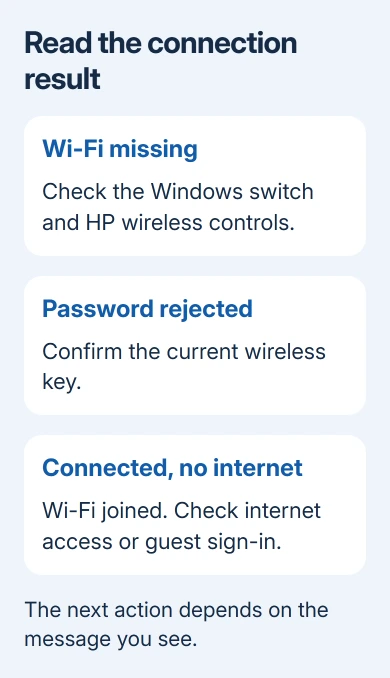
When only your network is missing, move closer and confirm the router is broadcasting. Can another device see it? If the network is hidden on purpose, you'll need its exact name and security details from whoever manages it.
For a hidden network, use Wi-Fi > Manage known networks > Add network in Settings. Save its exact name, security type and credentials. Ask the operator for these details instead of guessing or disabling security.
If Windows rejects the password, check the key before changing the laptop's wireless driver. If the router password recently changed, open Manage known networks, select the saved network and choose Forget, then join again with the new key.
If your laptop still fails to connect while other devices connect successfully, follow the laptop-only connection checks. Once the network is visible, retrying the wireless key won't resolve every joining failure.
For Connected, no internet, try the same Wi-Fi on another device. If both fail, check the router and provider. If only the HP fails, use the laptop-specific guide instead of changing the shared password.
Finish public-network sign-in and get the right help
A hotel or guest network can connect first and then require a separate sign-in page. Follow Windows' sign-in notification or open the browser and complete the network operator's expected access screen.
That screen may ask for a room code, voucher or agreement to its terms. If it never appears, ask the venue how to open its portal. Don't accept a certificate warning or install an unexpected security tool just to get online.
I'd test one ordinary page after the portal reports success. That checks whether you can actually get online. The Wi-Fi icon doesn't show whether the guest sign-in is finished.
For a managed network, send its administrator the network name and the exact connection error. For a missing adapter, ask HP Support for driver or hardware checks using your laptop's product number and Windows version.
The Short Version
Enable Wi-Fi, choose your network and enter its current key. The HP wireless key controls the radio. A missing switch, refused password and connected-without-internet message each need their own next step.
Checked November 10, 2026.

Isaac Smith is the founder and editor of PC Glance, a website that covers computers, laptops, and technology. He is a tech enthusiast and a computer geek who loves to share his insights and help his readers make smart choices when buying tech gadgets or laptops. He is always curious and updated about the latest tech trends.