When Windows 11's Wi-Fi switch is missing or won't respond, check the wireless adapter. Turn off Airplane mode, check the laptop's wireless control, then check Device Manager for a disabled adapter and enable it.
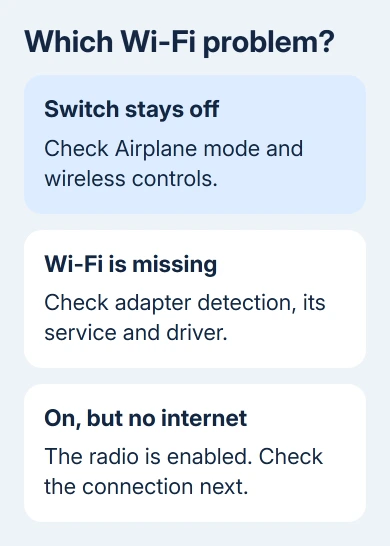
If the switch stays off or Wi-Fi is missing, check the wireless radio, its Windows service, and its driver. Wi-Fi that's on but can't join a network is different: it's already enabled and needs connection troubleshooting.
In this guide
1. Turn off Airplane mode and check the wireless control
Open Settings > Network & internet > Airplane mode and turn Airplane mode off. Return to Network & internet > Wi-Fi, if that page exists, and try turning Wi-Fi on again.
If the switch stays on and available networks appear, the radio is working. Select your network and connect. A password rejection at that point calls for connection checks, rather than more attempts to enable the adapter.
Look for a physical radio switch or a wireless key on models that provide one. The control varies by manufacturer; look for the radio or airplane symbol and use the laptop's manual for the correct key combination.
For an HP laptop, the HP wireless-button guide explains why the key and its light need checking against the model. Don't assume one light color means the same thing on every laptop.
On a desktop PC, check that the computer actually has a Wi-Fi adapter. An Ethernet socket doesn't provide wireless networking. A compatible USB Wi-Fi adapter is one option when the PC has no built-in wireless hardware.
If Wi-Fi turns itself back off, or Wi-Fi is absent from Settings, restart Windows once through Start > Power > Restart. Then continue to Device Manager if the same symptom remains.
2. Check whether Windows disabled the wireless device
Right-click Start and select Device Manager. Expand Network adapters and look for the wireless device. Names often include Wireless, Wi-Fi, WLAN, or 802.11, along with a manufacturer name.
Right-click the wireless device. If Enable device appears, select it and return to Settings to try Wi-Fi. If Disable device appears instead, Windows already has it enabled; the missing Enable command isn't a fault.
Microsoft documents enabling the adapter and restarting its service in its missing Wi-Fi instructions. Neither action requires changing the router's wireless password.
Open the adapter's Properties and read Device status on the General tab. Write down an error code if there is one. Support can use that code to narrow down the problem instead of working only from a missing taskbar button.
If no wireless device appears, check for an Other devices category containing an unidentified network controller. That can need a driver. A missing wireless listing can also mean the computer isn't detecting the hardware.
For a USB adapter, plug it into a different USB socket without a hub and check Device Manager again. If it's still absent, keep the exact model ready for the driver and hardware checks in the later sections.
3. Restart the service that manages wireless networks
Press Windows + R, type services.msc, and press Enter. Find WLAN AutoConfig, the Windows service that manages wireless connections. Right-click it and choose Restart if it is running.
If the service is stopped, open its properties and try Start. On a personal PC where it was disabled, restore its normal Automatic startup setting and apply the change. A work PC may need the administrator to change it.
Return to Settings > Network & internet and check for Wi-Fi. If the list of networks returns, try a connection. That result points to the service rather than a forgotten network password.
If the service won't start, keep its exact error message. Repeatedly clicking Start won't explain a dependency or policy error. Send that message to IT on a managed PC, or include it in the Get Help request at the end.
4. Return to the previous driver after a bad update
In Device Manager > Network adapters, open the wireless adapter's Properties > Driver. If the problem started with a new driver, look for Roll Back Driver. If it's available, select it and work through the prompts.
Restart afterward, then test the Wi-Fi switch. A successful rollback means the previous driver works with this setup. Keep the driver name and version so the laptop maker can check the update that caused trouble.
If rollback isn't available, check Settings > Windows Update > Advanced options > Optional updates for a suitable driver while using another internet connection. The PC or adapter maker can also provide a model-specific package.
I'd prepare that package before removing anything. Use the affected computer's exact model and Windows 11 support page, even when borrowing a different computer to download the file.
5. Reinstall the wireless driver with a replacement ready
Download the correct driver first, over Ethernet, or transfer it from a second PC by USB. Save it locally. Removing the only working driver package without a replacement can leave the computer without a way to reconnect.
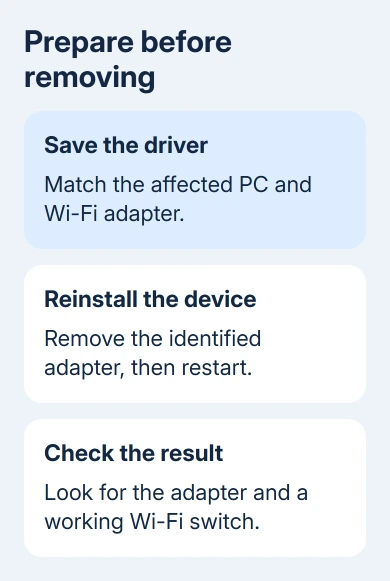
In Device Manager, open the wireless adapter's right-click menu and select Uninstall device. Confirm the removal, then restart Windows. If you choose to delete the stored driver package, have the downloaded installer ready.
Windows tries to reinstall the device after restart. If the adapter or Wi-Fi switch doesn't return, install the package you prepared and restart when asked. Check the adapter's status and the switch again.
Use the offline network-driver instructions if the device keeps reporting an error. You're better off getting the driver for your exact model or having the hardware checked than trying random packages with similar names.
6. Use Network reset after the adapter checks
Open Settings > Network & internet > Advanced network settings > Network reset. Read the confirmation before choosing Reset now. This removes and reinstalls network adapters and restores their settings to defaults.
Keep network passwords available, and be ready to configure VPN clients and virtual switches again. Network reset can affect those connections too, so leave it until the simpler adapter and service steps have failed.
Follow the restart prompt. After signing in, check whether Wi-Fi stays on and networks appear. If it does, reconnect and test an ordinary website. If the device is still absent from Device Manager, another reset isn't the next useful step.
7. Get the missing device or repeated error checked
Open Get Help and describe the missing switch, Device Manager status, and WLAN service result. For a work PC, send those results to IT and ask if wireless use or driver installation is restricted.
If the adapter stays missing, ask the maker to check its supported driver, the wireless setting in firmware (the PC's built-in setup), and hardware detection. Give your PC model, any error code and, on a desktop, the adapter's model too.
The Short Version
Check Airplane mode and the hardware wireless control, then enable the adapter and restart WLAN AutoConfig. Save a replacement driver before removing one. Use Network reset late; ask the maker to check a device that stays missing.
Checked November 13, 2026.