
An older Kindle may reject Wi-Fi that works on your phone because the network's band or security setting isn't supported. Check Airplane mode and the password first, then try a compatible 2.4 GHz connection on a model released before 2021.
These steps are for Kindle e-readers; Fire tablets use different menus. If your Kindle connects but won't accept your Amazon login, Wi-Fi is already working and it's the account access that needs checking.
1. Rejoin the intended wireless network
Move the Kindle near your router. From its Home screen, swipe down for Quick Actions, or open Menu on an older layout. Turn off Airplane mode if it's enabled.
Open Settings or All Settings, then Wi-Fi & Bluetooth or Wireless. Choose Wi-Fi Networks and select your network. Enter its Wi-Fi password and choose Connect.
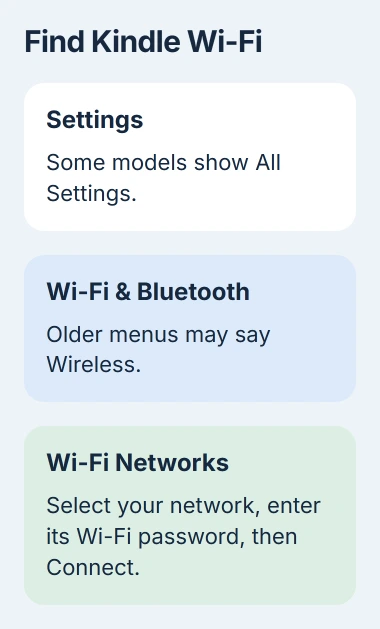
Use the password for the wireless network, not the password for your Amazon account. Check the characters as you enter them, especially if the router's printed label is small or the password has been changed since installation.
A hidden network won't appear in the list. Choose Other to add it manually with its exact name and connection details. Ask the router owner for those details if you don't have them.
Once you're connected, try downloading a book from your Kindle library to check internet access. If the network is missing or the password is rejected, check whether its settings work with your Kindle next.
2. Match the band and security to the Kindle
Amazon's Wi-Fi troubleshooting page says Kindles don't support 6 GHz Wi-Fi. Models released before 2021 also can't use 5 GHz or WPA3, a type of Wi-Fi security.
That's why your newer phone can connect to a router while an older Kindle can't. A working phone connection doesn't tell you whether the router's wireless settings suit the Kindle.
For an older Kindle, ask the router owner to provide a 2.4 GHz network with a supported security mode, such as WPA2. Keep a password on it; an open network isn't needed just to work around WPA3-only settings.
The Wi-Fi band comparison explains how 2.4 GHz and 5 GHz differ. Use the router's own instructions to check its settings, because menu names vary by model.
For a newer Kindle, check which bands your exact model supports before choosing 5 GHz. A model released after 2021 still won't necessarily support every feature on your router.
If this started after you replaced the router, tell its support team your Kindle model and the old and new network details. Resetting the Kindle repeatedly won't help if it can't use the network's settings.
3. Restart and compare a phone hotspot
Restart the Kindle. If it won't respond normally, press and hold Power for 40 seconds, then release it and allow the device to reboot. This is a restart, not a factory erase.
Restart your router and modem using their usual power controls, then wait two minutes before trying again. Don't press the router's factory-reset button; that can erase its saved internet settings.
Try that Wi-Fi on a second device, turning off cellular data during the comparison. If that device also can't get online, contact the internet provider or router owner rather than erasing the Kindle.
Next, try a phone hotspot configured with a band and security mode your Kindle supports. Our hotspot connection guide explains the network-name and password check on the phone.
With an iPhone 12 or newer providing the hotspot, turn on Settings > Personal Hotspot > Maximize Compatibility. Stay on that screen during the connection attempt; this setting helps older readers join.
If your Kindle works on the hotspot but not on home Wi-Fi, focus on the home network. You can use the hotspot for essential downloads while the router settings are checked.
If both networks fail, note whether the Kindle can't see them, rejects their passwords, or joins without internet. Those are different problems, and support needs to know which one you see.
4. Complete a public network's welcome page
Hotel, library and other public Wi-Fi sometimes needs a separate sign-in after you connect. You may need to accept its terms or enter an access code before downloads work.
If a welcome page doesn't appear, open the Kindle's browser and try a simple webpage. The network may then display its login page. Ask the venue for any required voucher, PIN or one-time code.
If the page won't load or work on your Kindle, ask the venue whether Kindles can use its Wi-Fi. Try your own phone hotspot if the venue's login page is stopping you from getting online.
That screen belongs to the network operator. Changing your Amazon password won't satisfy a hotel's separate access-code requirement.
5. Update the reader through a computer if necessary
When Wi-Fi won't deliver an update, use the manual Kindle update procedure. First identify the exact Kindle generation and compare it with the official software download list.
Open Kindle E-Reader Software Updates on your computer and download the file for your exact model and generation. Similar names can have different files, so matching only Paperwhite or Scribe isn't enough.
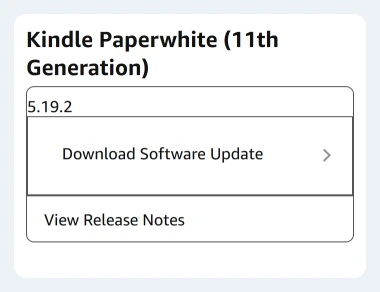
With your Kindle turned on, connect it to the computer using a cable that can transfer files. Copy the downloaded update to the Kindle drive, then safely eject it and unplug the cable.
A Kindle Scribe connected to a Mac may need additional transfer software. Follow its linked transfer instructions, and use Disconnect on the Scribe's screen when the transfer finishes.
On the Kindle, open Menu > Settings, open Menu again and choose Update Your Kindle. Confirm with OK. Let the update finish and the reader restart before trying the wireless connection again.
If Update Your Kindle isn't available, check that the file matches your model and that you copied it to the Kindle. Ask Amazon for help with that version rather than trying a file for another generation.
6. Consider a factory reset only after saving local content
Contact Amazon if the reader still can't connect to compatible networks after those checks. Give support the model, software version and hotspot result, including any error shown on the screen.
A factory reset erases your data and downloads, including anything that hasn't synced, and removes the Kindle from your account. Save anything that exists only on it before this last step.
To reset it, open Settings > Device Options > Factory Reset. Older layouts use Menu and Reset Device. Read the confirmation and choose Yes when you're ready to erase the Kindle and register it again.
If the Kindle still won't connect after a reset, tell Amazon Support. Erasing it again won't make its hardware work with an unsupported wireless mode.
The Short Version
Check the Wi-Fi password and supported network settings. Try a compatible hotspot or finish the public network's sign-in. Update through a computer if needed, and save local content before a final reset.
Checked November 4, 2026.

Isaac Smith is the founder and editor of PC Glance, a website that covers computers, laptops, and technology. He is a tech enthusiast and a computer geek who loves to share his insights and help his readers make smart choices when buying tech gadgets or laptops. He is always curious and updated about the latest tech trends.