
The message that this PC doesn't currently meet Windows 11 system requirements can mean your hardware falls short or the result is out of date. Run PC Health Check first; if it passes after a hardware change, refresh Windows Update's check.
Checking for updates again won't add a feature your hardware lacks. But an old warning isn't a reason to replace a processor that now passes the compatibility check.
1. Get the specific result from PC Health Check
Search Start for PC Health Check, open the app, and select Check now in its Windows 11 section. Expand the results if needed and read each one, even if you've already seen the overall pass or fail.
If the app isn't installed, use the download link on the official eligibility-check page. Install it, then run the same check.
Note which check fails: processor, TPM, Secure Boot, memory, or storage. Each needs a different fix. Freeing space on your drive won't help a processor that doesn't meet the requirements.
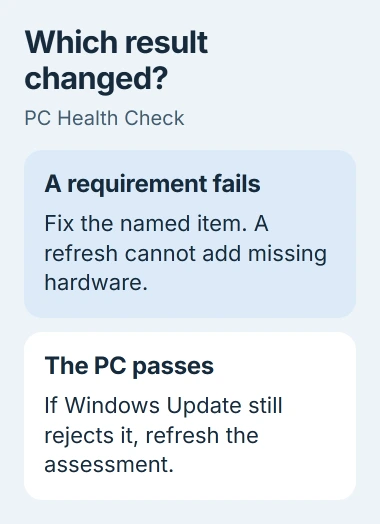
If everything passes but Windows Update still rejects your PC, skip to the refresh step. If the app shows a failed requirement, address that first, then run Check now again.
I'd save both results before changing anything. Screenshots show support which checks disagree, especially after replacing the motherboard or changing its built-in software, called firmware.
2. Check whether TPM 2.0 is available but disabled
TPM is a security component that can be built into your processor or motherboard. Windows 11 needs TPM 2.0. If Windows can't detect it, it may just be switched off, so you might not need to buy a separate TPM module.
Press Windows key + R, enter tpm.msc, and press Enter. In the window that opens, check Status and Specification Version. If the TPM is ready and its version is 2.0, it passes this part of the check.
If the window says a compatible TPM can't be found, check the PC maker's instructions for enabling it. Firmware may call the feature Intel PTT, Intel Platform Trust Technology, AMD fTPM, or a TPM security setting.
Back up your files and save the BitLocker recovery key outside this PC before changing firmware settings. Enabling TPM can trigger a recovery prompt. Leave the separate Clear TPM option alone; it removes stored security information.
Follow your PC maker's steps to turn TPM on. Once you're back in Windows, check tpm.msc again and rerun PC Health Check to see whether it now passes that requirement.
If your hardware only supports TPM 1.2, a Windows setting won't turn it into 2.0. Ask the manufacturer whether updating its built-in software or adding supported hardware can help before buying anything.
3. Match the remaining failure to its actual requirement
For a processor failure, compare your exact processor model with the supported list linked from the Windows 11 requirements. A fast processor with enough cores can still be unsupported.
For RAM, your PC's working memory, the minimum is 4 GB. Its storage drive must hold 64 GB or more. The upgrade also needs free space on that drive, which is different from its total capacity.
Your laptop's memory may be soldered in place, or its processor may not be replaceable on its own. Check what your model can accept before buying parts. A faster part that doesn't fit won't help.
For Secure Boot, open System Information by running msinfo32. Note BIOS Mode, then Secure Boot State. The PC must use UEFI, the newer startup system, and support Secure Boot.
The Secure Boot setup guide explains why a Legacy installation needs preparation before a firmware switch. Follow that route if this is the failed item, rather than changing unrelated boot settings.
The check can also flag graphics or display requirements. If either fails, save the app's exact wording for your PC maker. Passing the processor and TPM checks doesn't make up for a different requirement that fails.
4. Refresh an old Windows Update assessment
Use this step when your PC now passes after a hardware or firmware change. Microsoft says the wait for a refreshed result is up to 24 hours. You can also refresh it manually when the two checks disagree.
On the Windows 10 PC you're upgrading, open Task Scheduler from Start. Expand Task Scheduler Library, then Microsoft, Windows, and Application Experience in the left pane.
Select Microsoft Compatibility Appraiser, right-click it, and choose Run. Wait for its Status to return to Ready, using Action > Refresh to update the displayed status if needed.
If permission is denied, use an administrator account or ask the PC's administrator to run it. Alternatively, find Command Prompt in Start, select Run as administrator, and enter:
schtasks.exe /Run /TN "\Microsoft\Windows\Application Experience\Microsoft Compatibility Appraiser"This command runs the compatibility check; it doesn't install Windows 11 or skip its requirements. Let that check finish before looking at the result, without starting it again while it's still running.
Return to Settings > Update & Security > Windows Update. Select Check for updates, then compare the message with PC Health Check. This menu path and task name apply when you're checking a Windows 10 PC for the upgrade.
If you can't find that task or it reports an error, tell support what's missing or save the error message. Don't use an unrelated command you found online to create a replacement task just to clear the warning.
5. Separate hardware eligibility from an upgrade offer
Passing the hardware check doesn't mean Windows Update will offer the upgrade right away. It may still be held back to avoid compatibility problems, or it may not yet be available for your device.
An update that stops downloading needs different help from a PC that fails the hardware check. Use the Windows Update progress checks if your PC passes but the offered update stalls.
If PC Health Check still fails, repeating the scheduled check won't fix that requirement. Tell your PC maker which check failed and your exact model. For a work or school PC, ask IT how it can be upgraded.
If the results still disagree after the refresh finishes, send Microsoft support both screenshots, the hardware change, and any task error. Those details show them which checks disagree and what you've already tried.
The Short Version
Use PC Health Check to identify the failed requirement. Correct a supported setting or hardware issue first. When that app passes but Windows Update keeps its old warning, refresh the compatibility assessment and check again.
Checked November 4, 2026.

Isaac Smith is the founder and editor of PC Glance, a website that covers computers, laptops, and technology. He is a tech enthusiast and a computer geek who loves to share his insights and help his readers make smart choices when buying tech gadgets or laptops. He is always curious and updated about the latest tech trends.