
When Task View stops working after a Windhawk change, try Windows key + Tab, then pause Windhawk's mods and test again. If the shortcut works but the taskbar button is missing, check the mod changing that button's size or position.
There isn't one setting that fixes every Windhawk setup. A hidden icon, a frozen taskbar, and a desktop switcher that won't open need different checks, so compare the button with the normal shortcut first.
1. Try Task View without its taskbar button
Press Windows key + Tab once. Task View should show your open windows and virtual desktops. Virtual desktops let you group windows into separate workspaces on the same computer; you don't need extra monitors.
If Task View opens, close it with Esc and try the taskbar button. A missing button, or one that doesn't respond, can still leave Task View working. Keep using the shortcut while you check your taskbar settings and mods.
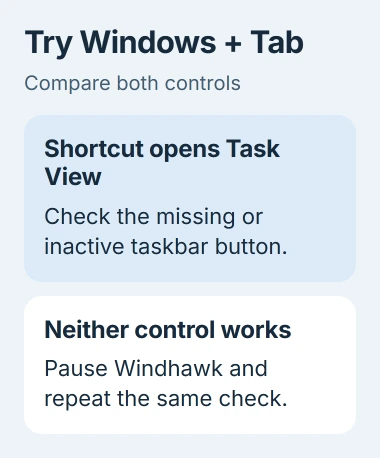
Check the standard button setting too: right-click an empty taskbar area, choose Taskbar settings, and turn Task view on under taskbar items. A mod can change the appearance further, but start with the Windows control enabled.
The multiple-desktop controls explain the normal view. If Task View opens but an app seems missing, check the window's other desktop before changing Windhawk.
If Windows key + Tab does nothing, try pressing the Windows key alone. When Start also fails to respond, the Windows key checks help separate a disabled keyboard shortcut from a Task View problem.
2. Pause Windhawk through its toolkit
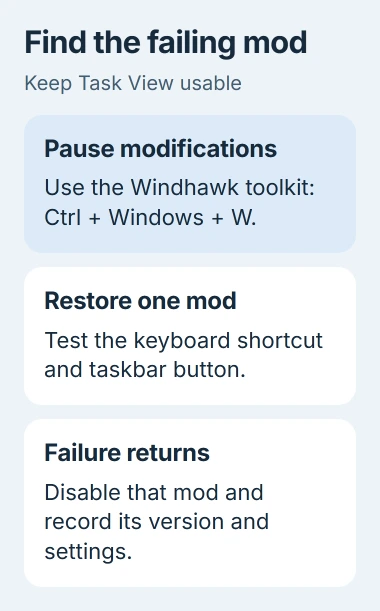
Press Ctrl + Windows key + W to open the Windhawk toolkit. This shortcut can open it even when you can't use the taskbar. Choose its option to restart Windhawk in safe mode.
Ramen Software describes this safe mode as a way to suspend Windhawk's activity. It pauses the changes made by mods while you check what's wrong. Windhawk's safe mode is separate from Windows Safe Mode.
Try Windows key + Tab again, then the taskbar button. If Task View comes back, keep the mods paused while you check which one caused the problem. Reinstalling Windows isn't a useful first step when pausing the mods helped.
If the taskbar is still stuck, save your work and let File Explorer finish copying or moving any files. Open Task Manager with Ctrl + Shift + Esc, find Windows Explorer under processes, and choose Restart.
Your desktop and taskbar can disappear briefly while Explorer reloads. Wait for them to return, then try Task View again. This reloads the desktop controls without restarting the whole PC.
If Task View still fails after restarting Windows with Windhawk paused, a mod may not be the cause. Tell support you've tried it with Windhawk paused and describe which shortcut or desktop control still doesn't work.
3. Find the mod that brings the problem back
Open Windhawk and note the enabled mods, especially those changing the taskbar, its buttons, or window switching. Disable those mods before leaving Windhawk safe mode, so they don't all resume together.
Leave Windhawk's safe mode, keeping those mods disabled. If Task View works, turn one mod back on, apply its change, and test both the shortcut and taskbar button again.
Keep going until one change brings back the failure. Disable that mod again and check that Task View works. Testing each mod separately helps you spot the one causing trouble.
A custom theme can affect this too. Save your settings first, then try the mod without your custom theme if it lets you. Note which combination brings back the problem.
I'd leave the troublesome mod off while checking for an update. You can keep using your desktop and the mods that work, while giving the developer a clear account of what went wrong.
4. Check a size of 16 if only the icon vanished
For the Taskbar height and icon size mod, one owner found that setting Icon size to 16 hid Task View. Changing it to 15 or 17 brought the icon back.
The report and developer reply cover a missing icon, not a failed Windows key + Tab shortcut. The developer couldn't make it happen on their PC, so try this only if your problem matches.
If you have that mod and its icon size is 16, open its settings and try 17. Apply the change, then inspect the taskbar and click Task View. If that doesn't help, restore your preferred value or leave the mod disabled.
A smaller value of 15 was the other reported working choice. You don't need to try unrelated sizes if your original setting wasn't 16 or if Task View fails through the keyboard as well.
If another mod moved the button, check that mod's settings and compatibility notes. Changing the icon size to this value won't fix every taskbar tool.
5. Match the mod to the Windows build and collect its log
Press Windows key + R and enter winver. Copy the Version and OS Build entries, including every digit. An update can change the parts of Windows a mod works with, so its developer needs the full build number.
Check the mod's description for supported Windows versions and update Windhawk if a newer release is offered. A mod can install successfully even when it was made for a different Windows build.
If you can make the problem happen again, use the mod troubleshooting procedure: disable the mod, open its Advanced tab, and set Debug logging to Detailed debug logs.
Select Show log output, enable the mod, and reproduce the problem once. Save the log, then return Debug logging to None. Keep the failing mod disabled if it prevents normal work.
Send its maintainer the build number, mod version, exact setting, and whether the keyboard shortcut still works. Review logs before sharing them so you don't post personal paths or other information unrelated to the fault.
The Short Version
Compare Windows key + Tab with the button. Pause Windhawk through its toolkit, then restore one mod at a time. For the icon-size-16 fault, try 15 or 17. Leave a failing mod off and send its maintainer your Windows build and log.
Checked November 4, 2026.

Isaac Smith is the founder and editor of PC Glance, a website that covers computers, laptops, and technology. He is a tech enthusiast and a computer geek who loves to share his insights and help his readers make smart choices when buying tech gadgets or laptops. He is always curious and updated about the latest tech trends.