
Steam can combine original left and right Nintendo Switch Joy-Cons into one game controller. Pair both with Windows over Bluetooth, turn on the combined-pair option in Steam's Controller settings, then test each side.
Pairing them with Windows is the first step. Your game also needs to receive the combined controls through Steam. Start with a Steam game that supports a controller so you can check the setup before trying another launcher.
Pair the left and right Joy-Con separately
Charge both controllers and detach them from the Switch. Find the small SYNC button on each Joy-Con's inner rail, near the SL and SR controls. Hold it until the controller's lights start cycling.
On Windows 11, open Settings > Bluetooth & devices > Devices > Add device and choose Bluetooth. Select the left controller when it appears, then repeat the process for the right one.
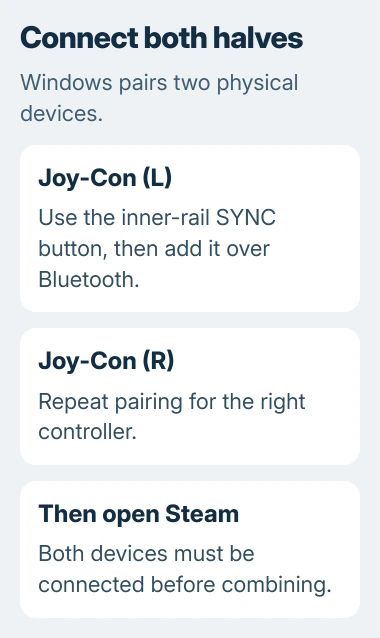
Look for both Joy-Con (L) and Joy-Con (R) in the device list. Those are the usual names. This setup needs a matching left-and-right pair; two left controllers won't give you that.
The Windows device-addition instructions confirm the Settings route. Your PC needs Bluetooth, and the controller must be in pairing mode for Windows to find it.
If one half doesn't appear, put it back into pairing mode and search again. Leave the successfully paired controller in place. A missing second connection doesn't mean you have to start the setup again.
These steps are for the original Switch Joy-Con. If you have Joy-Con 2 or a third-party controller with a different connection method, check its compatibility information before trying the same Bluetooth procedure.
Turn on combined pairing in Steam
Open the desktop Steam client and go to Steam > Settings > Controller. With both Joy-Cons connected, look for Combine Joy-Con Pairs. Older client layouts call it Combine Pairs of Joy-Con Controllers.
Turn it on. If your client has an older General Controller Settings subpage, open that to find the pairing option. Keep both controllers awake while you check how Steam lists them.
Valve added individual and combined Joy-Con support to the normal Steam client in August 2022. Tutorials that ask you to join a beta refer to that earlier rollout; you don't need it for this setup.
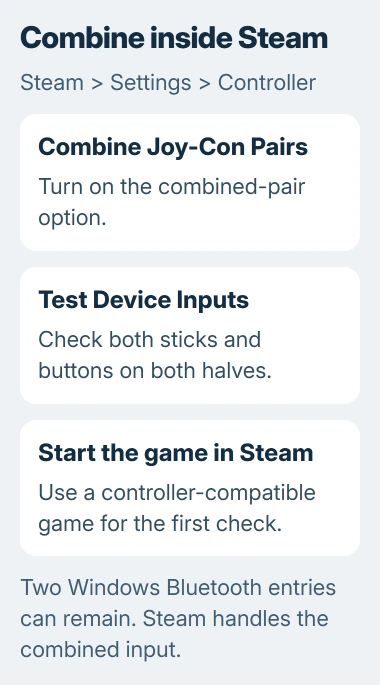
Windows can still list two separate Bluetooth connections. Steam combines their controls, so you don't need Windows to replace those entries with one Bluetooth device.
If Steam sees only one side, return to the Windows device list and check the missing connection. The combine option can't add buttons from a controller that isn't connected.
If Steam sees both but the combined option doesn't respond, restart Steam and check for client updates. Note whether each controller works on its own before deciding the combine option is the problem.
Check sticks and buttons before opening the game
In Steam > Settings > Controller, open Test Device Inputs if your client offers it. Move the left stick, then the right, and press buttons on each half while watching the response.
Check that controls from both hands respond in the same combined setup. Seeing the left stick move isn't enough to tell you that the right controller has joined it.
Try the directional controls and shoulder buttons too. Let go of the sticks between checks and see whether they return to rest. It's easier to spot a missing input here than in a game's menus.
I'd do this before downloading another controller utility. You'll see whether the connection and combined controls already work in the software you're going to use to launch the game.
The Windows controller panel checks which devices their drivers recognize. Your physical Joy-Cons should still appear separately there. Use Steam's test to check the combined controls.
If a stick keeps moving when you're not touching it, try the controller drift checks. Combining the controllers won't fix a drifting stick.
Launch a controller-compatible game through Steam
Open a game from your Steam Library and choose controller controls if the game offers a choice. Test with the combined pair first. Disconnect other gamepads if the game could pick them for another player.
Try an action with each hand, such as moving with the left stick and changing the view with the right. Then open the game's control settings and check any button assignments that don't work as you expected.
Some games show Xbox-style button prompts when the controller input is translated for them. Check which action each button actually performs; a different printed letter doesn't mean the Bluetooth connection has failed.
Change button assignments in the game's controls or its Steam controller layout. Pairing your Joy-Cons doesn't make every game use the same assignments, especially if the game lets you customize them.
If Steam's test works but one game ignores both halves, keep the pairing as it is. Check that game's controller support and input settings before removing the Bluetooth devices and starting again.
A game opened directly from another launcher might not receive Steam's combined controls. Get a Steam game working first, then check whether a different launch method works for you.
Handle a missing half or intermittent delay
If a controller disappears from Windows, check its charge and Bluetooth connection first. The PC controller disconnection guide helps you tell a lost connection from a game ignoring a connected device.
An owner on Steam's forum reported delay after their Windows pair had worked at first. Reconnecting helped for a while, but the delay returned. It hadn't fixed the problem for good.
If input gets slow, return to Steam's test before changing the game's graphics settings. Delay there means it also happens outside the game. If only one game has the problem, contact that game's support.
Close any other controller-remapping utility while you test Steam's pairing. That's software that changes what your buttons do. With only one setup active, it's easier to tell which program is handling the controls.
If the pair still won't combine, send Steam Support your client version, Windows version and both detected device names. Say whether each half works on its own and whether the problem starts immediately or after you've played for a while.
The Short Version
Pair your left and right Joy-Cons with Windows, combine them in Steam, and test both sides. Launch a controller-compatible game through Steam. Two Bluetooth entries are expected; check a missing half or delay separately.
Checked November 4, 2026.

Isaac Smith is the founder and editor of PC Glance, a website that covers computers, laptops, and technology. He is a tech enthusiast and a computer geek who loves to share his insights and help his readers make smart choices when buying tech gadgets or laptops. He is always curious and updated about the latest tech trends.