

Excel not responding can mean your workbook is still calculating, or an add-in has stalled the app. Check whether Excel is busy before closing it; if it keeps freezing, try safe mode to check the extras it loads at startup.
Check whether a blank workbook freezes too. A problem with one spreadsheet needs different checks from Excel freezing before you've opened a file. These steps cover desktop Excel on Windows.
1. Let an active calculation or refresh finish
Look along the bottom of Excel's window for its status bar. Excel may still be calculating, refreshing data or finishing another task. Let that work finish before clicking other commands.
Press Alt+Tab once to check for a separate Excel dialog waiting for an answer. A hidden prompt and an unresponsive workbook can look similar when the main window won't accept clicks.
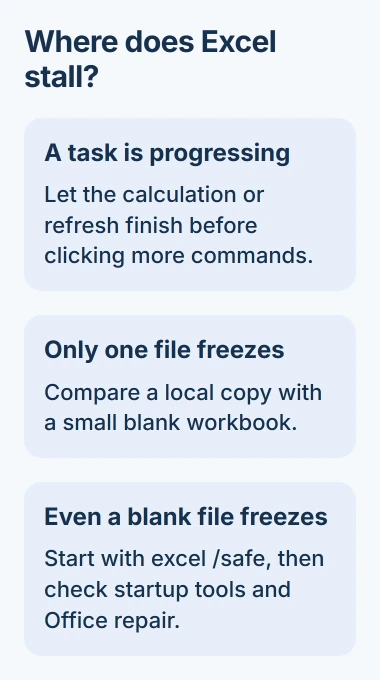
If Excel responds again, save your workbook before repeating the action. Note whether it froze when opening, refreshing, saving or copying. Knowing what you were doing helps more than the message in the title bar alone.
A freeze that happens specifically when copying cells has its own printer and formatting checks. Use those when normal opening and editing still work.
If nothing progresses and Excel won't close normally, Ctrl+Shift+Esc opens Task Manager. Select Microsoft Excel and choose End task only when you're ready to lose changes that haven't been saved.
When you reopen Excel, check any Document Recovery pane before closing it. The unsaved workbook recovery options explain how to save a recovered copy separately from the original.
2. Compare a blank workbook in Excel safe mode
Close Excel, press Windows+R, enter excel /safe, then press Enter. Keep the space before the slash. This opens Excel without several add-ins and startup settings; Windows itself stays in its normal mode.
Microsoft recommends this comparison in its Excel hang troubleshooting. Create a blank workbook and enter a few values before opening the affected file.
If the blank workbook works, use File > Open to open your problem file while Excel is still in safe mode. Try the action that made it freeze, using a copy if you'll be changing data.
If Excel works in safe mode, an add-in or file it normally loads at startup may be causing the freeze. The next two sections test those separately.
If Excel still stalls before you can open a blank workbook, move to updates and Office repair. If only one file fails, try the workbook comparison in section 5.
3. Turn off COM add-ins and bring them back individually
In the working Excel session, open File > Options > Add-ins. At the bottom, change Manage to COM Add-ins, then select Go. These are extra tools installed into Excel by Office or other software.
Note which boxes are checked, clear them, and select OK. Close Excel and open it normally from Start. Test a blank workbook, then the file that was freezing.
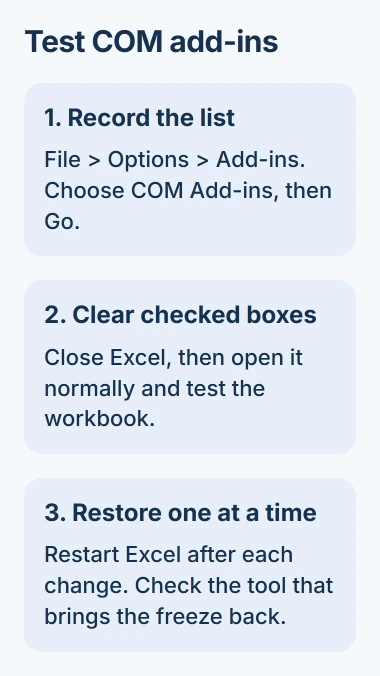
If Excel now works normally, return to that list and turn one add-in back on. Close and reopen Excel, then test again. Keep going until it freezes or you've restored all your original add-ins.
If the freeze returns, ask the maker of the last add-in you enabled about an update or compatible version. Leave that add-in off for now. Removing several products together would hide which one caused the freeze.
If turning off every COM add-in makes no difference, put the settings back as they were. Excel also loads other add-ins and files at startup, so check those next.
4. Check files Excel opens automatically
With Excel working in safe mode, go to File > Options > Trust Center > Trust Center Settings > Trusted Locations. Note the listed XLStart location. Workbooks in that folder open automatically with Excel.
Close Excel and move the files from that specific folder into a temporary folder you create. Keep them intact, along with a note of their original location. Then start Excel normally and compare the result.
If that helps, return the files individually, restarting Excel between each test. A personal macro workbook can live here, so missing macros during the test are a reason to restore the right file, not delete the folder.
Also check File > Options > Advanced > General > At startup, open all files in. If a folder is listed, Excel tries to open files there too. Move those files out and return them individually, just as you did with XLStart.
I'd let IT handle add-in repairs that involve the Windows registry, which stores program settings. On a work computer, tell them what happened in safe mode and which startup folder Excel uses before removing unfamiliar Office settings.
5. Separate a damaged or overloaded workbook from Excel
Create and save a small blank workbook in a local folder. If it opens and edits normally while one existing file freezes, compare a local copy of that file with its network or synced version.
If the local copy works, check the original storage location or connection. If both copies freeze but the blank workbook works, check the workbook's contents or the software that created it.
Lots of shapes, heavy formatting and formulas that cover entire columns can slow a workbook down. Ask its author to check those areas using a copy, so useful formatting in the original stays intact.
For a spreadsheet exported by another program, create a small fresh export and compare it. If only that program's files fail, report the example to its developer rather than repairing every Office app.
6. Update Excel, then repair Office if needed
In an Office app that still opens, use File > Account > Update Options > Update Now if available. If your workplace manages Office, you may need IT to provide the update.
If updates don't help, save work and close Office apps. On Windows 11, open Settings > Apps > Installed apps, find Microsoft 365 or Office, open its three-dot menu, and select Modify.
On Windows 10, use Settings > Apps > Apps & features, select Office, then Modify. The Office repair instructions explain the options for each installation type.
Quick Repair fixes damaged program files. Online Repair does a more thorough repair and needs an internet connection. Both repair Office as a whole, so finish your work in Word and Outlook first.
If a blank workbook still hangs, tell support your Excel version, what happened in safe mode and what made it freeze. Include whether a local copy works. This helps them check whether Excel, the workbook or its storage is at fault.
The Short Version
Let Excel finish any running task, then try blank and affected workbooks in safe mode. Test COM add-ins and startup files individually. If even a blank workbook hangs, save any recovered work before updating or repairing Office.
Checked November 4, 2026.

Isaac Smith is the founder and editor of PC Glance, a website that covers computers, laptops, and technology. He is a tech enthusiast and a computer geek who loves to share his insights and help his readers make smart choices when buying tech gadgets or laptops. He is always curious and updated about the latest tech trends.