

A mouse that ignores clicks for a few seconds needs its connection checked first. Plug the mouse or its USB receiver directly into the PC, then compare the delay in two different apps before changing Windows settings.
Watch the pointer as well as the button. Smooth movement with delayed clicks is different from a mouse that disconnects completely. A slow-opening menu also calls for different checks from an ignored left-click.
1. Reconnect directly and check the battery
Unplug a wired mouse, wait briefly, and reconnect it to another suitable USB port on the computer. If your wireless model uses a USB receiver, remove that receiver for about 10 seconds, then reconnect it.
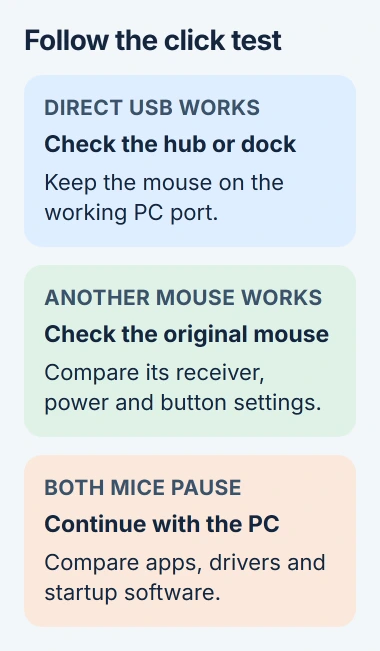
Remove a hub or dock from this test. A receiver that works through a powered dock can still behave differently when attached directly to the PC. Leave other accessories as they were while you compare clicks.
Microsoft recommends these connection checks in its mouse troubleshooting instructions. Also charge a rechargeable mouse or fit fresh batteries as its maker directs.
Use the mouse on a clean, ordinary mouse pad and check for dirt around its sensor. If the pointer skips on glass or a reflective desk, try another surface before checking the click delay again.
When movement itself repeatedly stops, work through the pointer-freezing checks for sensor trouble, wireless signal and PC-wide pauses.
For Bluetooth, check that the mouse is connected under Settings > Bluetooth & devices in Windows 11. On Windows 10, use Settings > Devices > Bluetooth & other devices. A saved device name doesn't mean it's connected now.
If clicks now respond immediately, stay on that connection and check the previous hub, port or battery. If the delay remains, leave this simpler setup connected for the next comparison.
2. Work out whether the pause belongs to one app
Try a single click on a button in Settings, then in another app you already use. Avoid using a file icon as the only test: a single click selects it, while opening it may require a double-click.
After one missed click, wait and watch. Does the requested action happen late, or never happen at all? Repeated clicking can leave several actions waiting to run and make a slow app look like an unreliable button.
If only right-clicking a file pauses before its menu appears, use the slow right-click menu checks. Programs that add menu entries can delay that menu even while ordinary left-clicks work.
If the delay happens in just one program, save your work there and reopen it. Check for updates and review recent add-ons. Try a simple new document or page in that app before changing Windows settings.
Press Tab to move to a control and Space or Enter to activate it where supported. If the action also stalls with the keyboard, check the app or the PC's response as well as the mouse button.
For a whole-PC pause, open Task Manager with Ctrl + Shift + Esc and watch processor (CPU), memory and disk activity when it stalls. Note which app is busy, then close your work normally before considering End task.
3. Compare another mouse before replacing drivers
Connect another known-working mouse to the same PC and repeat the same small action. On a laptop, also compare the built-in touchpad if it's available. Keep the app and document unchanged for this test.
If the second mouse responds immediately, focus on the original mouse, its receiver or its software. If both mice pause together, continue with the PC and software checks before buying a replacement.
Try the original mouse on another computer when possible, using the driver its maker requires. If the same button misses clicks there too, tell the maker what happened or arrange a replacement under warranty.
I'd do this comparison before reinstalling anything. It can separate a failing accessory from a Windows problem without removing the device you currently use to control the PC.
A mouse that drops its connection entirely needs the USB disconnect checks. Mention any connection sound or disappearing device to support; that differs from a button action arriving late.
4. Check button assignments and recent mouse software
Open Settings > Bluetooth & devices > Mouse on Windows 11, or Settings > Devices > Mouse on Windows 10. Confirm which button is set as the primary button before treating the physical left button as broken.
Review any mouse-control app you installed, especially after a new profile, game preset or update. A button assigned to a macro, a sequence of actions, may no longer send an ordinary click.
Use the maker's controls to restore that button's normal click assignment, then repeat the test outside the game. Keep a note of your previous assignment so you can restore a customization you still need.
Double-click speed affects whether Windows recognizes two presses as a pair. It doesn't set a waiting period between ordinary clicks on buttons, so don't use that slider to chase every several-second pause.
If a mouse works but touchpad taps hesitate after typing, check the laptop's touchpad controls. Touchpads have settings to prevent accidental touches while you type; your external mouse handles clicks separately.
5. Update through the PC and mouse makers
Open Settings > Windows Update on Windows 11. For Windows 10, use Settings > Update & Security > Windows Update. Install the offered updates and, if asked to restart, save your work first.
If Windows offers no update, open Device Manager, find your mouse under Mice and other pointing devices, and use Update driver. Specialized models can also need updates through their own mouse-control app.
Use updates meant for your device and Windows version. If only Bluetooth clicks fail, check for an update for the PC's Bluetooth adapter too, even if the mouse has no newer driver listed.
If the delay began just after a driver update, tell the maker which version changed. Follow its steps to roll back or replace the driver, rather than removing several input devices while your mouse is already unreliable.
6. Test for a background software conflict
When different mice still pause in multiple apps, follow the clean-boot procedure. It starts Windows with fewer extra services and startup apps.
In System Configuration > Services, first check Hide all Microsoft services, then disable the remaining services. Record the startup items you disable through Task Manager, then restart and compare the same click action.
If clicks respond normally again, restore the disabled items in groups until the delay returns. That tells you which software to update or remove. Restore normal startup afterward so the PC isn't left in this test setup.
For a work PC, have IT handle this test. If clicks still pause with another mouse and fewer startup apps running, tell support which apps you compared, how the mouse connects and which drivers changed.
The Short Version
Reconnect directly, check power, and compare clicks in different apps. Test a second mouse before changing drivers. Review button assignments and updates from the makers, then try a clean boot if the whole PC pauses.
Checked November 5, 2026.

Isaac Smith is the founder and editor of PC Glance, a website that covers computers, laptops, and technology. He is a tech enthusiast and a computer geek who loves to share his insights and help his readers make smart choices when buying tech gadgets or laptops. He is always curious and updated about the latest tech trends.