
A HyperX headset needs a compatible NGENUITY version to appear in the app on your PC. Match your exact model to its support list, then connect the supported USB cable or wireless receiver and open that version.
The current NGENUITY and NGENUITY Legacy (2020-2025) have different supported-device lists. A headset can play sound in Windows while remaining absent from an app that doesn't support it.
Match the software to your exact model
Read the full model name from the headset's label, receiver or purchase record. Keep Wireless, S and any other endings in the name: Cloud III, Cloud III Wireless and Cloud III S Wireless are different models.
Open the official NGENUITY page and check the FAQ entries listing products compatible with each version. Look in Headsets, rather than assuming every device with the HyperX name supports software controls.
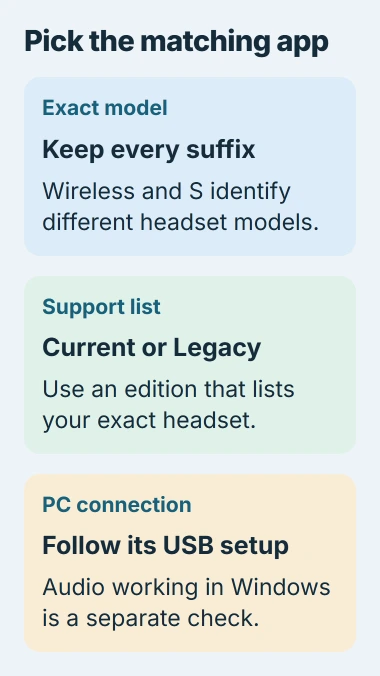
HyperX's compatibility guidance says to check your app version first when a device doesn't appear. The current list includes newer and older headsets, so purchase year alone won't tell you which app to use.
Use Legacy if your model appears only on that list. A model listed for the current app is supported there too. When both list it, compare the features each offers for your headset.
If neither list includes your headset, ask support before trying unrelated drivers. A headset can play audio without supporting extra app controls, so a missing equalizer doesn't by itself mean it's broken.
Install the version that lists your headset
The official page has separate DOWNLOAD NGENUITY and DOWNLOAD NGENUITY Legacy buttons. Use the one that matches the support list you checked, then run the installer and follow its prompts.
Both versions run on Windows. The page also offers Legacy through Microsoft Store for Windows 10 and 11. Playing headset audio on a Mac or Linux computer doesn't mean that computer can run the Windows app.
Open the version you installed from Start and look for your headset. If you have several versions, check the app's name: a Legacy shortcut still opens Legacy even when the current app is also installed.
If you used the beta, follow the page's advice to uninstall it before installing the official release. Note any settings you'll need to recreate before changing the app installation.
Connect through the route the model supports
For a supported wired model, follow its manual's PC USB setup. If it came with a USB audio adapter, use the specified adapter. A third-party replacement may not provide the same app controls.
For a wireless model, connect its supplied USB receiver and turn on the headset. Follow that model's pairing instructions if the headset and receiver aren't already linked. A receiver for a different model isn't an equivalent replacement.
Audio through an analog 3.5 mm jack doesn't tell you whether NGENUITY can recognize the headset. Check the model's support list and connection instructions before buying a USB converter for app detection.
Start with the receiver or USB cable connected directly to the PC. If the app remains empty, try another available USB port. This removes a hub or dock from the comparison and follows the vendor's detection checks.
Check Windows audio separately from app detection
Open Settings > System > Sound. Under Output, choose the headset's audio device. Under Input, choose its microphone if you're using that microphone for chat. Some models show more than one audio device.
Play a familiar clip, then speak and check whether the microphone level responds. If Windows uses the wrong speaker or microphone, change that selection before changing NGENUITY settings. A game can also have its own audio-device choices.
The Windows audio troubleshooting steps cover output selection and playback checks. If Windows lists your headset but NGENUITY doesn't, recheck compatibility and your app version.
If the headset has no sound, the PC headphone checks cover the different connection types. Don't change Windows' analog-jack settings to fix a missing USB-device tile in the app.
If Windows reports a USB error instead of recognizing the receiver, write down the exact message. The USB recognition guide explains why Windows must recognize the hardware before the app can show it.
Use only the controls available for that model
Once the headset appears, open its device page. Adjust one available setting at a time and listen to the same short clip. This makes it easier to hear whether an equalizer or other audio change suits you.
A feature in an advertisement or another headset's video may not be available for yours. Each supported headset has its own controls, and the current version's FAQ says some features are still being developed.
If the device page offers a firmware update, read its instructions and follow the required connection method. Keep that connection in place until the update finishes. Use firmware intended for the exact headset and receiver.
Reinstall the matching app if detection still fails
After confirming support and trying another USB port, close and reopen the correct NGENUITY version. If the headset remains absent, reinstall that same compatible edition using the official source.
The vendor's detection checklist covers compatibility, available firmware, another USB port and reinstalling. Report those results in that order when asking for help. Check your model before repeating the installation.
Give HyperX support the model, Windows version, app edition and connection type. Say whether Windows plays sound and another USB port helps. That helps support work out whether to focus on the app or receiver.
The Short Version
Choose current NGENUITY or Legacy from the exact-model list. Use its supported PC connection and check Windows audio separately. For failed detection, compare ports, reinstall that edition and contact support.
Checked November 5, 2026.

Isaac Smith is the founder and editor of PC Glance, a website that covers computers, laptops, and technology. He is a tech enthusiast and a computer geek who loves to share his insights and help his readers make smart choices when buying tech gadgets or laptops. He is always curious and updated about the latest tech trends.