Halo Infinite can fail on PC when game files or Easy Anti-Cheat are missing. Repair the files through the app you launch it from. Unsupported graphics and a looping sign-in prompt need separate checks if the file repair doesn't help.
A game that reaches the menu but can't join a match needs a connection or service check instead. Campaign access needs a different check: the free multiplayer download doesn't itself include ownership of the paid campaign.
In this guide
1. Repair the installation through the launcher you use
For Steam, open Library, right-click Halo Infinite, and select Properties > Installed Files > Verify integrity of game files. Let any replacement files download, then restart the PC before testing.
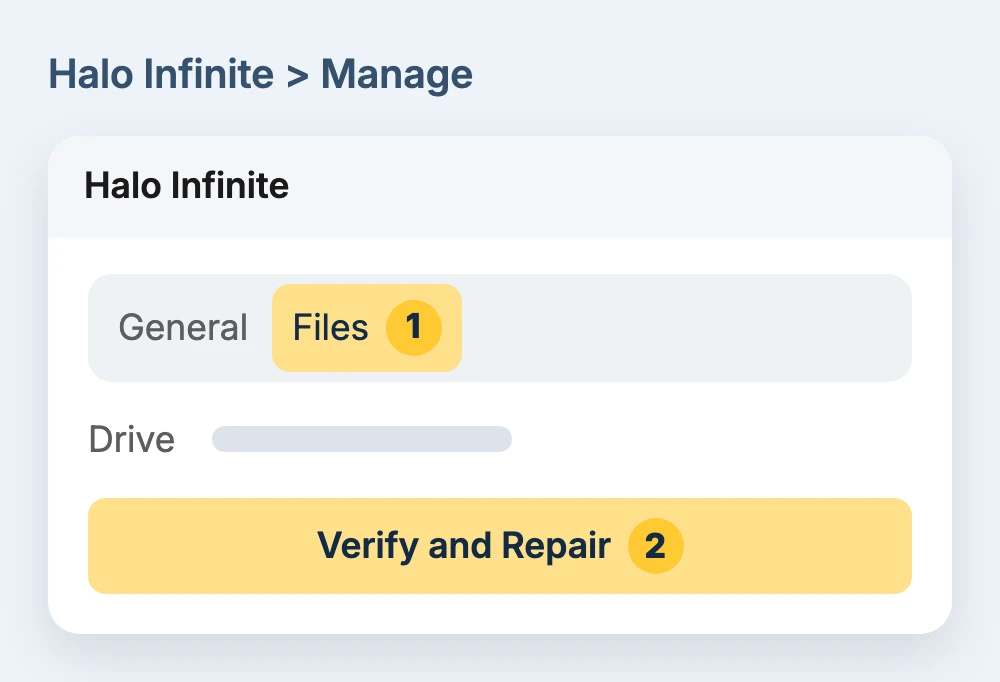
For the Xbox app, select Halo Infinite in the library, open More actions > Manage, choose Files, then select Verify and Repair. Launch the game after it finishes.
For a Microsoft Store installation on Windows 11, open Settings > Apps > Installed apps. Find Halo Infinite, open its three-dot menu, select Advanced options, then Repair if available.
On Windows 10, use Settings > Apps > Apps & features > Halo Infinite > Advanced options > Repair. Microsoft's app repair instructions describe the two Windows layouts.
Repair and Reset are different controls. Start with Repair so you don't unnecessarily reset the app's data while checking its installation.
Halo Support's file corruption repair steps cover silent crashes, freezes, and damaged-media errors. A launch failure that survives file repair needs the anti-cheat check next.
2. Address Easy Anti-Cheat or an antivirus block
The current known-issues page lists missing Easy Anti-Cheat as a cause of launch failures. This is the part of the game that checks for cheating. Steam's file verification is the first repair for that specific problem.
If Steam verification fails to restore it, reinstall Halo Infinite. A Microsoft Store or Xbox app copy with missing Easy Anti-Cheat also needs a reinstall to trigger installation of that component.
Finish the new installation before pressing Play. If the download is interrupted, you're testing another incomplete copy and still won't know whether Easy Anti-Cheat was restored.
Another listed launch block involves Comodo Antivirus with Microsoft Store or Xbox app copies. Add the verified Halo Infinite installation to Comodo's Excluded Applications list if that is the security product blocking it.
Don't disable all protection or install a separate anti-cheat package from an unrelated download site. Use the game's launcher and the security app's own controls for these repairs.
If neither condition fits, leave those settings alone. A PC that gets past the startup screen but loops at sign-in needs the account check in section 5 instead.
3. Check the graphics device and its driver
Press Windows + R, type dxdiag, and press Enter. Select Display and note the GPU name and driver version. A laptop can have extra Display or Render tabs. Check them for a separate gaming card as well as integrated graphics.
The minimum GPU examples are AMD RX 570 and NVIDIA GTX 1050 Ti. Intel graphics isn't supported in the checked requirements. That restriction applies to Intel graphics. A PC with an Intel CPU can still use a supported gaming GPU.
Compare the whole PC with the current hardware requirements, including memory and processor. Having the required Windows version doesn't mean your graphics device can run the game.
Get the latest driver package for your AMD or NVIDIA model from the GPU maker and restart after installation. On a laptop with switchable graphics, use the gaming GPU for Halo Infinite and follow the computer maker's driver instructions.
For a display driver that fails across several games, check the graphics-card restart symptoms to distinguish display failures from Halo sign-in trouble.
If the hardware isn't supported, reinstalling the same game won't change that. If it is supported and the game reaches sign-in, check the saved account login details next.
4. Try the listed Steam texture-pack workaround
Some Steam copies crash at startup with high-resolution texture content. Open Halo Infinite > Properties > DLC in Steam and uncheck Multiplayer High-Res Textures. Close Properties and let the game update, then relaunch.
If it still crashes, return to DLC and uncheck Campaign and Campaign High-Res Textures too. Let Steam finish that change and test again. Reboot the PC if the game still fails with all DLC removed.
These are the steps in the campaign known-issues workaround. Once launch works, the removed content can be reinstalled.
Removing the campaign installation temporarily removes access to that content. Use this check for the listed Steam crash, rather than for an online-match error in a game that already opens.
5. Clear the Steam sign-in loop carefully
Use this section when the Microsoft account prompt keeps returning, not when the executable never opens. Start by restarting Halo Infinite and trying the sign-in prompt again.
For a persistent loop, close the game. Open Credential Manager from Windows Search, then select Windows Credentials. Under Generic Credentials, find entries whose names contain Xbl|2043073184.
Expand each matching entry and select Remove. Reopen Halo Infinite and use the Microsoft login linked to your chosen Xbox profile.
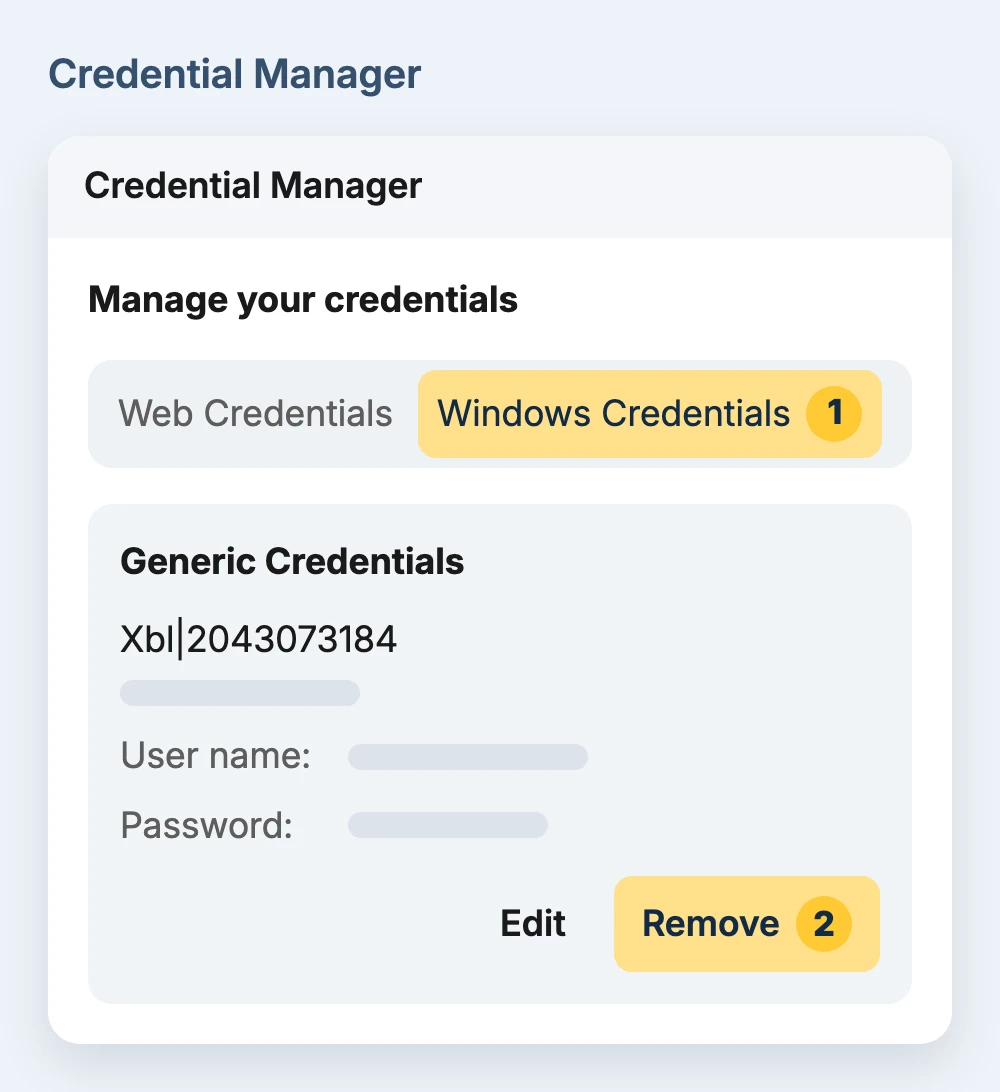
Remove only entries matching that Halo prefix. Credential Manager also holds saved sign-ins for other software, and clearing unrelated entries adds work without addressing this specific loop.
If you get a fresh sign-in prompt and then reach the main menu, clearing the saved login fixed the loop. If the same error returns, record its exact wording and include it in a Halo Support request.
For a different Xbox app account failure, check the Xbox Live sign-in repair only when that page's error matches. A similar-looking sign-in window doesn't mean every game has the same fault.
6. Separate campaign access from matchmaking trouble
If multiplayer opens but Campaign asks for a purchase, check that the signed-in account owns the campaign or has a current subscription that includes it. Check the launcher for the campaign installation as well as the multiplayer files.
I'd check the account and installed content before downloading everything again. A successful multiplayer launch already tells you the game can reach its menus on this PC.
If the menu opens but online matches fail, check the Halo Support outage notices and Xbox service status. Record whether the error mentions a dedicated server, authorization, or a connection failure.
If the service is down, you'll need to wait for it to recover. If only your connection fails, check your network instead. Compare another online service before changing router settings, and keep the exact failed-match time for support.
For a continuing failure, sign in at support.halowaypoint.com and use the ticket link in the relevant help article. Include your launcher, Windows version, graphics details, and error text. Explain what each repair changed.
The Short Version
Repair the files through your launcher, then check missing anti-cheat, a Comodo block, or unsupported graphics. A sign-in loop needs its credential check. Campaign prompts and match errors need separate account or service checks.
Checked November 27, 2026.
 If you have any business, I can build it online