
When Sony XM4 audio stutters on a PC but sounds clean on a phone, start with the PC connection. Close apps using the headset microphone, test familiar audio, then try the stable-connection setting before blaming the speakers.
These steps are for the over-ear WH-1000XM4 on Windows. Check the model name first: the WF-1000XM4 earbuds have different controls and their own troubleshooting instructions.
1. Compare music playback with microphone use
Close the meeting, chat or recording app, then play music from your PC. Use a file already on the computer if you can, so a pause in streaming doesn't confuse the Bluetooth test.
Now open the app that normally triggers the problem. Check whether sound changes when it starts using the headset microphone. A call-related change needs a different check from music dropping out all the time.
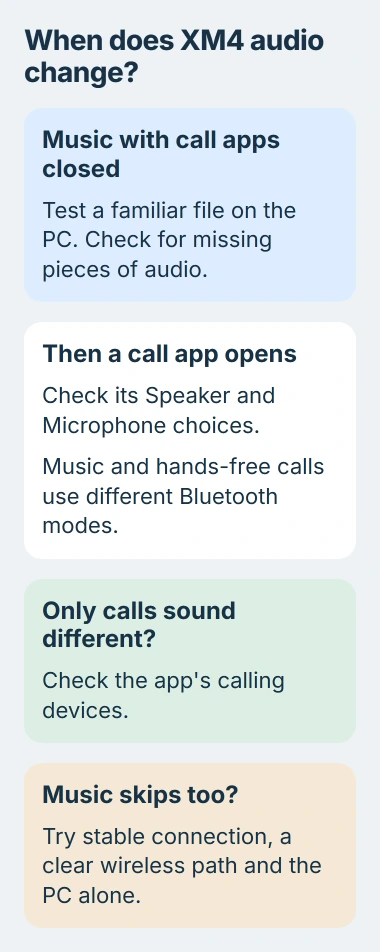
The headset uses different Bluetooth modes for music and calls. During a call, the connection carries your microphone audio too, so it can sound different from normal stereo playback.
In the calling app, check both Speaker and Microphone. Older Windows setups can list WH-1000XM4 Stereo for music and WH-1000XM4 Hands-Free for calls. Other setups show one combined WH-1000XM4 name.
The computer calling instructions explain those choices. A music-only connection won't carry audio from the headset microphone.
If you only need to listen, close the app using the microphone and try the music again. For a call, choose the app's speaker and microphone devices before comparing the sound with music playback.
2. Try the stable Bluetooth connection setting
Connect the headphones to the phone app and find the Bluetooth connection-quality setting. Select Priority on stable connection instead of the sound-quality option.
The app is now called Sony | Sound Connect, previously Headphones Connect. Make the setting change on the phone, then reconnect the headset to the PC for the same playback comparison.
Sony recommends the stable-connection mode when sound keeps cutting out. It favors a steady connection over sound quality, though interference can still interrupt it.
Listen through a passage that used to break up. If it plays cleanly, keep that setting while you check the PC's wireless connection. If nothing changes, move to the next step without switching modes back and forth during the test.
I'd try this before buying a USB Bluetooth adapter. You can check the headset's own setting before adding another radio and driver to the problem.
3. Reduce obstacles between the PC and headphones
Move closer to your computer, away from walls or metal furniture blocking the connection. The WH-1000XM4's Bluetooth antenna is in the left earcup, so keep your body out of the path between that earcup and the PC.
Compare the same audio with the PC and headset in a clearer position. If moving closer improves playback, check the wireless path before reinstalling an app.
Nearby wireless devices can also interfere, as the sound-skipping guidance explains. Bluetooth and some Wi-Fi networks use the same 2.4 GHz band.
If your PC already has a working 5 GHz Wi-Fi connection available, try it instead of 2.4 GHz. Keep the headset close and at the same distance from the PC's Bluetooth radio while you compare.
If your desktop came with external wireless antennas, check its computer or motherboard manual to see how they should be fitted. Clean playback from your nearby phone doesn't tell you whether the desktop's antennas are in the right place.
4. Disconnect the phone during the PC test
The WH-1000XM4 can keep two device connections active. Temporarily disconnect the headset from the phone, leaving only the PC connected, then repeat playback.
With the phone disconnected, its calls and playback can't take over from the PC. If the skips stop, reconnect the phone and check whether a particular call or app action brings them back.
If you want both devices connected, check Connect to 2 devices simultaneously in the phone app. The multipoint instructions explain how playback switches between them.
Stop audio on one device before starting it on the other. Their music won't mix just because both are connected. If your phone takes over playback, that isn't the same as your PC losing its Bluetooth connection.
If you can't pair the headphones, use the Sony Bluetooth pairing guide. These stuttering checks are for a connection that already plays audio.
5. Check Windows output, enhancements and drivers
Open Settings > System > Sound and check that the WH-1000XM4 is selected as your output. If other speakers are selected, choose the headphones and try the music again before changing a driver.
For crackling rather than complete connection drops, select the output device and turn Audio enhancements off if that option is available. Compare playback using the Windows distorted-audio steps.
If the headset actually disconnects, open Get Help on Windows 11 and run its Bluetooth troubleshooter. Then check the PC maker's current Bluetooth driver for your exact computer or wireless adapter.
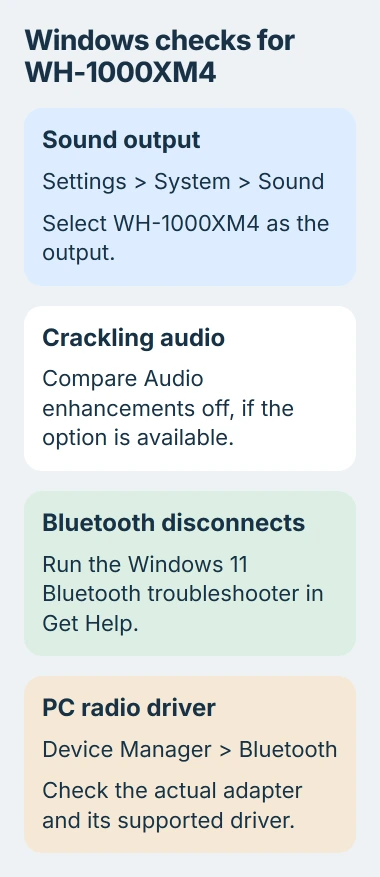
In Device Manager > Bluetooth, look for the adapter, which is your PC's Bluetooth radio, rather than just the WH-1000XM4 entry. Write down its name and driver version before asking the PC maker for help.
If the adapter has a Power Management tab, uncheck the option to let Windows turn the radio off to save power. The Bluetooth disconnection procedure shows it, but some adapters don't have that tab.
6. Update the headset and report the remaining pattern
Check the phone app for a headset software update and follow its instructions if one is offered. Keep the headphones powered and let the update finish before reconnecting to Windows.
If the sound keeps playing but arrives late, use the Bluetooth audio-delay guide. A steady delay is a different problem from sound repeatedly cutting out.
If only this PC still stutters, contact the PC or adapter maker. Give the driver version and what happened when you tested the microphone, disconnected the phone and moved closer. Say whether other Bluetooth headphones skip there too.
If the WH-1000XM4 starts failing on other devices too, contact headset support. Say whether stable mode helped and whether it happens during calls. Those results help you choose between more PC checks and headset service.
The Short Version
Compare music with call-app microphone use, try stable mode, clear the wireless path and disconnect the phone. Then check Windows output, enhancements and the PC's Bluetooth driver before choosing the support route.
Checked November 5, 2026.

Isaac Smith is the founder and editor of PC Glance, a website that covers computers, laptops, and technology. He is a tech enthusiast and a computer geek who loves to share his insights and help his readers make smart choices when buying tech gadgets or laptops. He is always curious and updated about the latest tech trends.