
Classic Outlook can slow down while loading add-ins, syncing shared mailboxes or opening crowded folders. Start by checking when it pauses: opening messages, switching folders or sending mail.
These checks are for classic Outlook for Windows, which has a File tab. New Outlook, the Mac app and the phone apps have different account controls. I'd change one setting, then repeat the action that was slow.
1. Compare the same action without add-ins
Close Outlook normally. Hold Ctrl while opening its shortcut, then confirm that you want Safe Mode. Try the folder, message or calendar action that usually takes too long.
Safe Mode runs without add-ins, the extra programs that add features to Outlook. Microsoft includes this comparison in its performance troubleshooting instructions.
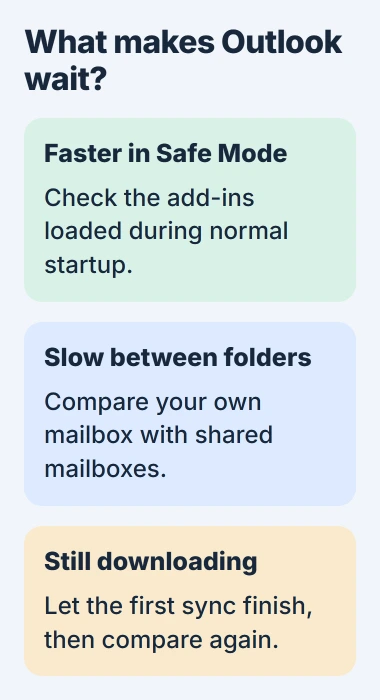
If the delay disappears, open File, choose Options, then Add-ins. At the bottom, choose COM Add-ins in the Manage list and press Go. Note which entries are enabled before changing them.
Uncheck the optional add-ins, confirm, and reopen Outlook normally. Enable each one separately, restarting and testing after each. When the delay returns, update the last one you enabled or leave it disabled.
Safe Mode doesn't tell you which add-in caused the delay. If Outlook is slow in both modes, move on to the mailbox checks rather than changing those checkboxes again.
2. Let an active download finish before changing the cache
Check Outlook's status bar after opening the affected mailbox. A message about updating folders or downloading mail means it's still working. This can happen after adding an account, restoring a profile or saving more mail offline.
Keep your laptop connected to power and a stable network while that first download runs. Try the slow action again when it finishes. A large first download takes time; a delay that returns every morning needs more checks.
For an Exchange account, Cached Exchange Mode saves a mailbox copy on your computer so Outlook doesn't fetch every item you open over the connection. An .ost file holds that copy. A .pst file can hold separate local mail and archives.
Saving more mail offline takes more disk space and gives Outlook more work. If you recently increased that amount, the offline mail slider guide explains the control and what happens to older messages.
With a shorter local history, older messages stay on the server and need a connection to open. Choose how much mail you need offline; downloading everything doesn't always make Outlook faster.
3. Reduce shared mailbox downloads you don't need
Shared mailboxes add to the mail Outlook has to sync. Even a small personal inbox can sit beside several large team mailboxes, each with many folders and messages.
Did the slowdown start after adding a shared mailbox? Open your own Inbox, then a shared folder, and compare the delay. That helps you decide whether to ask about the shared mailbox before changing your personal mail.
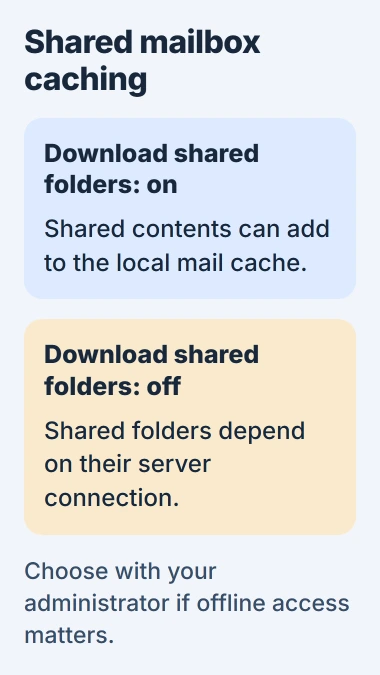
Microsoft's shared-folder caching instructions explain that Outlook can save shared folders in its local copy too.
In classic Outlook's account settings, select the Exchange account and open Change, then More Settings. On Advanced, look for Download shared folders. If that download is causing the slowdown, ask your administrator about clearing it.
Without that saved copy, shared folders need a server connection when you use them. Keep it if you need offline access. Your administrator may control the option or need to remove an automatically added mailbox you no longer use.
The shared mailbox setup guide explains how an extra mailbox differs from a separate login. Keep your main work account in place while reducing the work a team mailbox adds.
4. Spread out a very crowded mail folder
Right-click the affected folder, open Properties, and check Folder Size. Look at its item count too. Years of messages in one folder can cause delays even when your mailbox has plenty of storage left.
The folder-count guidance describes delays as folders approach 100,000 mail items, 10,000 calendar items or a mailbox approaches 10,000 folders.
Those numbers aren't cleanup targets. Your computer, connection and mailbox layout all affect when delays start. Check the folder that pauses before reorganizing all your mail.
Move older mail into smaller folders that make sense to you or your organization's Online Archive, if available. The ordinary Archive folder stays in the same mailbox; a separate Online Archive is a different destination.
Keep mail your workplace's retention rules require. Ask IT about approved archiving for a work mailbox, especially before exporting messages to a personal file or deleting old calendar entries.
After a small move finishes syncing, try opening the original folder again. Continue only if it helps. Moving a huge mailbox at once adds more syncing while you're trying to judge its speed.
5. Check indexing, then update before escalating
Search indexing builds the list Outlook uses to find messages. That adds work after a large download or profile rebuild. If Outlook says indexing is in progress, let it finish before rebuilding the index again.
If searches are the only slow part, use the Outlook search checks. Follow those steps for missing search results too, before removing unrelated mailboxes.
Install available Office updates through File > Office Account, then Update Options > Update Now, if that control is available. If IT manages your installation, it may need to supply updates. Close and reopen Outlook afterward.
If Outlook is still slow, note which action stalls, whether Safe Mode helped, which mailbox is affected and whether downloads finish. Give those details and your Outlook version to IT or Microsoft Support.
When other Office apps fail too, try the Office repair procedure next. If the mailbox is slow on several computers, ask its administrator to check the server and mailbox contents too.
The Short Version
Try Safe Mode, let first downloads finish, and review shared mailbox caching. Use approved archiving to reduce crowded folders, then check indexing and Office updates. If it's still slow, report the exact action that stalls.
Checked November 5, 2026.

Isaac Smith is the founder and editor of PC Glance, a website that covers computers, laptops, and technology. He is a tech enthusiast and a computer geek who loves to share his insights and help his readers make smart choices when buying tech gadgets or laptops. He is always curious and updated about the latest tech trends.