

A mouse that moves but won't left-click can have a faulty button, a swapped button setting or a software problem. Try selecting a harmless item with the right button; if that works, check whether the primary action has swapped sides.
These checks are for an external mouse in Windows. A touchpad that won't move or respond to taps needs its own settings and driver checks. Keep a keyboard or another pointing device handy while you work through the mouse controls.
1. Check whether the primary action has swapped sides
Try each button on an ordinary desktop item. A primary click selects it; the secondary click opens the right-click menu. If those actions have swapped sides, the physical left button may still be working normally.
In Windows 11, open Settings, choose Bluetooth & devices, then Mouse. Set Primary mouse button to Left. Windows 10 keeps the Mouse page under Devices.
Microsoft explains the setting in its mouse control reference. It chooses which physical button you use to select things.
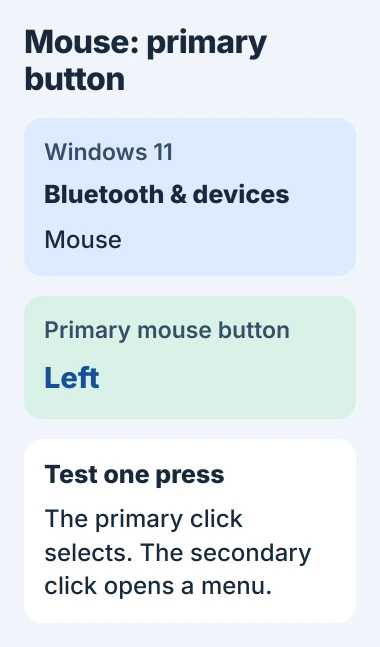
To open the page without clicking, press Windows + R, enter ms-settings:mousetouchpad, and press Enter. Move between controls with Tab, use direction keys for lists, and Space for switches.
If that opens the wrong input page on your Windows version, press the Windows key, type mouse settings, and open that result. Check the page title before changing a setting.
Try selecting one item after changing the primary button. If the left button still does nothing, compare mice and computers next. Pointer speed and double-click timing won't help with that check.
2. Compare the mouse and the computer
Connect that mouse to a second computer if one is available. Select desktop items and click an ordinary app button. Click several times so you can catch a fault that comes and goes.
Next, try another mouse on the original computer. Microsoft recommends testing on a second PC in its mouse hardware checks.
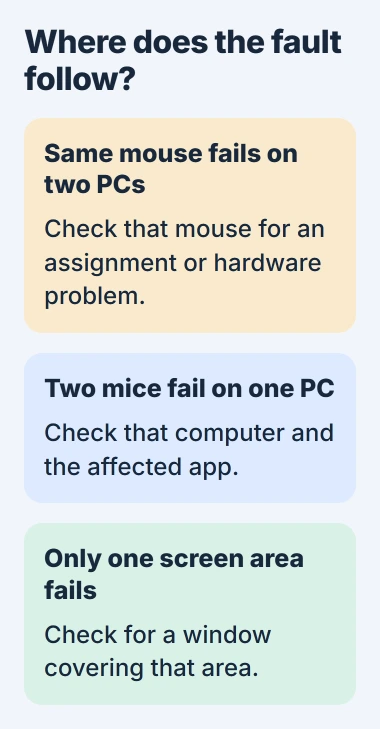
If the same physical left button fails on both computers and another mouse works, focus on the mouse. Check the maker's cleaning and repair options before changing Windows.
If both mice fail on the original computer but work elsewhere, check that PC's settings or software. If clicks fail only in one app, close and reopen it, then try a different window.
For an area where clicks don't work, follow the blocked screen-area checks. An invisible window over that area can catch clicks from a perfectly good mouse.
I'd make these comparisons before reinstalling anything. They tell you which device needs attention and save driver work when the button fails on a second computer too.
3. Reconnect the mouse through a direct connection
For a wired mouse, unplug the USB cable, wait briefly, and try another socket built into the PC. Connect directly for this check so a dock or hub can't be the cause.
For a mouse with a USB receiver, plug it directly into your computer. Check the battery or charge level too. Use the receiver that belongs to your mouse; a similar-looking one may not work with it.
For a Bluetooth mouse, check the Bluetooth connection. Keep a working keyboard or spare pointer available before removing the pairing. Then follow the maker's instructions to pair it again.
The wireless mouse setup guide explains receiver and Bluetooth connections separately. Pairing again can restore a lost connection; it won't fix a button that keeps failing on another PC.
Note whether movement, scrolling and every other button still work when the left click fails. That helps support tell a left-button problem apart from a mouse that keeps disconnecting altogether.
4. Restore the button assignment in the mouse app
Open the mouse customization app you already use. Check the left button's assignment and the profile for the app where clicks fail. A profile is a saved set of button actions that can change when a particular app is active.
Use that app's controls to restore the normal primary click. If the old assignment was intentional, note it first. Then test outside the app where clicks originally failed.
If X-Mouse Button Control is installed, check its active profile and layer. The X-Mouse configuration guide explains how to disable a profile or restore No Change when the app is changing a button's action.
Use the software that already manages your mouse; don't install a remapping utility just to test a dead button. You can also close the existing app for comparison if the maker supports that without losing controls you need.
If the button works on the desktop but acts differently in a game, check the game's controls too. Restore the button's intended action in the game before changing settings across Windows.
5. Separate a failed click from double-click or drag trouble
Click an app button that needs only one press, then try selecting a desktop item. Opening a desktop file normally needs a double-click. If it doesn't open, that doesn't automatically mean the first click was missed.
If selecting works but opening a file doesn't, check the double-click speed in Mouse Properties. It controls how close together the two presses need to be. It won't fix a button that isn't sending clicks.
For a press that unexpectedly opens two items or drops a drag, use the unwanted double-click checks. A left button that never responds needs a different comparison.
For unexpected dragging behavior, check ClickLock on the Buttons tab of Mouse Properties. It lets you drag without holding the button continuously. Clear the checkbox if you didn't want that behavior.
6. Finish with a targeted update or hardware service
If the mouse works elsewhere but still fails across apps on this PC, install available Windows updates. Use the maker's supported software for firmware (the mouse's built-in software) or settings updates for your model.
The mouse-driver instructions explain how a driver differs from a customization app. Keep the other input devices you need for navigation enabled in Device Manager.
If the mouse fails on both computers, check for visible debris and follow its cleaning instructions. Don't pour cleaner into the switch or take apart a mouse under warranty to try fixing the button.
If the left button stays unreliable, ask the maker about warranty service or repair. Tell support whether it failed on a second PC, whether movement still worked and whether another mouse worked on your original computer.
The Short Version
Check the primary-button side, then compare another mouse and PC. Reconnect directly and review button profiles. Check whether it's a missed press, double-click or drag problem. Ask about service if the mouse fails elsewhere too.
Checked November 5, 2026.

Isaac Smith is the founder and editor of PC Glance, a website that covers computers, laptops, and technology. He is a tech enthusiast and a computer geek who loves to share his insights and help his readers make smart choices when buying tech gadgets or laptops. He is always curious and updated about the latest tech trends.