
Your pointer moves everywhere, but in one patch of the screen your clicks do nothing. The cursor does not change over links there, and a new mouse makes no difference.
I would not blame the mouse. Owners keep finding the same thing: an app has left an invisible window on top, and that window takes the clicks.
Since May 2016, a Super User thread on this has drawn 82,582 views. A Microsoft Q&A question about a dead top-left corner holds 100+ under Same question.
An invisible window is taking your clicks
A window can be fully see-through and still sit on top of everything. Windows sends the click to it, and the app behind it gets nothing.
One Q&A owner proved it on Windows 11. The dead patch could be dragged across the desktop, and they suspected "an invisible object/window open that doesn't allow my mouse to click".
The apps owners named most are chat apps. On the Super User thread, eight owners found Slack behind it, one found Discord, and a Q&A owner found Microsoft Teams.
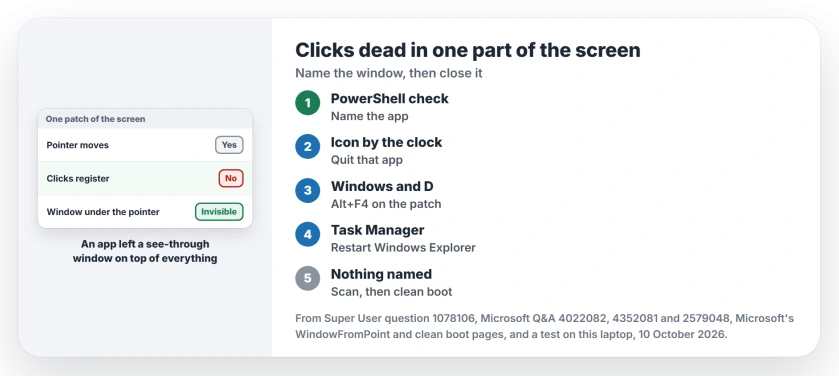
Status: Microsoft's window documentation, a test on this laptop and what owners found on two forums, 10 October 2026. Quitting the app behind the window was the usual fix.
1. Name the app that owns the dead spot
Windows can tell you which program owns the window under your pointer. Microsoft documents the call as one that "Retrieves a handle to the window that contains the specified point".
Open Windows PowerShell, paste these lines, press Enter, then rest your pointer on the dead patch within five seconds:
Add-Type -Name U -Namespace W -MemberDefinition '[DllImport("user32.dll")] public static extern bool GetCursorPos(out System.Drawing.Point p); [DllImport("user32.dll")] public static extern IntPtr WindowFromPoint(System.Drawing.Point p); [DllImport("user32.dll")] public static extern uint GetWindowThreadProcessId(IntPtr h, out uint id);' -ReferencedAssemblies System.Drawing
Start-Sleep 5
$p = New-Object System.Drawing.Point; [W.U]::GetCursorPos([ref]$p) | Out-Null
$id = 0; [W.U]::GetWindowThreadProcessId([W.U]::WindowFromPoint($p), [ref]$id) | Out-Null
Get-Process -Id $id | Select-Object Name, Path
It prints the program's name and where it lives. It changes nothing on your PC.
Ours: we ran it on this laptop. The middle of the taskbar came back as explorer, which is right, and a window from another app came back as that app, so you can trust the name it gives you.
Microsoft adds a limit: the call "does not retrieve a handle to a hidden or disabled window". So if it names explorer over your dead patch away from the taskbar, go on to step 4.
2. Quit that app properly
Close your app from its icon by the clock, not only its window. I would start there, because quitting from the tray closes every window the app owns. An owner put it plainly: "Simply quit that from system tray. Everything works fine again".
If it will not quit, open Task Manager with Ctrl+Shift+Esc, select the app and choose End task. One owner wrote "Killing slack.exe from task manager solved the problem".
Another said "Simply closing and opening Slack using the taskbar icon worked for me". You can restart it, since the invisible window goes with the old copy.
Not sure the name it printed is safe to end? Our guide to a strange .exe in Task Manager shows how to judge it first.
3. Close it from the dead spot with Alt+F4
The most voted answer skips the naming. Minimize everything with Windows and D, click inside your dead patch, then press Alt+F4.
In their words, it "will close that invisible application that's running". A reply came back with "It worked for me". I would still run step 1 afterwards, so you know which app to watch.
Ours: if the Shut Down Windows box opens instead, your click reached the desktop, not a hidden window. Press Esc and use step 1.
4. Restart Windows Explorer
Sometimes the leftover belongs to Windows itself. One owner, who suspected a monitor tool, fixed a dead third of their screen by restarting explorer.exe from Task Manager.
Open Task Manager, find Windows Explorer under Processes, right-click it and choose Restart. The taskbar blinks and comes back.
Early Windows 11 had its own version. In January 2022 a Q&A owner found a dead box sitting on top of the taskbar area.
Another wrote "Turning off the search option in taskbar settings seemed to help me". That was early 2022, but check Search in Taskbar settings if your patch sits in the same place.
When no app shows up
The answer the asker accepted was their own. They ran an adware cleaner and saw the patch work again "without the need for even a restart". So scan with Microsoft Defender, then look at what starts with Windows.
Microsoft's clean boot steps start Windows "with only essential drivers and startup programs". If the patch works then, turn startup items back on in halves until it breaks.
If your clicks land beside the pointer rather than nowhere, you have another fault entirely, and clicks that land off the pointer covers it.
The Short Version
- Run the PowerShell lines, point at the patch.
- Quit the app it names, from the tray.
- Or press Alt+F4 on the dead patch.
- Restart Windows Explorer from its Processes row.
- Nothing named? Scan, then clean boot.
Where to Next
What name did the script print on your PC? Post it in the comments, because every new name helps me warn the next reader.

Isaac Smith is the founder and editor of PC Glance, a website that covers computers, laptops, and technology. He is a tech enthusiast and a computer geek who loves to share his insights and help his readers make smart choices when buying tech gadgets or laptops. He is always curious and updated about the latest tech trends.