

The iPhone Duo keyboard splits into two halves through More > Split when the phone is open in landscape. Other iPhones don't have that same split control; their one-handed layout moves the keyboard toward one edge instead.
The controls you need depend on your model and how you're holding it. Duo's split keyboard, a regular iPhone's narrow keyboard and an iPad's floating keyboard each work differently.
Open Duo in landscape before choosing Split
Unfold your iPhone Duo and hold the inner display horizontally. Open Notes, start a note and tap where you'd write. That brings up the onscreen keyboard and its controls.
Apple says Duo must be open in landscape for this split option. Rotating a regular iPhone doesn't give it the same feature.
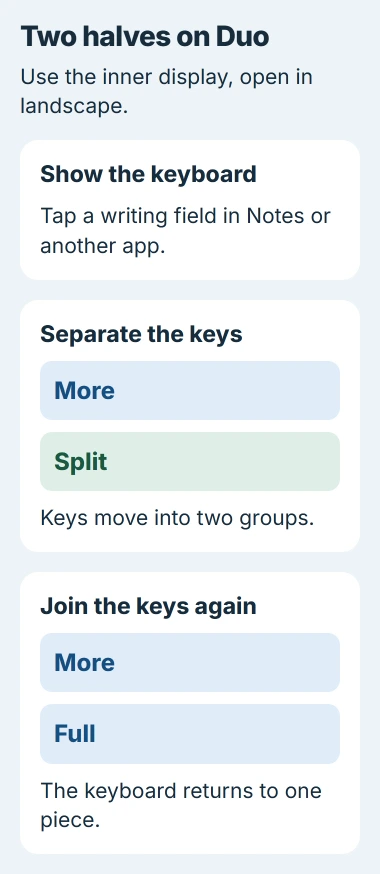
- With the keyboard showing, tap its More button.
- Choose Split.
- Type a short line to check that the keys now sit in two groups within reach of your thumbs.
A gap between the two groups means Split is on. Both halves still type into the same field; splitting the keyboard doesn't open another document or give you a second place to type.
I'd try this in a blank note first. It gives you a simple text field without a website's special number pad or an app's custom controls getting in the way.
If Split is missing, leave the note open and check the phone's position before changing settings. Duo needs to be open with its inner display horizontal. Closing it or holding it upright gives you a different layout.
Join the halves with Full
With the text field still selected, open the keyboard's More menu again and select Full. The keyboard should join back into one layout across the typing area.
Use this when the split layout makes typing awkward. Switching back to Full keeps your keyboard languages and the words the phone has learned.
Type another short line after switching. A single joined keyboard shows the change worked; you can check the keys without waiting for a confirmation message.
Tap back into the note if the keyboard disappeared while you were reading. The Home Screen has no text field to type in, so it won't show More or the other keyboard controls.
An app showing two windows is using a different feature. Joining the keyboard won't close those windows. To join the keys, use the keyboard menu rather than switching the app back to full screen.
Check the model when the option never appears
Open Settings > General > About and read Model Name. Don't judge the model by screen size: a large Pro Max screen still doesn't make the phone an iPhone Duo.
For an ordinary iPhone, stop looking for Duo's Split command. Use the iPhone keyboard size and layout controls to choose a wider typing area or correct a keyboard compressed against one edge.
Turning the phone sideways can give you a wider keyboard in supported apps. You'll have more room to type, but that doesn't mean the keyboard can split into two halves.
On Duo's closed outer display, use the one-handed layout instead. That option works with Duo closed and held in portrait, so the menu choices change with the phone's position.
Touch and hold the Emoji or Switch Keyboard button and choose the layout for the hand you're using. This moves the keys toward that side. It doesn't leave a split down the middle.
To center the keys again, choose the middle layout in that menu. A keyboard pushed left or right is using one-handed typing, which works differently from Split.
Use the iPhone keyboard before checking an app
If you're using a keyboard you installed, switch back to the built-in keyboard before following these steps. Other keyboards can have their own layouts and menus, with different controls from the ones described here.
Use the Switch Keyboard key to choose another installed keyboard. If you're unsure which one you're using, check your installed keyboards in Settings > General > Keyboard > Keyboards.
Try Notes again with the built-in keyboard and Duo open in landscape. If Split appears there but not in another app, check what kind of field you're typing in there.
A telephone-number field, for example, needs different keys from a normal note. Try an ordinary writing field before deciding that your phone's keyboard layout options are missing.
If the keyboard won't appear anywhere, follow the missing iPhone keyboard checks. You'll need to get it back before you can choose a layout.
Keep iPad instructions separate and report a missing control
An iPad guide may tell you to drag its keyboard apart or use Dock and Merge. Those are iPad instructions. Don't use their gestures as a substitute for Duo's More menu.
A small floating keyboard also works differently from a split keyboard. When asking for help, describe what you see: one narrow block, a floating block or two separate groups of keys.
If the built-in keyboard still lacks Split on an open Duo in landscape, note the iOS version from Settings > General > About. Tell Apple Support the model, version, app and phone position you checked.
Include whether Full appears, whether the keyboard works in Notes and whether this started after an update. Those details help support tell a missing control apart from an app that uses a different keyboard layout.
The Short Version
On an open iPhone Duo in landscape, tap a text field and choose More > Split. Choose More > Full to join it again. Other iPhones use different layout controls, so check the model before hunting for Split.
Checked November 5, 2026.

Isaac Smith is the founder and editor of PC Glance, a website that covers computers, laptops, and technology. He is a tech enthusiast and a computer geek who loves to share his insights and help his readers make smart choices when buying tech gadgets or laptops. He is always curious and updated about the latest tech trends.