
Sideloading apps on iOS works through alternative marketplaces in Brazil, Japan and the EU; the EU also allows direct developer downloads. Your Apple Account region must qualify, and you need to be physically in that region.
Start with the distributor's official website, then follow the iPhone's permission prompts. Downloading an app file by itself doesn't complete that process.
Check eligibility before downloading anything
Open Settings > General > Software Update and install the iOS version offered there. Use the current version because the installation flow and regional availability have changed since this feature first arrived.
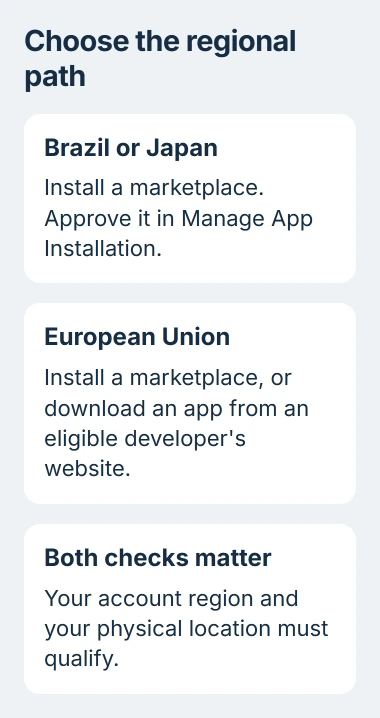
Apple says alternative app distribution requires an eligible Apple Account region, and you must be physically there. Changing the language or browser, or downloading the file again, won't meet those requirements.
The current regional split is:
- Brazil and Japan: alternative marketplaces and the iPhone apps distributed through them.
- European Union: alternative marketplaces on iPhone and iPad, plus apps installed directly through an eligible developer's website.
If you're in the United States or another unsupported location, use the App Store route available there. Don't keep changing account details to chase an installation prompt that your current location can't provide.
A marketplace is an app that installs other apps. Install the marketplace first, then open it to find and install the app you want.
Open the marketplace's own installation page
Use the official website of the marketplace you intend to install. For example, AltStore PAL's download page has a Download control that starts its marketplace installation flow on a compatible iPhone.
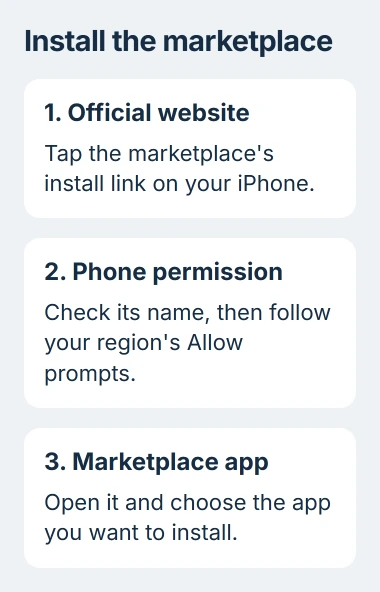
Check the distributor name before tapping Download. The permission request on the phone should identify the marketplace you chose, so stop if that name doesn't match what you intended to install.
Follow the prompt on your iPhone if it differs from the distributor's instructions, especially when Settings shows a newer app-installation screen.
These controls let you choose who supplies your iPhone apps. They won't make a Windows installer, Android app package or Mac application run on iPhone.
For an ordinary App Store app stuck downloading, use the waiting-app download checks. Marketplace permissions apply to a different way of installing apps.
Allow the marketplace using the regional prompts
In Japan or Brazil, tap the marketplace's install link in your browser. In the message that follows, tap Settings, then Manage App Installation.
Tap Allow beside the marketplace you chose. Read the information on your iPhone, check the marketplace name again, then confirm Allow and finish the installation prompts.
In the EU, open the marketplace's website on the iPhone or iPad and tap its installation link. Read the displayed information, choose Allow, then complete the onscreen installation.
The current regional installation steps differ by country, so the same permission sequence doesn't apply everywhere.
Once the marketplace is installed, open it and choose the app you want. Review the app's installation information before accepting, including its developer and age rating.
If the permission screen never appears, return to the eligibility checks. If it names a Screen Time restriction, deal with that restriction before retrying the download.
Use direct developer installation in the EU
Direct web distribution is a separate EU option. Visit the developer's own website, locate the iPhone or iPad app and tap its installation link.
For your first installation from that website, tap Settings when prompted. Choose Continue, read the developer information and tap Allow if you want to let that developer install apps.
Next, read the app-installation information and choose Install App. Finish the prompts, then open the app to check that it's the one you wanted.
An installation started inside an app from the same developer can offer Proceed instead. Follow the prompts there; you don't need to leave that process to find a button shown only on the website route.
You're allowing a specific distributor to install apps. Other websites don't get that permission, and your iPhone's lock-screen passcode can stay on.
Fix a restriction without disabling every control
Open Settings > Screen Time > Content & Privacy Restrictions. In the alternative-distribution controls under App Installations & Purchases, check App Marketplaces or Web, whichever matches the installation.
If the setting is Don't Allow, the person who controls Screen Time must approve the change. On a child's device, an app exceeding the allowed age rating can also require an exception from the parent or guardian.
Change the permission you need while keeping the other restrictions in place. Marketplace access and age ratings are separate controls: allowing a marketplace can still leave an app blocked by its age rating.
If you can't remove an installed app, restore the Delete App option separately. Permission to install apps doesn't automatically let you delete them.
Keep updates and support attached to the distributor
Open Settings > Apps > App Installation to check automatic app-update downloads. With automatic downloads off, check an app or marketplace's entry under Settings > Apps for its update options.
Keep the marketplace installed while you rely on apps from it. Removing it or losing its service can stop updates, and some distributed apps can stop working too.
To remove a marketplace, delete its app first. You might need to choose another default app for app installation before you can. Skip this step for apps you installed from a developer's website.
Then open Settings > Apps > App Installation, select the marketplace or web distributor and tap Remove Developer. Apps you keep from it won't get any more updates, so delete the ones you no longer need.
Ask the marketplace or app developer about purchases, subscriptions and refunds made outside the App Store. The distributor that handled the purchase also handles support for it.
If permissions are missing on an eligible, updated iPhone, give Apple Support your region, iOS version and exact message. If a download fails after you've allowed it, tell the distributor which step failed.
The Short Version
Check your region and update iOS, then open the distributor's official page and allow the marketplace or developer when prompted. Follow the steps for your region, keep updates working and use that distributor for purchase support.
Checked November 5, 2026.

Isaac Smith is the founder and editor of PC Glance, a website that covers computers, laptops, and technology. He is a tech enthusiast and a computer geek who loves to share his insights and help his readers make smart choices when buying tech gadgets or laptops. He is always curious and updated about the latest tech trends.