
An iPhone XR LCD problem can mean a black picture, missed touches or a damaged patch while the phone still runs. Unplug the charger, then check whether the picture, touch, or both are affected before choosing a repair.
The XR has an LCD screen, unlike the OLED displays in many newer iPhones. Use screen checks for this model, and check what its repair history can actually tell you about a replacement screen.
1. Test the screen with the charger disconnected
Disconnect the Lightning cable and accessories. With the phone unlocked, swipe between Home Screen pages, open Settings and type a short note. Check whether several areas respond, rather than testing one button repeatedly.
Apple's screen troubleshooting steps recommend disconnecting accessories, cleaning the screen, and removing cases or screen protectors. Start with the cable because it's the quickest change to undo.
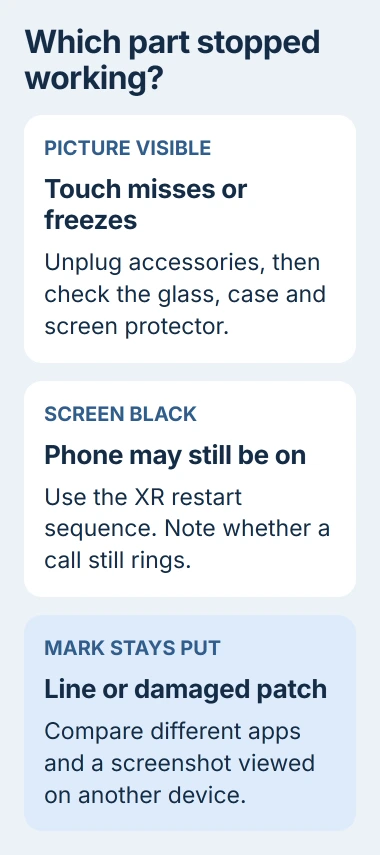
If touch works normally unplugged, try a different compatible cable, charger and outlet. I'd try those before paying for a new screen when the problem happens only during charging.
If the same area still misses touches, remove a case or protector that could affect the screen. Switch the phone off for cleaning. Use a soft, slightly damp, lint-free cloth, then dry the glass before turning it on and testing again.
Don't press hard on a dark patch, bend the phone or massage the glass. Those actions aren't screen repairs and can make damage worse.
Check the picture and touch separately. A visible image tells you the screen can show it, but some touch areas may still fail. Working touch doesn't mean the LCD picture is undamaged.
2. Use the XR's button sequence if it is frozen or black
On an unresponsive XR, press Volume Up briefly, release it, then do the same with Volume Down. Next, hold Side and keep it held until the screen shows the Apple logo. That final hold can exceed ten seconds.
Press the volume buttons one after the other, rather than holding them together. The XR uses the Face ID iPhone sequence, even though some older iPhones use a different combination.
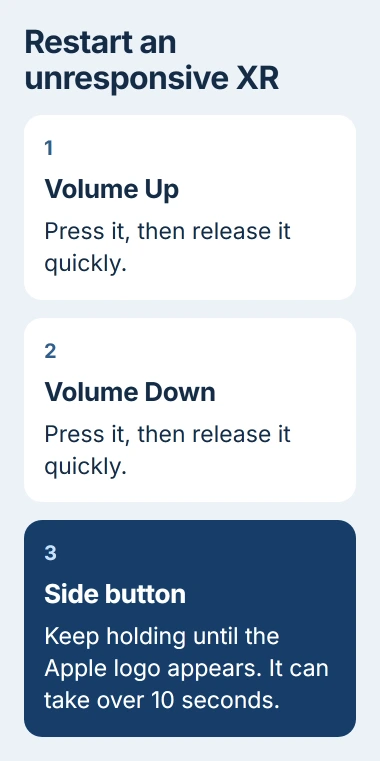
The force restart doesn't erase your phone. If the logo appears and the screen works again, check whether just one app brings the problem back or it affects the whole phone before arranging a screen replacement.
With no response, connect a suitable wall charger and leave it charging for an hour, then repeat the restart sequence. The black-screen restart instructions include that charging interval.
Listen for a call or a familiar sound after charging. Tell the repairer whether the phone rings with a black screen or gives no response at all. Neither result tells you which part needs replacing.
If your phone still gives no response, the iPhone no-power guide covers charging and computer-recovery options. Check for a power problem before assuming a black screen needs a new LCD.
3. Check whether the defect is in the displayed image
If you can still read the screen, open a few apps with a plain, light background. Watch whether the line or patch stays in the same place as the content changes.
Take a screenshot by briefly pressing Side and Volume Up together, then view that screenshot on another device you already use. This is a different button action from the force restart.
A mark in the screenshot is part of the captured image. If it's missing, the problem points toward the screen or the parts sending it the picture. Tell the repairer what you saw rather than guessing which part has failed.
The iPhone screen-line checks cover a persistent line more closely. A crack, dark spreading patch or missing section of the picture needs a repair check even if you can still receive calls.
The XR's original display specification lists a 6.1-inch screen with IPS, a type of LCD. Start with advice for that screen, rather than OLED burn-in fixes or OLED-specific display settings.
If only one app shows the defect and screenshots capture it, update that app and restart it. If the mark stays visible in Settings and other apps, move on to the repair and backup checks.
4. Treat trouble after a screen replacement as a repair issue
If poor touch, uneven brightness or a new dead area began immediately after a screen replacement, contact the repairer with the receipt. Describe what changed so the repairer can check the replacement screen and how it was fitted.
The display replacement guidance covers missed touches and brightness or color problems with replacement screens. A repairer needs to check those symptoms; they don't tell you where the screen came from.
One XR limit catches owners out: Settings > General > About cannot verify an XR replacement display through Parts and Service History. The XR only shows battery repair history there.
The model-by-model repair-history table makes that distinction. A missing Display entry on your XR can't tell you whether the screen was replaced, whether it's genuine, or whether it was fitted correctly.
Ask the shop what part it used and what its repair warranty covers. I'd take a newly repaired phone back before paying another shop to replace the same screen again.
5. Save your data and arrange service if the fault remains
While touch still works, back up your phone through Settings > your name > iCloud > iCloud Backup > Back Up Now. Keep the phone on Wi-Fi until the backup finishes and check its latest backup time.
You'll need enough iCloud storage for the iCloud backup procedure. If you can't use iCloud, back up to a computer if you can unlock the phone and approve the connection.
If you can't use the screen, ask whether a repair can keep your data before agreeing to a replacement or erase. A computer you haven't trusted may still need approval on the phone, so plugging it in isn't always enough to copy your files.
Use Settings > General > Software Update only for software offered to the XR. The XR still uses iOS 18; fixes for iOS 26 or iOS 27 on newer phones don't apply to it.
If the display remains faulty, arrange an inspection. Tell the repairer it's an XR, whether it was dropped or got wet, what changed when you unplugged the charger, and whether the problem began after a repair.
The Short Version
Unplug accessories, check touch separately from the picture, and force restart the XR with its correct button sequence. Persistent damage needs inspection. An XR's missing Display repair-history entry cannot verify its fitted screen.
Checked November 5, 2026.

Isaac Smith is the founder and editor of PC Glance, a website that covers computers, laptops, and technology. He is a tech enthusiast and a computer geek who loves to share his insights and help his readers make smart choices when buying tech gadgets or laptops. He is always curious and updated about the latest tech trends.