
WSL 2 can fail on a 2014 Mac mini running Windows 10 when Windows can't use the processor's virtualization features. Try restarting into Windows from macOS's Startup Disk settings before removing Ubuntu or reinstalling Windows.
Virtualization lets Windows run the small virtual machine WSL 2 needs. The startup change helped a Boot Camp user on Intel MacBooks, but missing Windows features and a compressed Linux disk need different fixes.
1. Restart into Windows from macOS
Save your Windows work, then use the Boot Camp icon in the taskbar's hidden icons menu and select Restart in macOS. If that command fails, restart while holding Option, then choose your macOS startup disk.
Once macOS opens, choose Apple menu > System Preferences > Startup Disk. Unlock the panel with your administrator password, select the BOOTCAMP volume and click Restart.
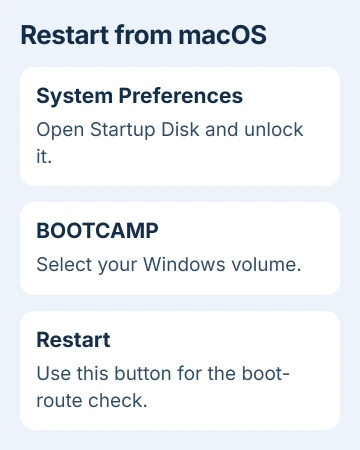
Use that Restart button for this check. Choosing Windows from the Option-key startup picker starts it differently, and that difference is what made the workaround help.
One owner described restoring WSL 2 this way after error 0x80370102 on their MacBooks. Treat it as a check on your mini, since the successful machines were different models.
I'd try this restart before rebuilding Linux. Choosing another installed startup disk keeps both partitions, the separate areas holding macOS and Windows, in place.
After Windows loads, open the same Linux distribution, such as Ubuntu. If it starts, try it again after your next ordinary Windows restart. The startup workaround may need repeating after a restart.
If macOS is no longer installed, skip this test. Don't create or resize partitions just to reach Startup Disk. Continue with Windows' virtualization and feature checks.
2. Read the error and check the Windows build
Launch your distribution from PowerShell so an error doesn't disappear with its window. First run:
wsl --list --verboseYou'll see your installed Linux distributions and whether each uses WSL 1 or WSL 2. An entry listed as version 1 can work without the virtual machine that version 2 needs.
Start the distribution by its listed name. For an entry named Ubuntu, use:
wsl --distribution UbuntuReplace Ubuntu if your list shows a different name. Save the full error, especially its number and any mention of a missing feature, virtual disk or kernel update (an update to Linux's core).
Press Windows key + R, enter winver, and check the version. For older x64 Windows 10 installations, WSL 2 requires version 1903 with build 18362.1049, version 1909 with 18363.1049, or a later supported build.
The older-installation requirements explain those minimum builds. Changing the default WSL version can't add features your Windows installation is missing.
Check for updates in Settings > Update & Security > Windows Update. Windows 10's normal free support has ended, so check what update coverage your existing Boot Camp installation has.
3. Check whether Windows can start the virtual machine
Open Task Manager, choose More details if needed, and select Performance > CPU. Look for Virtualization. If it's disabled, check whether the Mac's startup software makes it available, including the macOS restart test.
If it's enabled, check Windows' own components next. WSL 2 also needs Virtual Machine Platform and the Windows hypervisor, the part of Windows that runs virtual machines.
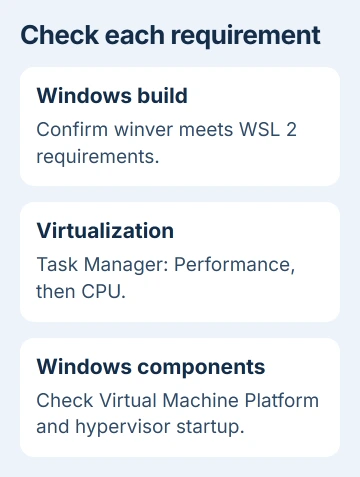
In Start's search, enter Windows features, then choose the matching Control Panel result. Turn on Virtual Machine Platform, then Windows Subsystem for Linux. Apply the changes and restart when asked.
Microsoft's own steps say to check hypervisor startup as well. Use an administrator PowerShell window for this command:
bcdedit /enum | findstr -i hypervisorlaunchtypeIf the result shows Off, restore startup with:
bcdedit /set hypervisorlaunchtype AutoRestart and try your Linux distribution again. If the first command returned nothing, it hasn't shown that startup is set to Off.
If a feature won't turn on or still fails after restarting, follow the fuller WSL feature-repair checks. Note whether the Boot Camp startup change helped.
4. Handle a compressed virtual disk separately
A message about a virtual disk system limitation points to storage rather than startup. It can say virtual hard disks must be uncompressed, unencrypted and not sparse (a format that leaves empty disk space unstored).
An older Ubuntu installation from the Store can keep its data inside %LOCALAPPDATA%\Packages, in a folder beginning with CanonicalGroupLimited. The exact folder depends on which distribution you installed.
Locate that distribution's LocalState folder. Right-click it, choose Properties > Advanced, then inspect Compress contents to save disk space and Encrypt contents to secure data.
Clear those checkboxes for the affected folder as the repair instructions describe. If asked which items to change, select Apply changes to this folder only.
Keep ext4.vhdx in place: that file holds your Linux disk. Deleting it destroys the data rather than changing the folder's compression setting.
Try launching or converting the distribution again afterward. If it's stored elsewhere, work in that location; the change is for the affected folder, not everything under Packages.
When WSL still won't start
Give WSL support your Windows build, WSL version, full error, distribution version and Virtualization result. Say whether starting from macOS helped, so they can tell a startup problem from a disk problem.
Save your existing Linux data before reinstalling or converting versions. Unregistering a distribution deletes its data, so don't use it just to see whether it helps.
Once Linux starts, a failed package download is a separate problem. The WSL network guide checks name lookups and connections without repeating startup repairs.
The Short Version
Try restarting into BOOTCAMP through macOS's Startup Disk, then check your WSL error, Windows build and virtualization features. Handle compressed-disk errors separately, and save your Linux data before trying deeper repairs.
Checked November 5, 2026.

Isaac Smith is the founder and editor of PC Glance, a website that covers computers, laptops, and technology. He is a tech enthusiast and a computer geek who loves to share his insights and help his readers make smart choices when buying tech gadgets or laptops. He is always curious and updated about the latest tech trends.