
An Acer laptop's power button often sits near the keyboard's upper-right corner, but Acer uses several layouts. Look for a power key or a separate button; some models combine it with a fingerprint reader.
If you can't see the symbol clearly, check the notebook-tour drawing in your model's manual. Use that drawing before pressing into an unfamiliar hole or assuming the fingerprint reader is the power switch.
Look for the power symbol and a pressable control
Open the lid and look along the keyboard's top row and the area around it. The power symbol looks like a circle with a short vertical line through the top. Sun and speaker markings are for other controls.
If the keyboard isn't lit, check it under good room lighting. A small symbol can be hard to see on a dark key. The laptop still has a physical power control even when the keyboard is dark.
Some models put the button outside the main keyboard. If you can't find it around the keys, check the side edges and compare them with the left- and right-view drawings in your model's guide.
Once you've found the right button, press and release it to start the laptop. Watch for a power light or the Acer logo. You don't need to hold it down for a normal startup.
If your laptop is already running, a brief press may put it to sleep instead of turning it off. That behavior depends on its Windows power-button settings. That doesn't mean you've found the wrong button.
Match the full model before following a diagram
Close the laptop and find the label underneath. Write down the full model code, such as A515-53 or SF314-44, rather than relying on the larger Aspire or Swift family name.
The label can also show a serial number or SNID, a number Acer uses to look up your laptop. Enter it in the support form rather than posting a photo of the whole label publicly.
If Windows opens and you have an Acer support app installed, it may show your model information too. If your laptop is off, read the model from its label instead.
Swift and Aspire names cover several designs released over time. A button shown on one model may be somewhere else on another laptop in the same family.
Compare the model code on the guide's first pages with the label. Also check that its keyboard drawing matches your actual layout, particularly if your laptop has a number pad and the example doesn't.
Open the notebook-tour page in the correct manual
On another working device if needed, open the Acer drivers and manuals page. Identify the laptop using its serial number, SNID or model, then open the matching user manual.
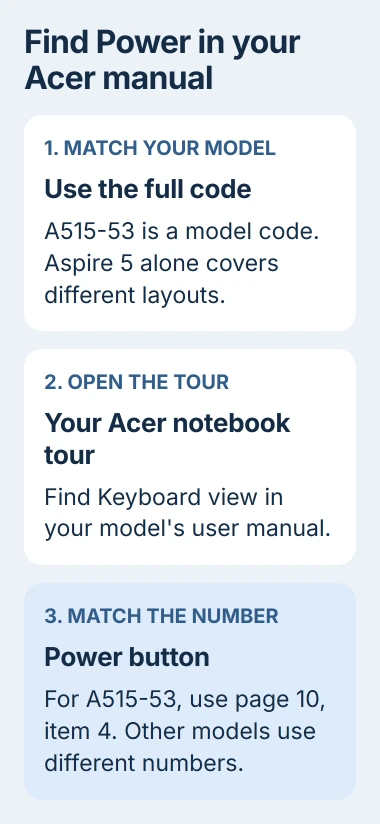
In the manual, find Your Acer notebook tour and then Keyboard view. Match the numbers in the drawing to the control names beside it. Check the side views too when the power button isn't listed on the keyboard view.
PDF search can help: search for Power button and inspect the notebook-tour result. The later Windows power-settings section tells you what happens when you press it, rather than showing where it is.
For example, Acer's Aspire 5 A515-53 manual lists the Power button as item 4 in Keyboard view on page 10. Follow that number in the drawing rather than mistaking the status indicators for buttons.
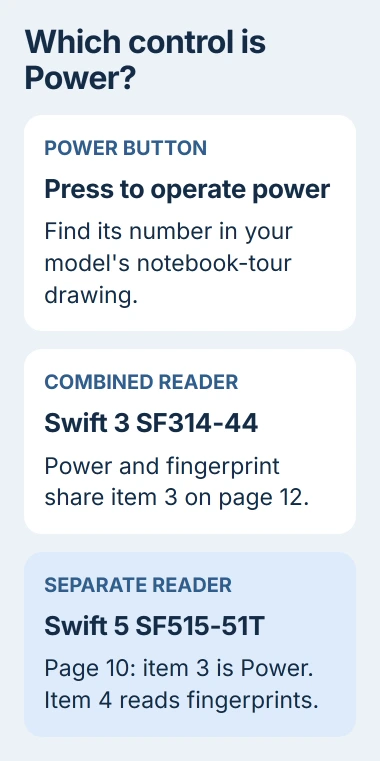
The Swift 3 SF314-44 manual identifies Power button with fingerprint reader as item 3 on page 12. The description tells you to press it for power and touch it lightly to read a fingerprint.
The two manuals use different item numbers. Following an instruction to press item 3 without checking the model would send you to the wrong part on the Aspire.
Check whether the fingerprint reader is also the button
A smooth fingerprint sensor can look like a separate power button. Check what the manual calls it before trying to use it to start the laptop.
On that Swift 3, the same control does both jobs. Touch it lightly to read your fingerprint for Windows Hello, the Windows sign-in feature. Press it normally to use the power button.
The Swift 5 SF515-51T manual shows a different arrangement on page 10: item 3 is the power button, while item 4 is a separate fingerprint reader. Touching that separate reader isn't a substitute for the power button.
If fingerprint sign-in fails, check how far the laptop got. When the Acer logo appears and Windows reaches the sign-in screen, the power button has already started the computer.
Use the on-screen sign-in options if fingerprint recognition is the only problem. If the keyboard then won't enter your password, the Windows keyboard checks cover that separate fault.
Keep a battery-reset hole separate from normal startup
Some Acer laptops have a small battery-reset hole underneath. It's for a battery reset rather than everyday startup. The manual's Base view identifies it when the model has one.
Don't push a pin into an opening just because it looks like a button. Check your model's label and drawing first so you know what the opening is for.
For normal startup, give the power button you've identified a normal press, then release it. Holding it down for a power reset is a separate troubleshooting step with its own instructions; it won't help you find the button.
If the button produces a blue light but no picture, follow the Acer powered-but-blank checks. At that point, you've found the control and need to check why startup or the display isn't working.
If nothing happens, plug a compatible charger directly into the laptop and note whether its charging light changes. Give support your full model, the button you found in the manual, and what happens when you press and release it once.
If the button is stuck, broken or missing, ask Acer or a repairer how it can be repaired on your model. You shouldn't need to open the laptop or join internal electrical contacts just to find its power button.
The Short Version
Match the full Acer model to its notebook-tour drawing, starting with the keyboard view. Fingerprint and power controls can be combined or separate. Use the confirmed power button for startup, rather than a reset hole.
Checked November 5, 2026.

Isaac Smith is the founder and editor of PC Glance, a website that covers computers, laptops, and technology. He is a tech enthusiast and a computer geek who loves to share his insights and help his readers make smart choices when buying tech gadgets or laptops. He is always curious and updated about the latest tech trends.