
Open iPhone Mirroring on your Mac to use phone apps with the Mac keyboard and mouse. To show the iPhone screen or play a video on the Mac, use AirPlay instead; each feature has its own controls and requirements.
The Mirroring app connects wirelessly while your iPhone stays locked nearby. You'll need at least macOS Sequoia 15 and iOS 18. Sign in to the Mac and iPhone using one Apple Account.
Choose phone control or screen sharing first
Use iPhone Mirroring when you want to open phone apps, type into them and move around the phone from the Mac. The screen appears in its own Mac window while the physical iPhone remains locked.
Use AirPlay when you want to show the phone's display on the Mac while operating the phone itself. It's also the route for streaming photos, video or audio from a supported app.
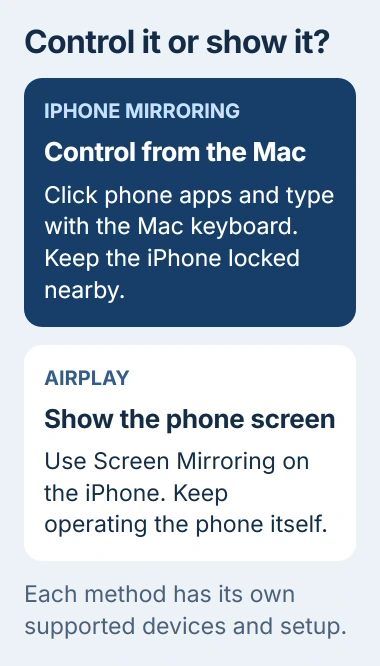
Apple's iPhone Mirroring instructions still list the feature as unavailable in the European Union. AirPlay is a separate option for viewing, though it doesn't turn the Mac into a remote control for the phone.
Connecting your iPhone by cable for backups or file transfers is a separate job. Seeing the phone in Finder doesn't mean you can control its screen there.
Connect the phone through the Mac app
On the Mac, open Applications > iPhone Mirroring, or find it with Spotlight. The app comes with macOS Sequoia 15 and later; you don't need a third-party mirroring download.
The Mac needs Apple silicon or the Apple T2 Security Chip. Open Apple menu > About This Mac to check the model and chip, then check support for your Intel model. A Mac running newer software can still lack the required chip.
Before connecting, check these conditions:
- Use one Apple Account for both devices, with two-factor authentication enabled.
- Turn on Wi-Fi and Bluetooth on the iPhone and Mac.
- Set an iPhone passcode, keep the phone nearby, and lock it when setup asks.
- Stop AirPlay, Sidecar and Mac internet sharing while using the Mirroring app.
Follow the prompts in the Mac window. Unlock the iPhone and enter its passcode on the phone when asked, then leave it locked again for the mirroring connection.
Choose whether your Mac can receive iPhone notifications and whether it should ask for approval each time you connect. On a shared Mac, I'd keep Ask every time so access to your phone still needs your approval.
When the iPhone screen appears in the window, click an app to check that it opens. Leave your phone nearby and locked. Unlocking it pauses or stops mirroring so you can use the phone normally.
Use the Mac's mouse, trackpad and keyboard
Follow the Mac control instructions with your mouse or trackpad: click where you'd tap, and click and hold for a long press. Scroll to move through content, then select a text field to type with the Mac keyboard.
Point at the Mirroring window's upper edge to reveal its toolbar. Use its Home Screen and App Switcher controls to move between apps instead of copying every phone gesture.
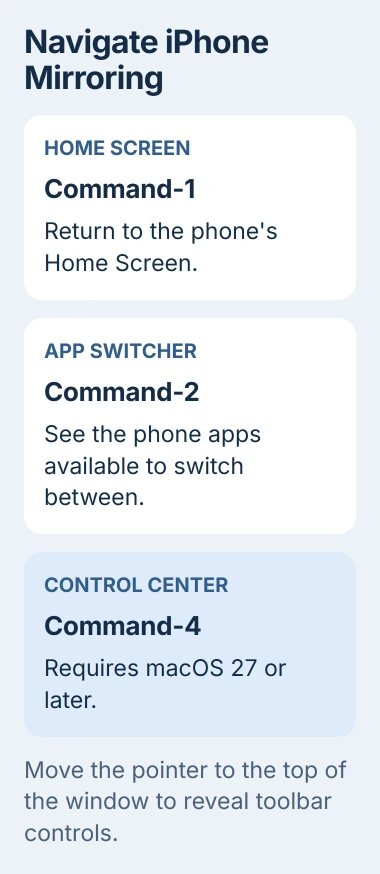
Keyboard shortcuts also help: Command-1 opens the Home Screen, Command-2 opens the App Switcher, and Command-3 opens Spotlight on the mirrored phone. Hold Shift while scrolling to move left or right.
On macOS 27 or later, Command-4 opens Control Center. Earlier macOS versions don't have that shortcut. If an older Mac ignores it, that doesn't mean mirroring has stopped working.
On Sequoia 15 and Tahoe 26, the View menu offers Larger, Smaller, or Actual Size. In macOS 27, it offers Zoom In, Zoom Out, Actual Size and iPhone Size instead.
On macOS 27, drag a window corner to change its size. Supported iPhones on iOS 27 can show more of an app as you widen it. On the iPhone 11, 12 and 13 families and SE second and third generations, the picture gets bigger instead.
The iPhone camera and microphone aren't available through this app, including for Face ID or calls. Use the phone or a separate supported Mac feature when you need those functions.
Select a different phone and manage continued access
If you have several compatible iPhones nearby on the same account, choose which one your Mac should use. On macOS Tahoe 26.4 and later, open System Settings > General > AirDrop & Continuity and use the iPhone menu.
On earlier macOS releases, look in System Settings > Desktop & Dock, in the iPhone Widgets area. You'll see this choice only when the Mac detects multiple compatible phones nearby.
To change when the Mac asks for approval, open the app and choose iPhone Mirroring > Settings in the Mac menu bar. Select Ask every time or Authenticate automatically to suit how you use that Mac.
Quit the app to end the current session. For removing the saved access, choose Revoke iPhone Access in those settings. That unpairs the phone and removes permission for its notifications. Run through setup again to reconnect the phone.
If the correct phone is selected but the app keeps timing out, follow the iPhone Mirroring connection checks. Write down the exact error before changing account settings.
Show the iPhone screen with AirPlay instead
AirPlay to Mac normally needs an iPhone 7 or later on iOS 14 or later and a supported Mac running macOS Monterey 12 or later. Mac mini support starts with 2020 models; most other Macs start with 2018, plus iMac Pro.
Open System Settings > General > AirDrop & Continuity on a current Mac and turn on AirPlay Receiver. Some earlier versions call that pane AirDrop & Handoff; in Monterey, use System Preferences > Sharing > AirPlay Receiver.
The AirPlay receiver instructions let you choose who may connect. Current User suits your own devices signed into the same account.
Connect both devices to the same Wi-Fi network. For Control Center on a Face ID iPhone, begin your downward swipe at the screen's upper-right edge. For a Home-button model, begin an upward swipe at its bottom edge.
Tap Screen Mirroring, select your Mac, and enter any code shown by the Mac into the iPhone. Your Mac shows what you're doing on the iPhone, while you keep using the phone to control its apps.
To finish, open Screen Mirroring on the iPhone and tap Stop Mirroring. If your Mac isn't in the list, use the AirPlay discovery checks and confirm its receiver support first.
If neither method works on compatible devices, update both and give support their models, software versions and the feature you're using. Say whether the app times out or your Mac never appears in Screen Mirroring.
The Short Version
Control the locked phone with iPhone Mirroring, or show its display through AirPlay Receiver and Screen Mirroring. Check the requirements for your chosen method, then end the session through its own controls.
Checked November 5, 2026.

Isaac Smith is the founder and editor of PC Glance, a website that covers computers, laptops, and technology. He is a tech enthusiast and a computer geek who loves to share his insights and help his readers make smart choices when buying tech gadgets or laptops. He is always curious and updated about the latest tech trends.