
Android can block a working microphone through the phone's microphone-access switch or the app's permission. Check both first, then disconnect audio accessories and compare a recording with a call.
If only one app fails, focus on that app. If calls, recordings and video all lose your voice, check the phone itself. Pixel and Samsung phones offer different ways to test the microphones before you arrange a repair.
1. Turn microphone access back on
On supported phones running Android 12 or later, expand the Quick Settings panel and look for Microphone access. If it's blocked, tap the tile to allow it, then try your recording or call again.
Some phones don't show the tile until you edit Quick Settings. On current Android, you can also open Settings > Security & privacy > Privacy > Privacy controls > Microphone access. Search Settings for Microphone access if your menus differ.
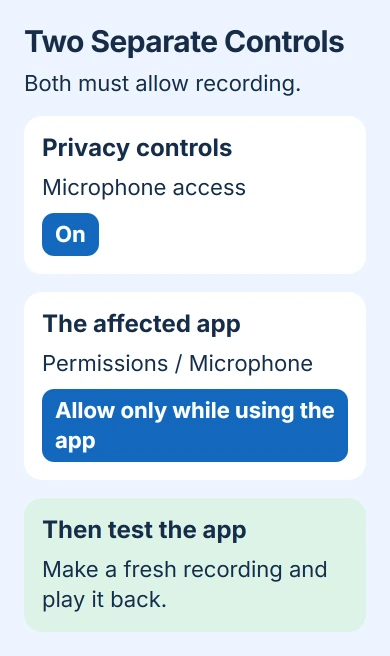
Google describes the device-wide microphone control separately from app permissions. Your app can have permission to record while this switch still blocks it across the phone.
Reopen the app after changing the switch and try again. If you can hear your voice in the recording now, you've fixed it. Leave the app's data and your phone's other settings as they are.
Newer Android versions show a green indicator at the screen's top edge when an app uses a microphone. Tap or expand it to see which app. You'll still need to play back a recording to check whether it captured your voice.
2. Allow the specific app to record audio
Open Settings > Apps, select the failing app, and tap Permissions > Microphone. Choose the option that allows recording while you're using the app. With Ask every time, you'll need to approve access when the app requests it.
The app-permission instructions also show how to review apps by permission type. An app that can play music or open saved audio still needs separate permission to record with your microphone.
Return to the call or recorder and accept any new permission prompt. In a meeting app, check its own Mute control too. Permission to record won't unmute a microphone you've muted inside the call.
If you can't see the app, tap See all apps to expand the list. For a browser call, check the browser's Android microphone permission first, then the site's microphone permission inside that browser.
Android can remove an unused app's permissions automatically. Check microphone permission again after months away. If other apps record normally, keep working on this app rather than assuming every microphone has failed.
3. Disconnect headsets and remove anything covering the mic
Unplug wired headphones and USB-C audio adapters, then temporarily turn Bluetooth off. You can then test the phone without it using a connected headset for audio. Check the result before reconnecting your accessories.
Samsung's microphone troubleshooting starts with removing external devices and checking a recording. A phone held near your mouth can still be using a headset across the room.
Take off a third-party case or protective film if it covers an opening. Check your model's diagram to find the microphone holes. A tiny opening beside the camera may serve a different microphone from the one used for ordinary calls.
Gently wipe dirt from the exterior with a soft, lint-free cloth. Keep pins out of the microphone holes. If the phone reports liquid in its USB port, follow its moisture instructions rather than reconnecting an audio adapter to test it.
Make another short recording without the accessories. If it's clear now, reconnect one item at a time until the failure returns. That tells you which accessory or connection needs attention without changing unrelated settings.
4. Compare voice recording, video and calls
On Pixel, use Recorder to record your voice, then play it back. Next record a video with sound in Camera. The Pixel microphone tests use Recorder for the bottom microphone and Camera for the top one.
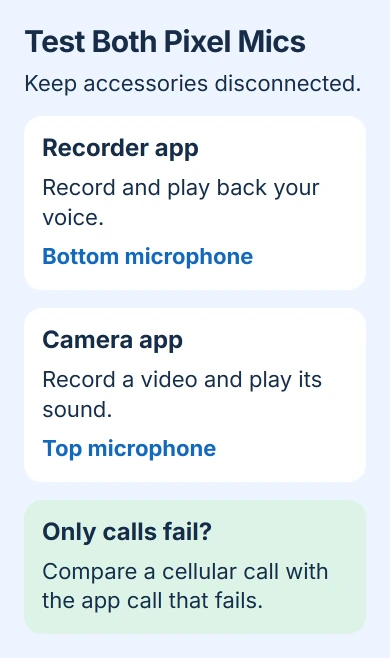
Those microphone locations and app choices apply to Pixel phones. On another Android brand, compare its recorder and camera, but check your model's instructions before deciding which microphone a failed test points to.
If both recordings sound clear but callers can't hear you, try a cellular call and a call in the affected app separately. A problem with one calling service needs a different fix from silence in every recording on your phone.
If you can hear yourself in a recording, that microphone can capture your voice. Other microphones or call modes may still fail, so tell support exactly which test was silent.
For an S25 that records clearly but loses carrier service during calls, check the mobile network connection before replacing a microphone.
On supported Galaxy models, open Settings > Device care > Diagnostics > Phone diagnostics and select Mic. The tests vary by model. Follow the prompts to record your voice and save the result to share with support.
5. Restart, update and test without downloaded apps
Restart the phone using its power menu. On Pixel 6 and later, press Power+Volume Up to open that menu, then tap Restart. On Galaxy phones, the power icon in Quick Settings provides another route.
Check the store for app updates and your phone's settings for system updates. Install any updates, then try the recording again. If only one app is silent, use the Android app repair steps before removing its stored data.
On a Galaxy phone, open the power menu, touch and hold Power off, then select Safe mode. The label appears at the screen's bottom. Test with an included recorder or Camera, since downloaded apps can't run in this mode.
If sound returns in Safe mode, restart normally and remove recently added apps one at a time. Check after each removal so you know which change helped, rather than uninstalling several apps together.
Pixel has its own Safe mode procedure. It turns Airplane Mode on during entry, so turn that off before a call test. Use the instructions for your model rather than assuming the Galaxy menu is identical.
6. Arrange service when the built-in tests stay silent
If the phone's own recordings or built-in microphone test still fail, contact the phone maker or an authorized repair provider. Tell them about any recent drop or liquid exposure, which recordings work and whether Safe mode helped.
Before a service visit or a reset requested by support, check your Android backup contents. A factory reset removes local data, so it's a poor first step for a microphone blocked by a switch.
The Short Version
Enable microphone access and the app's permission, then test without headsets or a covering case. Compare recordings with calls. Try the model's diagnostics or Safe mode, and arrange service if built-in recording tests still fail.
Checked November 5, 2026.

Isaac Smith is the founder and editor of PC Glance, a website that covers computers, laptops, and technology. He is a tech enthusiast and a computer geek who loves to share his insights and help his readers make smart choices when buying tech gadgets or laptops. He is always curious and updated about the latest tech trends.