
Working Wi-Fi doesn't tell you whether your Galaxy S25 is connected to its mobile carrier. Turn Airplane mode off, restart the phone and check that the intended SIM is enabled before resetting network settings.
A No SIM message calls for different checks than signal bars with no cellular data. Check which one you have, then try a normal call and a webpage with Wi-Fi temporarily off. Those results will help you choose the next step.
1. Refresh the connection and check local coverage
Open Settings > Connections and turn Airplane mode off if it's enabled. To refresh the connection, turn it on, wait ten seconds, then turn it off. Check whether the carrier signal returns.
Open Quick Settings, then use its power control to restart. On newer One UI layouts, swipe down from the upper-right corner to open that panel. Tap Restart and confirm, then wait for the phone to reconnect.
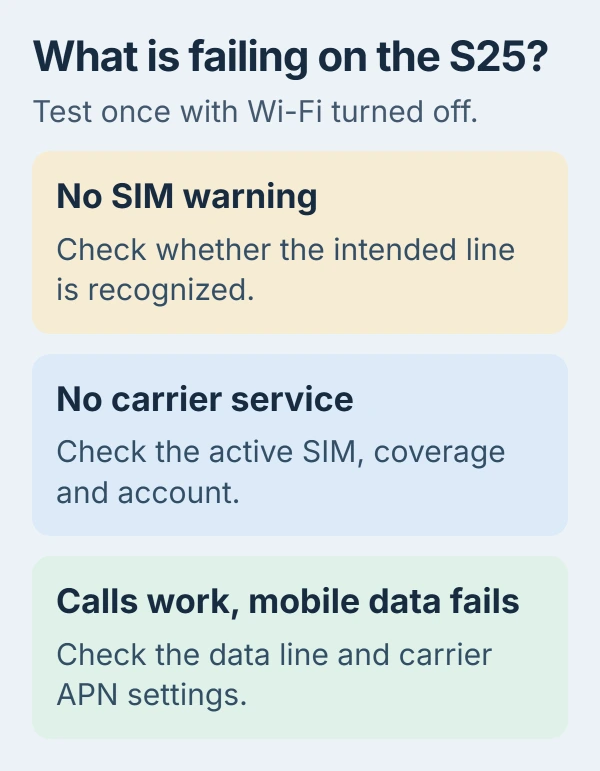
Move somewhere with known coverage and compare another phone on the same carrier if one is available. If both lose service in that location, check with the carrier about an outage or coverage before changing the S25's settings.
The Android mobile-data checks explain the Airplane mode refresh and data indicator. Test with Wi-Fi off briefly so a working router connection doesn't hide a mobile-data failure.
If the problem is actually joining your home router, use the Android Wi-Fi connection guide. The mobile carrier and your home Wi-Fi are separate connections.
2. Confirm the right line is enabled in SIM manager
Open Settings > Connections > SIM manager. Check that the SIM or eSIM for the number you want to use is enabled. With two lines, make sure you're testing the right one; the other line's signal doesn't tell you whether it works.
For mobile internet, check the preferred mobile-data line if your version shows separate choices. Turn on cellular data in Quick Settings. If you recently changed SIMs, check that your data allowance is on the selected line.
If the phone recognizes your physical SIM but won't connect, turn its switch off in SIM manager and then back on. Follow the confirmation prompts, then try another ordinary call once its service indicator returns.
Keep your eSIM installed while checking activation with the carrier. Deleting it may mean you need to activate it again. Ask the carrier to check your number transfer and plan instead of removing the line as a test.
If a newly moved SIM fails in the S25 but worked in the old phone, ask whether the account has SIM protection that restricts a device change. The carrier handles that setting; a phone reset won't activate the account for you.
3. Check whether the phone recognizes a physical SIM
Open Settings > About phone > Status information > SIM card status. Read the network and service details. Tell support whether the carrier name is missing, No SIM appears or the line is inactive; these aren't just slow-data problems.
Samsung recommends checking whether the carrier is recognized, restarting and trying another SIM in its SIM recognition procedure. The SIM can be enabled while the phone still has no carrier service.
If your S25 uses a physical SIM, power it off and use the model's tray instructions to reseat the card. Match the tray's shape and orientation. Insert the eject tool into the tray hole, keeping it away from microphone openings.
Inspect the card for damage and try another active, compatible SIM if you have one. If that works, ask the carrier to replace or check the original. If neither works, keep both comparison results for support.
A phone locked to one carrier may reject another carrier's SIM. Test with a compatible line or ask the original carrier whether your phone is locked. If it rejects an incompatible SIM, that doesn't tell you its hardware is faulty.
4. Reset APN settings when calls work but data doesn't
If normal calls work and you have signal bars, focus on the data connection. An APN, or Access Point Name, tells the phone how to connect to your carrier's data service.
Open Settings > Connections > Mobile networks > Access Point Names. Tap the three-dot menu, choose Reset to default, then confirm. Carrier software can hide or lock these controls, so use the available options for your line.
If your carrier supplied custom APN details, keep them available before resetting. Ask it to confirm the correct settings afterward. Don't copy another carrier's APN simply because it appears in a suggested fix.
Turn Wi-Fi off and load a new webpage. If data works now, turn Wi-Fi back on when finished. If calls also fail or the phone has no service, continue with the wider mobile-network check instead.
5. Install updates and compare an available network mode
Connect to working Wi-Fi and open Settings > Software update. Tap Download and install. Carrier versions may show Check for updates instead. Install anything offered, restart and test the same failed action.
For repeated signal drops, open Settings > Connections > Mobile networks > Network mode if it's available. Compare another supported mode, such as an LTE option where offered, and check the connection in the same location.
The mobile-signal troubleshooting steps include this comparison. Some carriers control network mode themselves, so a missing selector isn't another fault to repair.
If one mode works reliably and another doesn't, report the location, carrier and software version. That helps support check coverage or compatibility. It doesn't mean every S25 has the same network problem.
6. Use the mobile-only reset if service still fails
Open Settings > General management > Reset > Reset mobile network settings. Choose Reset settings, read the confirmation and continue. Select the affected line if your version asks you to choose one.
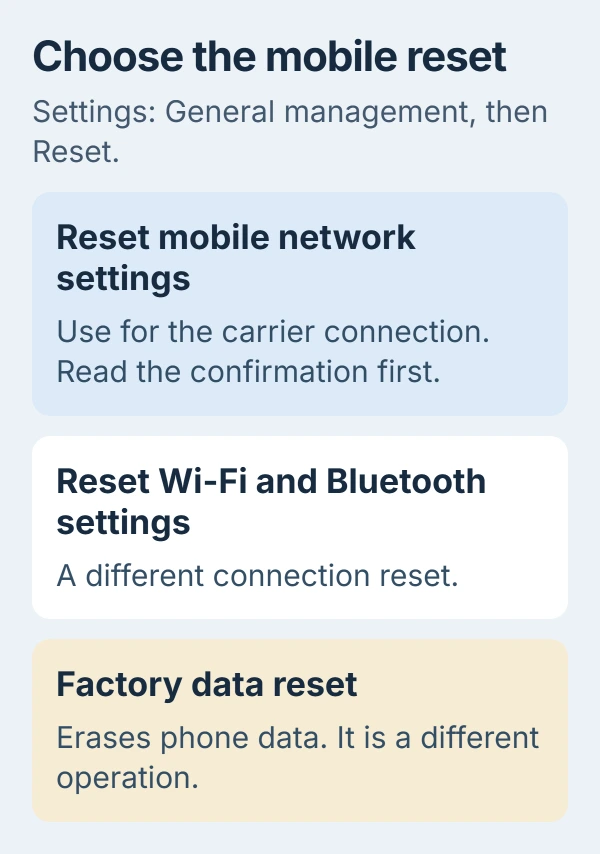
This returns your mobile network settings to their defaults. Have any carrier-specific setup details ready; you may need to enter them again. Choose the mobile option, since Factory data reset does something different.
The Samsung network-reset guide explains how the reset choices differ. Afterward, check whether your line connects to the carrier, then test a call and cellular data separately again.
7. Send a useful result to the carrier or repair team
Open Samsung Members > Support, start Phone diagnostics, and select Mobile network where available. Follow the prompts and keep the result. The app may show Get Started before its list of individual tests.
Contact the carrier first for activation, SIM test failures, missing coverage or account restrictions. Give it the location and error message, and say whether calls fail or only data. I'd include that in your first support message.
If a compatible working SIM also fails, ask the carrier to confirm service. Then send Samsung the diagnostic result and software version for a device check. A factory reset won't activate an inactive line.
The Short Version
Refresh the connection, enable the right SIM and check whether calls fail or only data. Check SIM recognition, APN defaults and updates, then use the mobile-only reset. Tell the carrier or Samsung exactly which test failed.
Checked November 5, 2026.

Isaac Smith is the founder and editor of PC Glance, a website that covers computers, laptops, and technology. He is a tech enthusiast and a computer geek who loves to share his insights and help his readers make smart choices when buying tech gadgets or laptops. He is always curious and updated about the latest tech trends.