
Copy PowerPoint slides from the thumbnail pane, then paste into the other presentation's thumbnail pane. Choose Keep Source Formatting for their original design, or Use Destination Theme to match the receiving file.
Copying a text box or a picture on the large editing canvas transfers that object, rather than the complete slide. Select a whole slide to bring everything across. Use these steps in Windows PowerPoint or the Mac desktop version.
Select complete slides in the source presentation
Open both files and check which one has the slides you need. If you're combining presentations, save the receiving file under a new name. Saving it separately gives you a clear destination and keeps the original files available.
In the source file, choose View > Normal. Click a small slide thumbnail in the pane on the left. You should see a selection around that thumbnail, rather than a text cursor inside a title on the main slide.
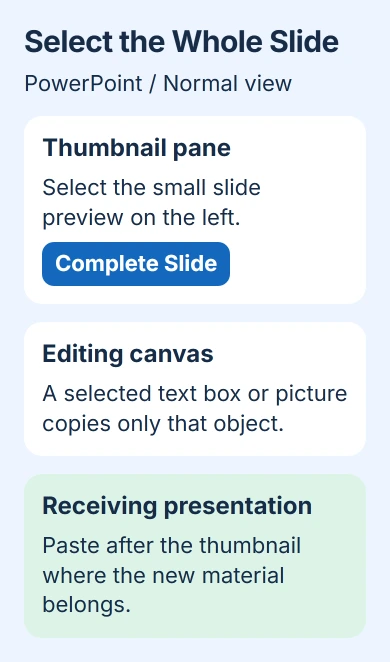
Microsoft says to select thumbnails in its slide-copying instructions. That copies complete slides into the other file, where you can choose their theme.
For slides next to each other, click the first, hold Shift, and click the last. For separate slides, hold Ctrl while clicking each thumbnail on Windows. On Mac, hold Command instead.
Check the highlighted thumbnails before copying. Your selection can include an unwanted slide between the first and last ones you clicked. If that happens, click one thumbnail to start again, then choose only the slides you need.
Copy, switch files and choose the insertion point
Right-click a selected thumbnail and choose Copy. On Mac, a Control-click opens the same menu. Copy leaves the original slides in place, so use it rather than Cut when building a new presentation from existing work.
Switch to the receiving file and find the slide that should come just before the copied slides. Right-click its thumbnail. The new slides should appear after it, at the point in your talk where you want that section.
On Windows, choose the formatting you want under Paste Options. On Mac, choose Paste, then click the Paste Options control beside the inserted slide to choose its formatting.
If you've already pasted with Ctrl+V on Windows or Command+V on Mac, use the same paste-options control beside the inserted slide. Choose its formatting while checking how it looks.
Check the number of thumbnails and the first inserted slide right away. If only a text box or another object appeared, undo the paste and select the source thumbnail again. Moving that object won't bring across the rest of the slide.
For a long presentation, I'd copy a small group first and check where it lands. Once the position and formatting are right, copy the remaining groups. It's easier to spot an ordering mistake while the new slides are still together.
Choose which presentation supplies the design
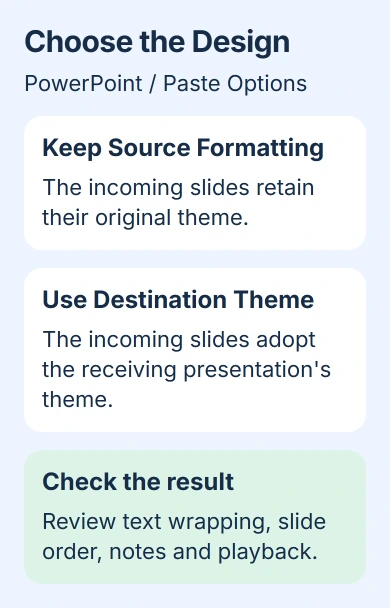
Use Keep Source Formatting to keep the copied slides' original theme. Choose this for a partner's prepared section or any slides whose design you want to preserve in the combined presentation.
Choose Use Destination Theme to match the copied slides to the receiving presentation's theme. That helps a mixed set of slides fit one presentation style without rebuilding each slide from scratch.
That choice handles the formatting. Still check each slide's title, content and position in the presentation before moving on.
If the paste-options control disappears before you've chosen, undo the paste and try again. Choose the formatting as the slides appear, while you're checking the result. Keep the source file open for comparison.
A copied slide may use a font installed on the original computer. If text wraps differently, check the PowerPoint font setup before shrinking every text box to force the old layout.
Start from the right template when combining a whole deck
For a complete redesign, start a new presentation with the template you want. On Windows, choose File > New, select the template and click Create. Then open the existing file to copy its slides.
The template-import procedure starts with that fresh presentation. In the old file, select the thumbnail pane and press Ctrl+A if you want every slide.
Copy that selection into the new file and choose Use Destination Theme. Your old slides now sit in a presentation based on the new template. Save the combined version and continue editing it there.
On Mac, choose File > New from Template to start with a standard template. Select it and choose Create, then copy in the old slides. Use Command+A in the thumbnail pane to select every slide in the source file.
Click in the thumbnail pane before using Select All. If your cursor is in a text box, the shortcut selects text instead of all the slides. It acts on whichever part of the window you're using.
Review slide size, notes and playback
Compare the two files' slide sizes if a copied slide looks squeezed or objects move. A widescreen slide and an older, squarer presentation have different proportions. The PowerPoint slide-size guide explains that choice.
Check headings, charts and pictures in the receiving file. A slide that looks fine as a tiny thumbnail can have crowded labels at full size. Watch for titles that now take up an extra line.
Open the Notes pane for copied slides and check what the presenter will see. Remove private reminders or outdated information before sharing the presentation. Looking only at the slide can miss what's in those notes.
Play each copied section in Slide Show, including any audio or video. Check transitions into and out of the new slides. Playing them lets you check that they work as expected after the paste.
Save, close and reopen the receiving file before sending it. Check the slide order and a few copied slides. Keep the original presentations until the person giving the talk has reviewed the combined version.
When the copy still doesn't work
Try copying one simple slide into a new blank presentation. If that works, compare it with the original receiving file and the slide that won't copy. If the simple test also fails, note your PowerPoint version and any error for support.
The browser editing instructions cover different clipboard rules. The signed-in web editor may need clipboard access. Follow those steps, or open the files in the desktop app to use this guide.
If a work file is read-only or protected, ask its owner for an editable copy you can reuse. For a paste failure you can't explain after that test, tell IT or PowerPoint Support the two file types and exactly what happened.
The Short Version
Copy selected slide thumbnails and paste after the intended destination slide. Choose which theme to use at paste time. Review the inserted slides at full size, check notes and playback, and save the combined file separately.
Checked November 5, 2026.

Isaac Smith is the founder and editor of PC Glance, a website that covers computers, laptops, and technology. He is a tech enthusiast and a computer geek who loves to share his insights and help his readers make smart choices when buying tech gadgets or laptops. He is always curious and updated about the latest tech trends.