
For an Outlook calendar reminder, open the event, choose its Reminder time, and save it. Classic Outlook can also attach a timed follow-up to an email.
Use a task reminder for something you need to do without blocking time on your calendar. The controls differ between new Outlook and classic Outlook for Windows, so follow the steps for the edition you're using.
Set the alert on a calendar event
Open Calendar and select your appointment or meeting. To create a personal reminder, add an event with a clear title, date and start time, then choose how early you want the alert.
In new Outlook, open the event for editing and find Reminder in the Options group. Choose how long before the event you want the alert, then save your changes.
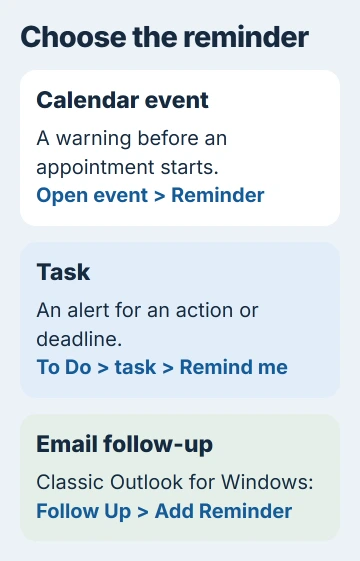
In classic Outlook, open the calendar item and find the Reminder list on its Appointment tab. Choose how early you want the alert, then select Save & Close for your appointment.
Microsoft explains the event reminder controls separately from the alert-window settings. Give the event a reminder first; changing the pop-up style alone won't create one.
The reminder counts back from the event's start. For a 3:00 p.m. appointment, a 30-minute reminder should appear at 2:30 p.m. If those times don't match your plans, check the calendar's time zone.
Open the saved event again and confirm its Reminder field. If it says Don't remind me in new Outlook or None in classic Outlook, that item has no event reminder to display.
Change one occurrence or the complete recurring series
Before editing a repeating event, decide whether you want to change just one appointment or the whole series. That choice controls which dates get the new reminder.
In new Outlook, select View series when changing the reminder for the series. For a one-off change, stay with the selected event and adjust its Reminder field there.
Classic Outlook shows Open Recurring Item. Choose Just this one for the selected occurrence or The entire series for the repeating appointment, then change the reminder and save.
For a weekly meeting, you might need extra preparation for just one date. Change that occurrence to leave the other dates' settings alone. Editing the series can change more than the appointment you're looking at.
If you changed the series, open another date in it and check the reminder there too. Checking only the date you edited won't tell you whether the others have the setting you wanted.
If the event is on someone else's shared calendar, check your calendar access permissions first. The owner may have let you view it without giving you permission to edit.
Choose a default reminder for routine appointments
In new Outlook, open Settings > Calendar > Events and invitations. Under Events you create, find Default reminder, choose how early you usually want an alert, and select Save if asked.
In classic Outlook, open File > Options > Calendar. Under Calendar options, turn on Default reminders and choose the usual amount of time. Confirm with OK.
A default saves time when you want the same advance notice for most appointments. Individual events can still have different reminders, so check the field on an important existing appointment after changing the default.
I'd set an unusually early alert on the event itself. A travel appointment that needs several hours' notice doesn't need to change the reminder for your next ordinary meeting.
A reminder alerts you; it doesn't send someone a message. To deliver an email at a chosen time, use Outlook's scheduled-send controls instead.
Put a reminder on a task in new Outlook
Select To Do in new Outlook's navigation pane. Open the task you need to remember and choose Remind me in its details. Select the offered time or choose a custom date and time where available.
Name the task after the action you need to take, such as renewing a document or calling a supplier. That way, you can tell what needs doing when the alert appears among several other tasks.
A task's due date is its deadline; Remind me sets the alert. Check both fields, since entering a deadline doesn't mean you've set the reminder you wanted.
To remove the alert, open the task again, point to its reminder, and use the cancel control that appears. This removes the reminder without marking the task complete.
In classic Outlook, open the task, turn on its Reminder field, choose the date and time, and save it. Reopen the task to check that your reminder was saved.
Add an email follow-up reminder in classic Outlook
Select Mail and choose the message. Open Home > Tags > Follow Up > Add Reminder. In the Custom window, enable Reminder, set its date and time, then confirm with OK.
Use the Flag to text to describe the work, such as replying with a price or confirming a booking. That tells you what to do with the message when the reminder appears, instead of repeating its subject.
This menu is in classic Outlook. If you don't see Add Reminder on a message in new Outlook, use a To Do task or calendar event instead.
Check the message's follow-up details after saving. A flag on its own isn't a timed reminder. Make sure the reminder box is checked and the time is the one you chose.
Check delivery when the saved reminder stays quiet
To check that alerts work, create a personal event far enough ahead that its reminder time hasn't passed. Keep Outlook open, save the event, and watch for the alert when it's due.
If the reminder is saved but you can't see the alert, follow the Outlook reminder visibility checks. Notification permissions and Do Not Disturb can block the alert without changing its Reminder field.
Snooze delays an alert; Dismiss clears the current reminder. Neither is the same as opening the event and turning its reminder off. Keep that difference in mind for a repeating series.
If a new personal event also stays silent, tell Microsoft Support which Outlook edition and account type you use, and whether event or task alerts fail. Say whether you can still see the reminder setting after reopening the item.
The Short Version
Set the event's Reminder and save it. For a repeating event, choose one date or the whole series before editing. Use To Do for tasks, or classic Outlook's Follow Up > Add Reminder for an email you need to act on at a set time.
Checked November 5, 2026.

Isaac Smith is the founder and editor of PC Glance, a website that covers computers, laptops, and technology. He is a tech enthusiast and a computer geek who loves to share his insights and help his readers make smart choices when buying tech gadgets or laptops. He is always curious and updated about the latest tech trends.