
A grayscale setting can make an HP printer print everything in black and white. Choose Color, then make a color copy or print a diagnostic page to check the printer's own output.
If the printer produces the right colors on its own, keep checking the computer. Faded or missing color blocks on the diagnostic page mean the printer needs attention.
The computer steps here are for Windows, and the maintenance examples use a DeskJet 2700.
1. Choose Color in the print dialog
Open a document with a clearly colored photo or graphic. Press Ctrl + P, select your HP printer and open Printer Properties, Preferences or that app's equivalent settings control.
Look for a color choice under Paper/Quality, Color or Advanced. Select Color and turn off an unwanted black-and-white or grayscale selection. The names depend on the printer driver and application.
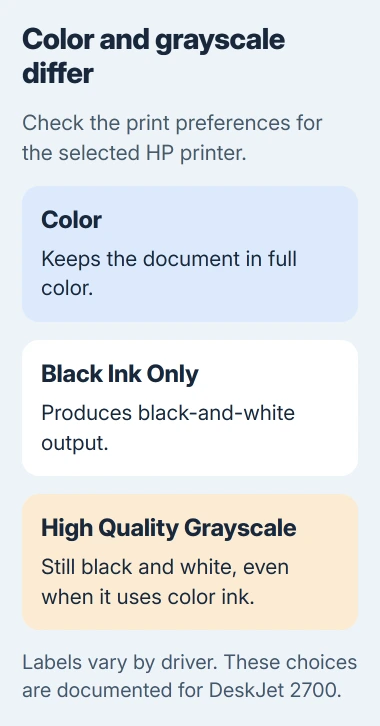
High Quality Grayscale still prints in black and white. It may use color ink to make gray tones, so a drop in color ink doesn't mean you sent a color print job.
HP's DeskJet 2700 user guide distinguishes Color, Black Ink Only and High Quality Grayscale. Its full-color choice uses the color cartridges rather than converting the picture into gray tones.
Print one page after changing the setting. If the colors look right, check the next job's settings too. An app or saved preset can switch back to black and white even after a successful test in another app.
If the entire document is already gray in its saved file, compare a different color document. A printer setting can't recover colors that were removed when the file was created or exported.
2. Make a color copy to compare the printer with the computer
On an all-in-one, place a clearly colored original on the scanner glass and choose the printer's Color Copy control. Check the button markings so you don't press the separate black-copy button.
The DeskJet 2700, for example, has separate Start Copy Color and Start Copy Black buttons. Other HP models use a touchscreen choice instead. This copy starts at the printer, without the document's Windows print settings.
If the copy has the right colors but your computer's printout doesn't, check the app, selected printer entry and driver. Repeated cartridge cleaning won't help you choose between those when the printer already produces the colors.
If the copy also lacks color, print a diagnostic page next. A copy uses both the scanner and printer, so you still need to check which part is causing the problem.
A print-only model has no scanner or copy button. Use its built-in print-quality report instead, following the menu route in your model's manual. The color-copy buttons aren't available on every printer.
3. Read the color blocks on a diagnostic page
Load plain white Letter or A4 paper. Open the printer's maintenance tools and find its print-quality or diagnostic report. The printer makes this pattern itself, so it's a clearer ink check than repeatedly printing your document.
For a DeskJet 2700 with the desktop printer software, open Print & Scan > Maintain Your Printer. In the toolbox, select Device Reports > Print Diagnostic Information.
Inspect the colored blocks on the printed sheet. If blocks are missing, faded or streaked with white, continue with the ink and cartridge checks. If the blocks look normal, return to the computer's print settings.
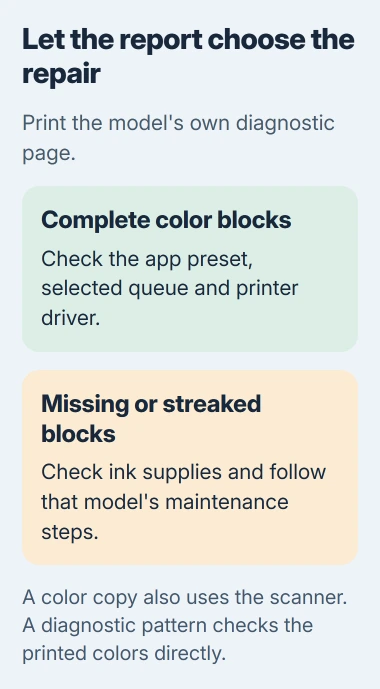
You'll see those toolbox names if your installed software matches the DeskJet example. Newer models may put maintenance tools in their own app or control panel and use a different report name.
Check the printer's estimated ink levels alongside the report. A nearly empty color supply could explain the problem, but a healthy-looking estimate doesn't rule out a cartridge that isn't printing correctly.
If your LaserJet is a monochrome model, it prints only in black and white, even from a color file. Check the full model name before buying supplies or looking for a missing Color option.
4. Clean inkjet cartridges when the report shows a defect
For the DeskJet 2700 software, open Print & Scan > Maintain Your Printer > Device Services > Clean Cartridges. Keep plain paper loaded and follow the displayed cleaning and inspection instructions.
Compare the new page with the earlier report to see whether cleaning improved the colors. If a color is still missing, follow your model's next cartridge step instead of repeatedly printing the same document.
Don't run cleaning as a routine fix when the blocks are already normal. Cleaning uses ink, and unnecessary cycles shorten cartridge life. Follow the printer's instructions about whether to run another cleaning level.
For a new cartridge, follow its installation steps and confirm the protective material was removed. Check the part number and that the cartridge is seated properly, especially if the problem started after you replaced it.
When replacing the supply itself, compare the HP holder mechanisms; the release on a DeskJet differs from an ENVY latch.
Ink tanks, replaceable printheads and laser toner cartridges need different care. Follow your model's manual; an inkjet cartridge cleaning routine isn't a LaserJet procedure or a reason to take a printhead apart.
5. Repair the Windows printer entry when local color works
If the diagnostic looks right but several Windows apps still print in gray, check the driver and printer entry. Start by making sure each app selects the same HP printer entry instead of a duplicate.
On Windows 11, open Settings > Bluetooth & devices > Printers & scanners, select the HP printer and open Printing preferences. Check its color choice there as well as inside the application.
On Windows 10, use Settings > Devices > Printers & scanners, select the printer and choose Manage to reach its controls. If only one app fails, correct that app's print preset before replacing the printer installation.
Microsoft says Windows Update can supply printer drivers, which can help when the installed driver is missing or broken. On Windows 11, optional driver updates are under Windows Update > Advanced options > Optional updates when available.
If the printer entry still needs replacing, note its connection and name first. Select Remove in Printers & scanners, then Add device to add the powered-on, connected printer again. Network printers must be reachable on the same network.
Follow the Windows printer installation steps for this process. After installation, check the color setting and print the same sample. Compare it with the earlier printout.
If the new printer entry is offline, use the Windows offline-printer checks. Get the printer connected before comparing colors again.
When the printer needs HP support
Contact HP if a color is still missing from the printer's own reports after you've followed its maintenance steps and checked the ink supply. Send your model number, cartridge or tank status, and describe the blocks that printed badly.
If the report looks right, tell support which computers and apps lose color and whether you see a Color option. I'd keep that report for the conversation; it shows why another cartridge may be the wrong repair.
The Short Version
Choose Color, then compare a color copy or printer-generated report. Missing colors need model-specific ink maintenance. If the report looks right but computer prints stay gray, check app settings, presets or drivers.
Checked November 5, 2026.

Isaac Smith is the founder and editor of PC Glance, a website that covers computers, laptops, and technology. He is a tech enthusiast and a computer geek who loves to share his insights and help his readers make smart choices when buying tech gadgets or laptops. He is always curious and updated about the latest tech trends.