
When headphones keep disconnecting, play a downloaded track to check whether the drops happen without streaming. Charge them and keep your phone or computer close before changing drivers or resetting the pair.
Low charge, a weak signal or another paired device can break a working Bluetooth connection. Loose wired plugs, disappearing USB dongles and audio pauses with Bluetooth still connected need different checks.
1. Charge the headphones and confirm the connection drops
Charge the headphones fully using their normal charging method, then turn them off and on. A low battery can prevent a Bluetooth device from maintaining its connection, even when it connected earlier in the session.
For earbuds, check that both sit properly in the case and show the usual charging lights or status. If one side won't charge, follow your model's charging checks before treating it as a Bluetooth problem.
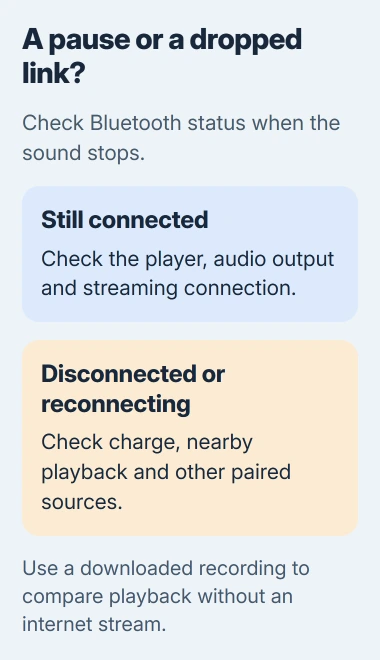
When playback stops, check whether the Bluetooth list shows the headphones as disconnected. You may also hear a disconnect tone or see them reconnect seconds later. That's different from an app pausing while Bluetooth stays connected.
On an iPhone, open Settings > Bluetooth. On Windows 11, open Settings > Bluetooth & devices. On Android, open the connected-device or Bluetooth list; its exact name varies by phone.
If Bluetooth stays connected, check the selected audio output and try the same recording in another app. A buffering stream or paused player can go quiet without needing a new Bluetooth pairing.
2. Play a downloaded track with the source nearby
Play a recording already downloaded to your phone or computer instead of streaming over the internet. Keep that device close to the headphones, in the same room without a wall between them.
Apple recommends a stored-track comparison when a wireless connection cuts out. If the downloaded track drops too, keep checking beyond the internet stream.
If the downloaded track plays steadily, try your usual activity again nearby. Then compare another location, away from a busy wireless area, microwave or poorly shielded cable. Notice which change makes the interruptions return.
An advertised Bluetooth distance won't tell you exactly how far it works in your rooms. The Bluetooth range explanation covers how walls, surroundings and the devices themselves affect it.
I'd try this before installing a different Bluetooth driver. If the drops stop with your phone or computer beside you and return across a wall, you've learned something useful without changing the computer.
If the downloaded track still drops nearby, check other connected devices and the saved pairing next. Keep using that track so you're changing only one part of the setup at a time.
3. Disconnect other devices that can take the headphones
Temporarily disconnect the headphones from the other phone, tablet or laptop they're paired with. Leave only the device you're testing connected, then play the local track again.
Some headphones support multipoint, which means they can remain connected to two sources at once. That doesn't mean every model can mix both audio streams, or accept unlimited simultaneous connections.
For example, the WH-1000XM5 multipoint instructions explain that connecting a third source disconnects one of the existing two. That's how this model handles its connection limit, rather than a random signal failure.
If your headphones' app has a two-device option, turn it off temporarily. Or disconnect the other phone or computer through its Bluetooth settings. Use your model's controls instead of another brand's reset combination.
If the drops stop with one source, reconnect the second and watch when playback changes. A call or playback on that other device can explain why the sound moved even though your headphones stayed on.
If several pairs drop on the same computer, continue with the computer checks. If this pair drops with every source, check the headphones' firmware (their built-in software) and hardware too.
4. Forget the saved pairing and connect again
On an iPhone, open Settings > Bluetooth, tap the information control beside the headphones, then select Forget This Device. Restart the phone before putting the headphones into pairing mode again.
On Android, open the headphones' entry in Bluetooth settings and choose Forget or Unpair. Restart the phone, switch the headphones to pairing mode and select their model name when it appears.
On Windows 11, open Settings > Bluetooth & devices, use the headphones' menu and choose Remove device. Select Add device > Bluetooth, then choose the headphones when they appear in the list.
After pairing, check that the headphones stay connected and appear as an audio output. Play the same downloaded track long enough to reach the point where the interruption normally happens.
Forgetting the pairing on your phone or computer doesn't reset the headphones themselves. If re-pairing fails to help, use the model-specific reset guidance before attempting a factory initialization that clears saved devices.
5. On Windows, check adapter power and drivers
For drops that occur only on a Windows PC, temporarily turn off Energy saver in Windows 11 or Battery saver in Windows 10. Play the same track again, particularly if the failures happen on battery power.
The Windows disconnection procedure also checks power settings for the Bluetooth adapter, the part that connects your PC to wireless accessories. Right-click Start, select Device Manager and expand Bluetooth.
Open the computer's Bluetooth adapter Properties, then its Power Management tab if present. Clear Allow the computer to turn off this device to save power and apply the change.
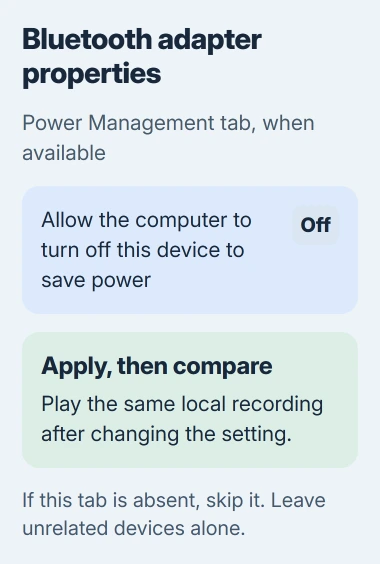
Some adapters don't show that tab. Skip the setting if it's missing; don't change unrelated USB or network devices just to find a similar checkbox.
If the drops continue, run the Bluetooth troubleshooter in Get Help. Check Windows Update and your computer maker's supported Bluetooth driver. Restart after installing a driver if asked.
If Bluetooth itself remains unreliable, press Windows + R, enter services.msc and find Bluetooth Support Service. Right-click its entry, choose Restart if available, then compare playback again.
6. Compare a second source before arranging repair
Connect the charged headphones to another compatible phone or computer. Use one connected source, a downloaded recording and a short distance. Then try another headset on the original device if you have one.
Drops with both sources point toward the headphones or their software. If several headsets fail on one source, focus on that phone or computer. Tell the maker how these checks went when asking for help with drops that come and go.
Check the headphones' app for a firmware update and follow its charging instructions. If drops continue, send the maker your model, firmware version, connected devices and test results. Use warranty service if your pair is covered.
The Short Version
Check the connection status, charge the headphones and play a downloaded track nearby. Disconnect competing sources, then pair again. If only Windows drops, check its adapter; if several sources drop, contact the headphone maker.
Checked November 5, 2026.

Isaac Smith is the founder and editor of PC Glance, a website that covers computers, laptops, and technology. He is a tech enthusiast and a computer geek who loves to share his insights and help his readers make smart choices when buying tech gadgets or laptops. He is always curious and updated about the latest tech trends.