
A one-finger press and release on the lower half of a Chromebook's touchpad makes a normal left-click. Move the pointer onto the item first; a light tap also works when Tap to click is on.
The touchpad itself acts as the button, so it doesn't need a separate left button. The number of fingers changes the action. You can also make a normal selection with an external mouse or touchscreen.
Make a normal click with one finger
Move the pointer with a single finger on the pad until it rests on the control you want. Lift any other fingers away, press the lower half of the pad once, then release it without sliding.
Try the clock in the bottom-right corner as a simple check. One normal click opens its panel. Click empty space outside the panel to close it. That gives you a familiar control to practice on without opening or moving a file.
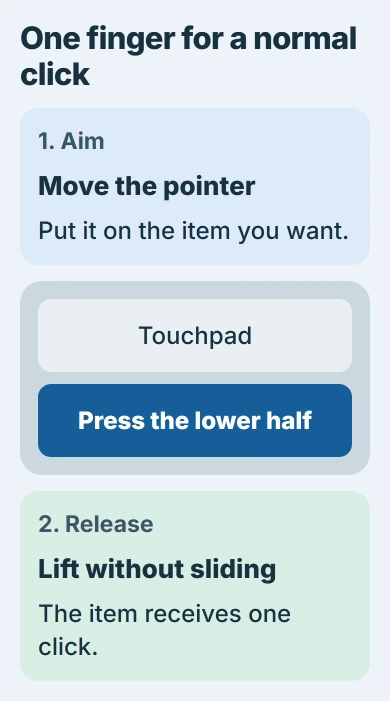
Google's touchpad instructions describe pressing or tapping the lower half. A two-finger press opens a menu of extra actions, so use one finger for a normal click.
Some pads feel firmer near the top edge. Use the lower half described in the instructions rather than pressing harder against the hinge. Keep your hand relaxed and release the pad after each click.
The pointer's position chooses the item. Pressing the left side of the pad doesn't select the left side of the screen. Move the pointer first, then press a comfortable spot in the lower half.
Turn on light taps instead of pressing
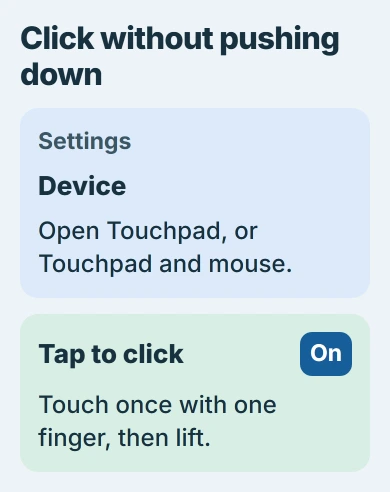
With tap-clicking, a brief touch counts as a click without pushing the pad down. Try it if pressing feels uncomfortable or you'd prefer a lighter touch while working.
- Click the time to open the Chromebook's quick controls.
- Select Settings, then open Device.
- Choose Touchpad, or Touchpad and mouse if that's the name shown.
- Switch Tap to click on.
Return to the clock and tap the lower half of the pad once with one finger, lifting it straight away. If the panel opens, tapping works and you can use it for ordinary buttons and links.
Keep this setting off if resting a finger on the pad causes unwanted clicks. Turning it off changes tap behavior; you can still use the physical press to click.
Pointer speed is a different setting on the same page. It changes how far the pointer travels when your finger moves. Changing speed won't turn tapping on or change a left-click into a right-click.
I'd practice on the clock before trying a small website button. Once that works, you can focus on placing the pointer without changing several settings at once.
Use one click, two clicks or a held click for different jobs
A single click presses a button or follows a link. In the Files app, it selects a file. The file's appearance changes to show which one your next command will affect.
To open a file in Files, you normally double-click it. Press and release twice quickly, keeping the pointer over the same file. Tapping twice works too when tap-clicking is on.
For dragging, position the pointer on the item, press and keep holding the pad down, then move your finger. Release when the item reaches the destination. Letting go too early ends the drag at that position.
The Tap and drag setting lets you move items with a separate tapping gesture. Leave it alone until normal clicking feels comfortable; turning on tap-clicking doesn't mean you need to change every gesture setting.
For moving text between documents, the Chromebook copy-and-paste steps can be easier than dragging. Select the intended text first and check the destination before pasting it.
Use the primary button on an external mouse
On a mouse with its ordinary button assignment, press and release the left button once. Its wheel isn't the left-click button, even when the wheel can also be pressed.
If the left button opens a menu but the right button selects items, your primary button has been swapped. Open Settings > Device, then the Mouse or combined touchpad-and-mouse controls shown on your Chromebook.
Find the primary mouse button setting and set it back to the left button, then test the clock again. This controls the external mouse; changing the touchpad's tap option won't swap your mouse buttons back.
For a menu of extra actions such as Rename, use the separate Chromebook right-click methods. That menu serves a different purpose from the normal selection described here.
Tap the screen on a touchscreen model
On a Chromebook with a touchscreen, briefly touch the actual item on the display and lift your finger. That performs a normal click without moving the touchpad pointer first.
Keep the touch brief. Touching and holding opens a menu of extra actions. Dragging your finger across a page can scroll it instead, so a long or moving gesture won't work like a quick tap.
This is helpful in tablet mode when the keyboard and touchpad aren't convenient. A Chromebook without a touchscreen needs the touchpad, a mouse or another supported input device; touching an ordinary display won't select anything.
When the gesture still won't select anything
Try the clock, then the item that wouldn't respond. If the clock opens but one webpage button doesn't, the normal click works. Check that page or app rather than repeatedly altering the touchpad settings.
If the pointer moves but no physical presses register, try tap-clicking or a connected mouse. Those give you a way to keep working while checking whether the problem is limited to the pad's press action.
If the pointer also stops moving, use the Chromebook mouse and touchpad checks. A pad that can't detect movement needs more than a change to your click gesture.
For a school Chromebook, report a pad that won't press or respond to its administrator. For a personal machine, give the manufacturer your Chromebook model and explain whether movement, tapping and physical pressing work separately.
The Short Version
Move the pointer, press the lower half with one finger, then release. Turn on Tap to click for light taps. Use the external mouse's primary button or briefly tap a touchscreen for the same normal selection.
Checked November 5, 2026.

Isaac Smith is the founder and editor of PC Glance, a website that covers computers, laptops, and technology. He is a tech enthusiast and a computer geek who loves to share his insights and help his readers make smart choices when buying tech gadgets or laptops. He is always curious and updated about the latest tech trends.