
Silence from a MacBook can mean the sound is going to headphones, a display or another selected output. Check the playing app's volume, disconnect external audio devices, and select the built-in speakers before trying system repairs.
Try another app through the same speakers. If it plays, check the silent app's controls. If every app stays silent, work through the output checks and get service if sound still doesn't return.
1. Check the app that's supposed to be playing
Play a recording you know has sound and watch its playback position. A paused clip, a stream that hasn't loaded or a silent recording can leave the Mac quiet even when its sound settings are correct.
Look for the app's own volume control. Music has a slider near the top of its window. Raise it to a comfortable level, then raise the Mac's system volume gradually. Either control can keep playback quiet.
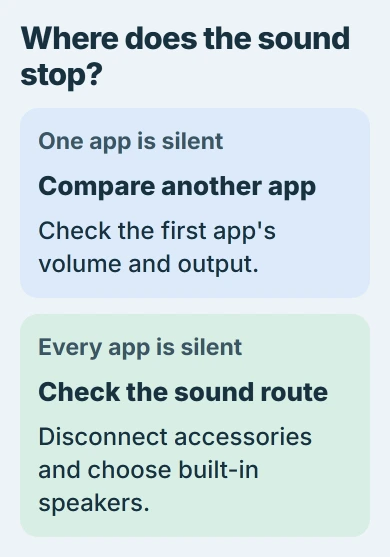
Apple says to check app volume in its internal-speaker instructions. If any app plays through the built-in speakers, you know they can produce sound.
Try familiar audio in a different app, keeping the same output selected. If it plays, check the first app's mute, volume or recording instead of changing settings for the whole Mac.
Keep the test volume moderate. Starting with every slider at its maximum can produce a sudden loud sound when the correct output finally starts playing.
2. Disconnect headphones, audio adapters and the display
Unplug headphones or speakers from the headphone jack. Disconnect USB or Thunderbolt audio devices, including USB headsets and audio interfaces. An interface is an external box that handles recording or playback.
Temporarily disconnect an external display connected through USB or HDMI too. A display can appear as an audio destination even when the picture is the only feature you're using.
If a dock also has storage attached, finish any transfers and eject those drives before disconnecting the dock. Then try playback with the MacBook on its own, using its built-in screen and speakers.
If sound returns with the MacBook on its own, reconnect one accessory at a time. Listen again and check the selected output after each connection to find which accessory changes playback.
A working monitor picture doesn't mean sound is playing through the laptop. Video and audio can use the same cable while the audio destination changes separately.
Check the output in the next section even after you've removed every cable. Wireless headphones and AirPlay speakers can still be available without anything plugged into your MacBook.
3. Select the built-in speakers and clear mute
Open Apple menu > System Settings > Sound, then choose Output. Older macOS releases use System Preferences > Sound > Output. Look for the list of output devices in Sound.
Select the MacBook's built-in speakers. The exact name can include your Mac model; use the entry identified as built-in rather than a monitor, headset, AirPlay device or installed virtual audio device.
Raise Output volume and uncheck Mute if it's selected. Play your test audio again with the built-in output selected. Changing the input microphone won't change where music or video plays.
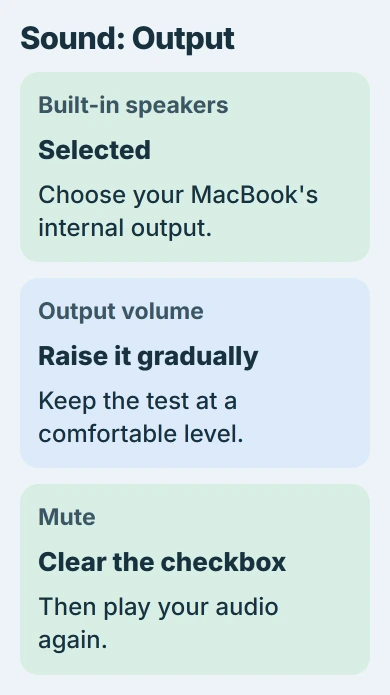
The sound-output settings reference explains the list and volume controls. Some external outputs use their own volume controls, so they can work differently from the built-in speakers.
Check the Balance slider if only one side is audible. Move it to the middle for comparison. With the slider at one end, audio plays through that side; if it's centered and one speaker stays silent, keep checking.
If the built-in speakers aren't listed, note the outputs that are. Tell support whether the built-in output is missing or listed but silent.
4. Check the silent app or accessory
When another app plays normally through the MacBook speakers, return to the silent app. Check its playback volume and its own speaker selector if it has one, particularly in a meeting or recording app.
A call app may keep using a headset after you've changed the Mac's general output. Choose the built-in output inside that app, then use its speaker test or ask the other participant to speak again.
If the sound problem happens only in Chrome, the Chrome audio checks cover muted sites and its sound permissions. Leave working system output settings in place while checking the browser.
If speakers work but your headset doesn't, select it in Output and check its power and volume. The speaker test points you toward the headset, whose connection still needs checking.
Sound that plays but crackles or cuts out has a different repair path. Use the Mac audio crackling checks for that symptom instead of treating distorted playback as complete silence.
5. Restart once and install available software fixes
Save your work, then choose Apple menu > Restart. After signing back in, try your audio through the built-in speakers before reopening recording tools and meeting apps or reconnecting all your accessories.
If sound stops when one app opens, note that sequence. Check the app for an update and confirm its selected output. If it happens each time, give its support team that detail instead of just reporting no sound.
Check System Settings > General > Software Update for available macOS updates. On an older system, use System Preferences > Software Update. Install offered updates that apply to your Mac and finish the requested restart.
I'd try the restart and output check before running Terminal commands or deleting audio settings. They let you check playback without risking a new problem from an unrelated change.
If this is an Intel Mac running Windows through Boot Camp, use the MacBook Windows audio procedure. Its driver package and compatibility checks apply to Windows rather than these macOS steps.
6. Ask for service when built-in playback stays silent
If the internal speakers still won't play after the app, accessory and Sound checks, ask Apple Support about speaker service. A missing built-in output is also a reason to get model-specific help.
Give them the MacBook model, macOS version, what appears in Output, and whether headphones or another output work. Say whether all apps are silent or one app can still play through the internal speakers.
If a compatible headset works, use it for calls while you arrange service. It's a temporary way to hear the call; the built-in speakers still need attention if they won't play.
The Short Version
Check app volume, disconnect external audio devices, then select the built-in speakers in Sound > Output. Compare apps and outputs, restart and update when needed, and seek service if built-in playback stays silent.
Checked November 5, 2026.

Isaac Smith is the founder and editor of PC Glance, a website that covers computers, laptops, and technology. He is a tech enthusiast and a computer geek who loves to share his insights and help his readers make smart choices when buying tech gadgets or laptops. He is always curious and updated about the latest tech trends.