
When Outlook spell check stops working, try the spelling tool in a new draft first. New Outlook uses Editor, while classic Outlook also offers Spelling & Grammar. The automatic-check setting depends on which version you're using.
If the tool catches mistakes but doesn't mark them as you type, check the automatic setting. If it gives the wrong suggestions for ordinary words, check the proofing language, which chooses the dictionary for your text.
1. Compare a fresh draft with the failing message
Create a new email and type a short sentence with an obvious typo. Save it as a draft, then compare the new text with the message where spell check stopped working.
In new Outlook, open Message > Editor > Open Editor. If your window is narrow, look in the ribbon's three-dot menu. Check the spelling category for a suggested correction to your test typo.
Microsoft says to use Editor or Spelling & Grammar in its Outlook spelling instructions. File > Options belongs to classic Outlook, so you won't find that menu in new Outlook.
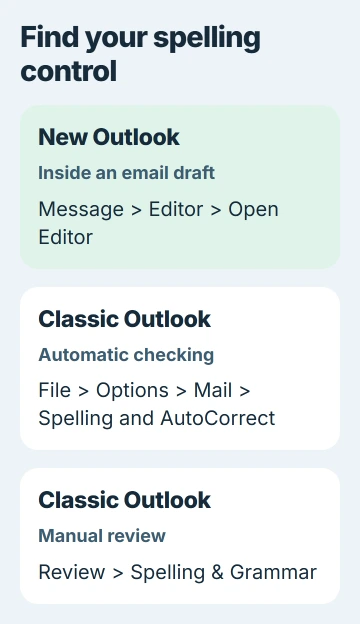
In classic Outlook, open Review > Spelling & Grammar while composing. Some Microsoft 365 versions show Editor instead. If the manual review catches the typo, continue with the automatic-check setting for your version.
If the new draft works but a reply doesn't, select the problem text in the reply and check its language. I'd check that before reinstalling Outlook for a problem that affects just one message.
2. Enable the spelling suggestions in new Outlook
In your draft, open Editor > Editor Settings. If you're using the simplified ribbon, look in the three-dot menu if needed. Turn on spelling suggestions in the settings panel, then choose OK to save the changes.
If several settings have changed and you're unsure which to use, choose Reset to default in that panel. I'd try this before resetting your account, since it resets spelling preferences rather than your mailbox.
Return to your draft and type another obvious misspelling. Open Editor to see whether it offers a correction. Check the spelling category itself; the number near your message only counts suggestions.
Hide suggestions count hides that number without turning off spell check. Editor can still check your draft even when you can't see a count.
If Editor corrects spelling but offers no grammar or style suggestions, check those options separately. Missing a style suggestion doesn't mean it's also missing simple typos.
3. Correct the language used by the draft
In new Outlook's draft, choose Editor > Editor Settings > Manage spellcheck languages. Under Proofing languages, choose Add another language, select the language you write in, and finish with Add > Done.
Give Editor time to check the draft again. That language setting applies to this draft. If another existing message still gets suggestions in the wrong language, check its setting too.
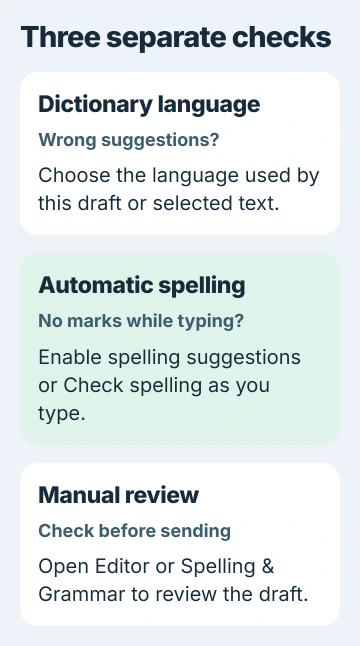
In classic Outlook, select the message text, then open Review > Language > Set Proofing Language. Choose the language you're writing in. Clear Do not check spelling or grammar if that box is checked.
Text pasted from another document can bring a different dictionary language with it. Use our Word language-formatting guide if the language also changes in the document you're copying from.
If your language isn't listed, you may need its spelling tools. Open Review > Language > Language Preferences in classic Outlook to check whether they're installed. Ask IT for any missing tools on a managed computer.
4. Restore automatic checks in classic Outlook
Open File > Options > Mail, then select Spelling and AutoCorrect. Turn on Check spelling as you type in the proofing options. Save the settings, return to your draft and type a new test word.
AutoCorrect can replace a familiar typo as you type. Spell check marks possible mistakes for you to review. They're separate settings, so one can work while the other is off.
For a check each time you send, return to File > Options > Mail. Under Compose messages, select Always check spelling before sending. This adds a final review and keeps the as-you-type option separate.
If Outlook finds no spelling mistakes, it sends the message immediately. Leave recipients out of your test draft so you don't accidentally send it during this check.
If text size is the real difficulty, adjust Outlook's reading zoom or composing font. Making text larger doesn't change the language or enable spelling checks.
5. Recheck ignored words and separate Mac controls
A word you've ignored or added to your dictionary can stop being marked as a mistake. Try another obvious misspelling before deciding spell check has failed completely. You'll still need to judge proper names and specialist terms yourself.
In classic Outlook, open File > Options > Mail > Spelling and AutoCorrect. Choose Recheck Document in the proofing options to reset ignored results for the message. Confirm the reset, then run the spelling tool again.
On Mac, open a message and choose Outlook > Settings > Spelling and Grammar. Turn on Check spelling as you type. To run the check yourself, use Edit > Spelling and Grammar > Spelling and Grammar.
The Mac menus differ from Windows, so use these Mac controls instead of looking for a Windows-only settings box.
6. Report a continuing failure with a small example
A new-Outlook bug that changed proofing languages unexpectedly was fixed through a service change in December 2024. That fix applies to the old bug; a language problem today needs its own checks.
If spell check still misses ordinary typos in a new draft, contact Outlook Support or your IT team. Send your app version, proofing language and example text, and say whether Editor or manual Spelling & Grammar catches the typo.
The Short Version
Try the spelling tool in a new draft first. Turn on spelling suggestions for your Outlook version, choose the right dictionary, and clear the setting that skips checking the text. Send support an example if that draft still fails.
Checked November 5, 2026.

Isaac Smith is the founder and editor of PC Glance, a website that covers computers, laptops, and technology. He is a tech enthusiast and a computer geek who loves to share his insights and help his readers make smart choices when buying tech gadgets or laptops. He is always curious and updated about the latest tech trends.