
Charge your JBL Flip and test it beside your Chromebook if it keeps disconnecting. Watch Bluetooth when sound stops: the speaker may have disconnected, or audio may be going elsewhere.
If the speaker disconnects, check Bluetooth. If it stays connected, you may only need to choose it as the Chromebook's sound output.
1. Check the Bluetooth list while the sound stops
Open the clock panel in the Chromebook's lower-right corner, then select Bluetooth. Find the JBL entry and see whether it remains under Currently connected during the interruption.
Google says to use separate checks for repeated Bluetooth dropouts and a device that never pairs. See which problem matches what you're seeing.
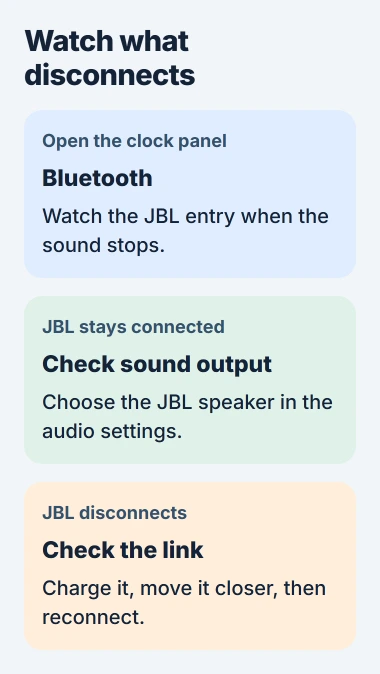
If the speaker remains connected, open the clock panel's audio settings beside the volume slider and choose the JBL speaker as the output. Raise the Chromebook volume and check the speaker's own volume too.
Headphones, a monitor or another output may have been selected instead. Test the same audio again after choosing JBL. If sound returns without pairing again, the connection was still working.
If the JBL entry leaves Currently connected, continue with the next check. Note whether the speaker also turns off; that's different from a speaker that stays on but loses its Bluetooth connection.
2. Charge the speaker and shorten the distance
Charge the Flip using the charging instructions for its exact model. Check the name on the speaker or its packaging; Flip models don't all have the same charging connection or indicators.
Place it beside the Chromebook and play the same audio without moving either device. This shows whether the problem changes with the speaker's location or distance.
Keep the speaker close to the laptop and away from nearby wireless equipment and appliances.
The Bluetooth range guide explains why walls and interference can stop a speaker from reaching its advertised range. Try it nearby before expecting that range to cover your house.
I'd try this before pairing the speaker again. It's quick, and you'll know whether the link holds up at close range.
If the link stays stable nearby but breaks farther away, keep the speaker closer and change its position. If it still disconnects beside the laptop, distance alone doesn't explain the problem.
3. Restart Bluetooth, then reconnect the saved speaker
In the clock panel, select Bluetooth and switch it off. Turn it back on, then select the JBL name under Previously connected. Wait for it to move into Currently connected before testing sound.
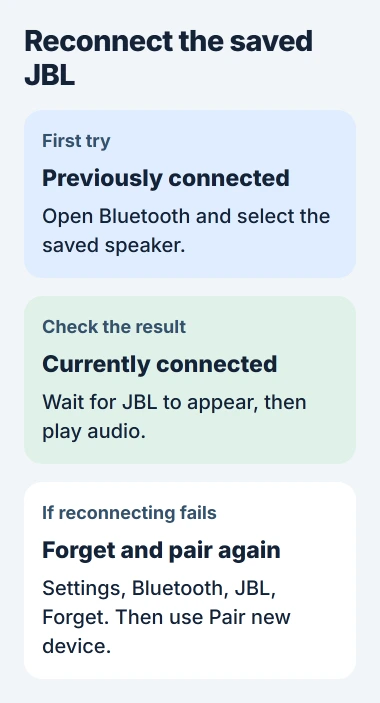
Reconnecting uses the saved pairing. You don't need to keep turning on pairing mode, which lets another device find the speaker.
If reconnecting fails, open Settings > Bluetooth, select the JBL entry and choose Forget. Put the speaker into pairing mode using its model's instructions, then select Pair new device on the Chromebook.
Choose the speaker's actual model name and complete any prompts. The Chromebook pairing procedure covers the same menus if you're unfamiliar with them.
The saved-device instructions also explain the difference between reconnecting and creating a new pairing. Wait until the speaker is connected; seeing its name in a search isn't enough.
Now replay the interrupted audio. If the speaker connects but keeps dropping, using Forget several more times won't tell you much. Move on to the Chromebook's open apps and software updates.
4. Close spare apps and restart the Chromebook
Save anything you're editing, then close browser tabs and apps you aren't using. Keep one audio source open for the next comparison so several players aren't involved at the same time.
Replay it and watch the Bluetooth panel if the sound stops. An online video pausing with JBL still connected isn't the same as JBL disappearing from the Bluetooth list.
If the connection continues to drop, shut down the Chromebook and turn it back on. Start with the same simple audio test before reopening your usual collection of apps and tabs.
Closing unused apps and restarting are part of the official Chromebook checks. Keep the test conditions the same so you can tell whether either change stopped the dropouts.
If it works until a particular app opens again, write down the app and what it was doing. That makes the support report more useful than saying Bluetooth sometimes breaks.
5. Install an offered ChromeOS update
Open Settings > About ChromeOS > Check for updates while connected to Wi-Fi. Let any offered download finish, then select the restart option to apply it.
The ChromeOS update guide explains that restarting finishes the update. Checking the version alone can leave the downloaded software waiting for that restart.
After restarting, connect the JBL and repeat the nearby audio test. Keep using the same audio source and speaker position to compare the result with its earlier behavior.
Your organization can restrict ChromeOS update controls. If updating is blocked, ask your administrator to check its policy. Keep the managed account in place while they check.
Older Chromebooks eventually stop receiving updates. About ChromeOS > Additional details shows your update schedule. Include it when asking support about repeated dropouts.
6. Compare another device before requesting service
If another phone or computer is available, try the Flip with it. Separately, try another Bluetooth audio device with the Chromebook. These comparisons help show which combination has the problem.
A Flip that drops from several devices needs JBL's help. If several audio devices disconnect from the Chromebook, contact its manufacturer or your administrator with those results.
Send support the speaker and Chromebook model names, ChromeOS version and whether the Bluetooth entry disappears. Include the charging, distance and update results. You can report these checks without erasing the Chromebook.
The Short Version
Watch Bluetooth when sound stops. If JBL stays connected, check the output. For dropouts, charge the speaker, try it nearby, reconnect and update ChromeOS. A second device helps decide which manufacturer should help.
Checked November 5, 2026.

Isaac Smith is the founder and editor of PC Glance, a website that covers computers, laptops, and technology. He is a tech enthusiast and a computer geek who loves to share his insights and help his readers make smart choices when buying tech gadgets or laptops. He is always curious and updated about the latest tech trends.