
ROG Strix Z790-E Gaming WiFi audio can stop working when Windows sends sound to the wrong output. For headphones in the motherboard's analog jack, select Realtek audio rather than a display, optical output or virtual mixer.
Start with a working pair of headphones in the rear lime Line Out jack. If that works while the case's front jack doesn't, check the front connection before replacing every audio driver.
1. Match the Windows output to the cable
Open Settings > System > Sound in Windows 11. Under Output, choose the device that matches where the sound should go. Check that its volume isn't muted, then play a familiar audio file.
ASUS says to select Speakers (Realtek(R) Audio) for speakers connected to the motherboard. The wording can include Realtek USB Audio with this board's driver, so look for Realtek in the name rather than selecting your monitor.
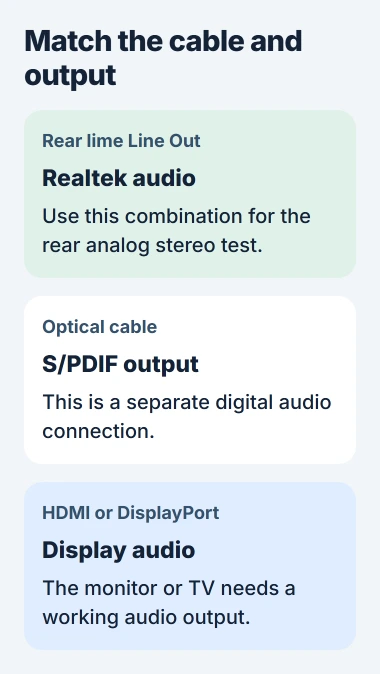
HDMI and DisplayPort audio go to a monitor or TV. Optical S/PDIF is the separate digital connection. Neither is the output to select for ordinary headphones plugged into the motherboard's analog socket.
The monitor audio explanation covers why Windows can offer a display that has no speakers. A display's name in the output list doesn't mean it can play sound.
For Windows 10, open Settings > System > Sound and use Choose your output device. If Realtek is present and the rear jack still stays silent, continue with the connection check.
2. Compare the rear jack with the case's front jack
Use the rear lime Line Out for a simple stereo test. The board's specifications identify five rear audio jacks and a separate optical port.
Try headphones or powered speakers that work with another device. A microphone input and a speaker output are different sockets; check the rear panel's label instead of choosing a nearby jack.
Next, move the same headphones to the case's front headphone jack. If only the front fails, check its connection to the motherboard's AAFP connector for front-panel audio, using the case and board instructions.
Shut down the PC and disconnect its power before checking an internal cable. If you're uncomfortable opening the case, give the rear-versus-front result to the person who built the computer.
The audio connection guide shows how the front jack connects to the motherboard. You can keep using the working rear jack while the case cable is corrected.
The rear lime Line Out doesn't support this board's spatial audio feature. Use the case's front audio jack for that, and test ordinary stereo sound separately.
3. Check whether Realtek detects the connection
If Realtek Audio Console is installed, open it from Start. Go to Device advanced settings and check whether it sees the output you've plugged in. The rear speaker output and front headphone connection are shown separately.
The motherboard sound checklist checks for a detected connection before drivers and firmware settings. It shows a different board, so use the matching controls on your Z790-E.
If the rear connection is detected and stereo plays, keep using it. If the problem remains in just one game or meeting app, check that app's selected output too.
If Windows or the console can't see Realtek, right-click Start and select Device Manager. Expand Sound, video and game controllers and look for the Realtek audio device.
Read any warning or device error before installing another package. Seeing only a monitor's audio device in that list doesn't mean Realtek is installed or available.
4. Use the audio package for the exact board
Open the Z790-E Gaming WiFi support downloads. Check the full product name, choose your installed Windows edition when asked, then find Audio.
Use Realtek USB Audio Driver for this board. The original Z790-E Gaming WiFi and a similarly named board, including a WiFi II model, have separate support pages. Match the name before downloading.
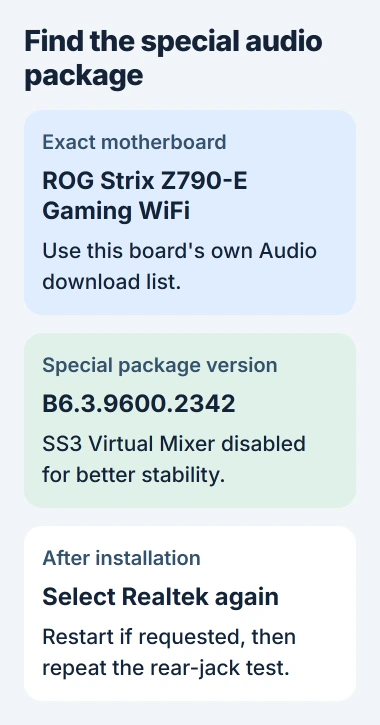
The listing includes B6.3.9600.2342, a special package with SS3 Virtual Mixer disabled for better stability. Check that description if the extra mixer is part of your problem; the two packages differ.
Follow the official package's installation instructions and restart when requested. Then choose the Realtek output again and repeat the rear-jack test. If installation changed the default output, selecting Realtek again can restore sound.
Save the package name and version. If installation fails, send those and the exact error to support instead of trying an unrelated Realtek download.
5. Check USB Audio in firmware if the device is absent
The original Z790-E uses an ALC4080 audio controller. Windows uses a USB audio driver for its onboard sound, even when your headphones use a round analog jack.
If Realtek still doesn't appear, restart and press Delete during startup to enter the BIOS, the board's built-in settings. Use F7 for Advanced Mode if needed, then find Advanced > Onboard Devices Configuration.
The Z790 series BIOS manual lists USB Audio with Enabled and Disabled choices. Check that it's enabled; your firmware version may use a slightly different label.
If USB Audio is disabled, enable it, save the change and return to Windows. If it's already enabled, exit without changing unrelated settings.
When audio is present but still sounds wrong
For distorted sound with a working device, open its Windows Sound properties and compare with Audio enhancements turned off. The Windows audio checks cover that separate branch.
If both front and rear analog outputs fail with a headset you've confirmed works, send ASUS the board's full name, firmware version, Realtek driver version and test results. The general PC sound guide covers broader Windows failures.
The Short Version
Select Realtek for the analog jack and compare front and rear connections. Check Realtek's connection status and the board's audio package. If Realtek is missing, check USB Audio in firmware and tell support which connection failed.
Checked November 5, 2026.

Isaac Smith is the founder and editor of PC Glance, a website that covers computers, laptops, and technology. He is a tech enthusiast and a computer geek who loves to share his insights and help his readers make smart choices when buying tech gadgets or laptops. He is always curious and updated about the latest tech trends.