
Turn off Wi-Fi Calling in your phone's calling settings to stop carrier calls using Wi-Fi. Your ordinary Wi-Fi stays available. On iPhone, start in Settings > Cellular; on Pixel, open your SIM's settings; on Galaxy, use Connections.
Make the change somewhere you have usable mobile coverage. With Wi-Fi Calling off, your line can no longer use Wi-Fi for ordinary carrier calls. That matters in rooms where your cellular signal is weak.
Turn it off for the intended iPhone line
Open Settings > Cellular. If your iPhone uses two SIMs, select the line you want to change. Tap Wi-Fi Calling, then turn off Wi-Fi Calling on This iPhone.
Apple's Wi-Fi Calling instructions show how to choose the line. If you have two active numbers, repeat the change on the other line only if you want Wi-Fi Calling off for that number too.
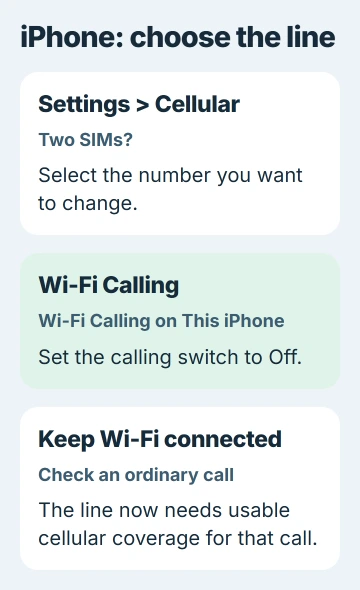
Return to that page and check that the switch stays off. If you changed a travel SIM instead of your main number, your main line can still use Wi-Fi Calling even though the switch you changed is off.
Outside the United States, Cellular may be called Mobile Service or another regional name. Open the menu with your carrier lines, and leave Wi-Fi on in its separate network settings.
If you can't find or use the switch, ask your carrier to check Wi-Fi Calling on your line. You shouldn't need to remove the SIM to turn the feature off.
Disable the Pixel or Android SIM setting
On a Pixel, or another Android phone with these menus, open Settings > Network & internet > SIMs. Select your carrier SIM, choose Wi-Fi calling, and turn off its Wi-Fi calling switch.
The Android carrier-calling instructions show this path for each SIM. Some versions call the switch Use Wi-Fi calling. Check that you've selected the right line before changing it.
If your Android phone has a different menu, search Settings for Wi-Fi calling. Open the result for that feature. A plain Wi-Fi result controls your network connection instead.
When your phone has two SIMs, changing one line leaves the other unchanged. Check each line where you want Wi-Fi Calling off, and leave it on for any line where you still want to use it.
Some carriers don't show this setting on every phone. If search finds no Wi-Fi Calling page, ask your carrier whether your line lets you turn it off and which menu your model uses.
Switch off Wi-Fi Calling on Samsung Galaxy
On a Galaxy phone, open Settings > Connections > Wi-Fi Calling and turn off the switch. Samsung's Galaxy feature instructions use that same switch to turn the feature on or off.
Some models also have a Wi-Fi Calling tile in Quick Settings. Use it as a shortcut if it's available. If you can't tell from the tile whether the feature is off, reopen the full settings page to check.
Some carrier versions put the setting in the Phone app. Open Phone, tap the three-dot menu, then choose Settings > Wi-Fi Calling. The alternate Galaxy route shows this menu.
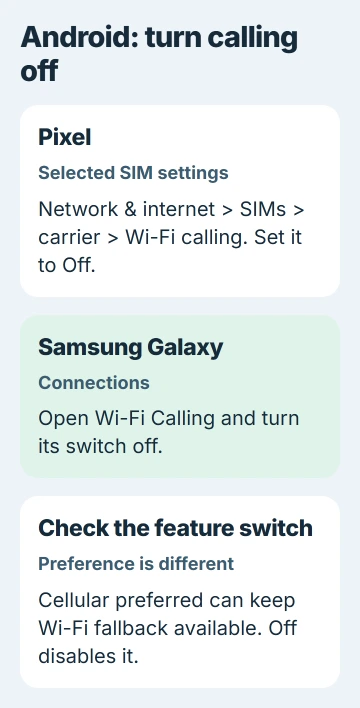
Choosing cellular in Calling Preference can still leave Wi-Fi Calling enabled, allowing calls to fall back to Wi-Fi. Turn the feature's switch off if you want to stop that fallback too.
If your carrier's page uses different wording, check which SIM is selected and whether Wi-Fi Calling is off. Your options depend on both your phone and carrier, so another Galaxy model's screen can look different.
Check an ordinary call with Wi-Fi still connected
Leave Wi-Fi connected and make an ordinary call to someone who can answer. This checks whether your mobile line can handle calls where you plan to use the phone.
I'd make that short call before leaving the setting off for good. Your home can have working internet and poor cellular reception, so loading a webpage won't tell you how well a carrier call will work there.
If the call fails or breaks up, try again somewhere with better mobile coverage. If it works there, coverage was poor in the first location. If your iPhone still can't place calls, try its call-failure checks.
Use the Android Wi-Fi Calling repair guide if you want the feature working again. If ordinary cellular calls keep failing, tell your carrier the location and which line is affected.
Change other-device calling separately on iPhone
To stop carrier calls reaching a Mac or iPad, open Settings > Cellular, choose your line if shown, then open Calls on Other Devices. Turn off the device you no longer want receiving those calls.
This lets you stop carrier calls on the selected Mac or iPad while keeping Wi-Fi Calling available on the iPhone.
WhatsApp and FaceTime calls use their own internet calling services and controls. Turning off your carrier's Wi-Fi Calling feature doesn't turn off calls in those apps.
If calls still arrive, check which app they're coming through. A FaceTime banner doesn't mean your mobile line's Wi-Fi Calling switch turned itself back on.
Restore the feature or report an unavailable switch
To use Wi-Fi Calling again, return to the same line's settings and turn it on. Confirm your emergency address if your carrier asks, then check whether the feature is available.
If the switch is missing, controlled by work or keeps turning itself on, give your carrier or IT team your model, software version and line name. Say whether the switch actually changes or the calls come through another app.
The Short Version
Switch Wi-Fi Calling off for the intended line. Check both SIMs when needed and try an ordinary call with Wi-Fi still connected. Other-device carrier calls and internet calling apps have separate controls.
Checked November 5, 2026.

Isaac Smith is the founder and editor of PC Glance, a website that covers computers, laptops, and technology. He is a tech enthusiast and a computer geek who loves to share his insights and help his readers make smart choices when buying tech gadgets or laptops. He is always curious and updated about the latest tech trends.