
Wi-Fi calling can stop working on Android even while webpages load normally. The phone still needs the carrier's support and Wi-Fi calling enabled for the intended SIM. Check that setting before resetting the whole phone.
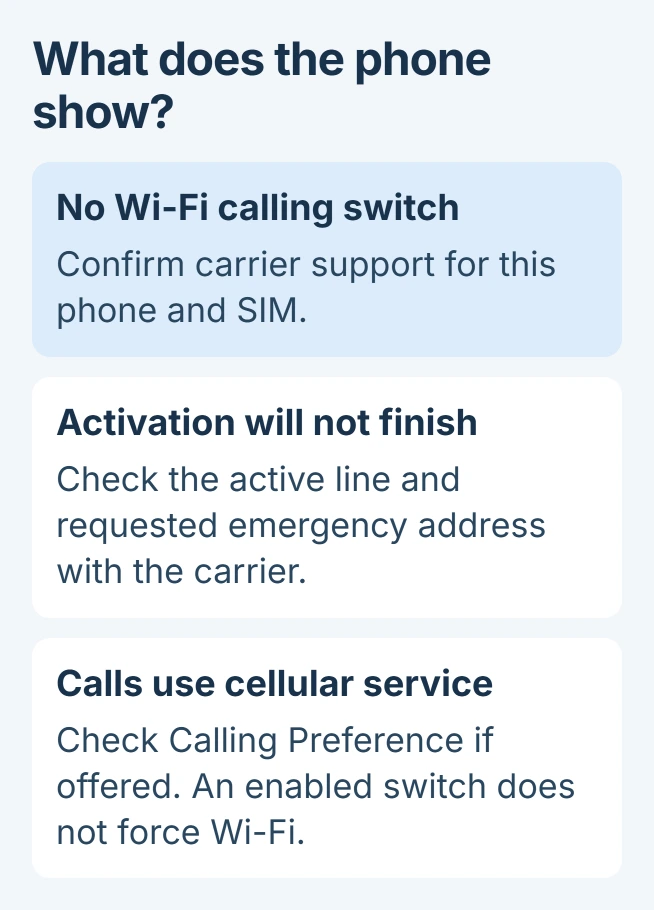
A missing switch, a failed activation and a call choosing cellular service are different results. The next action depends on which one the phone shows.
Enable Wi-Fi calling for the SIM used for calls
On a Pixel, open Settings > Network & internet > SIMs. Select the carrier SIM, open Wi-Fi calling, and enable Use Wi-Fi calling. With two SIMs, check the line intended for the call.
Google says carriers must support the feature in its Wi-Fi calling instructions. If the setting is missing, ask the carrier whether that phone and line are eligible.
Status: Google and Samsung Wi-Fi calling controls reviewed November 1, 2026. Carrier options differ. No SIM, carrier account or handset was changed or tested.
On a Samsung Galaxy, use Settings > Connections > Wi-Fi Calling. Turn it on and complete the requested emergency-address information. Samsung documents this route in its Galaxy setup guide.
An enabled switch is only the setup state. Make an ordinary call and look for the Wi-Fi calling indication in the call or notification area. Listen for a stable connection rather than treating the switch alone as success.
In a 2023 Pixel discussion, one owner restored the switch but had not confirmed calls worked. Other replies reported that checking the emergency address disabled it again. A returned toggle alone did not establish a repair.
Resolve activation and emergency-address errors with the carrier
Samsung says its Wi-Fi calling setup needs an active physical SIM or eSIM as well as Wi-Fi. Confirm the mobile line is active, especially after a number transfer, new SIM or change of phone.
For a rejected emergency address, check the address entered through the carrier's setup flow. Ask that carrier to correct the registration if a valid address will not save. Do not supply an invented address to dismiss the error.
The exact carrier error is useful: record it along with the phone model and whether ordinary cellular calls work. Account activation and phone connectivity need different support actions.
Google states that Android can turn Wi-Fi calling off after detecting trouble. If it reports that the feature was disabled entirely, restart the device once. Continuing failure can require the carrier to reactivate Wi-Fi calling.
Check why the call still uses cellular service
Google's Pixel connection guidance says routing depends on preference or signal strength. Enabling Wi-Fi calling does not force every call onto Wi-Fi.
On supported Galaxy carrier configurations, open the Wi-Fi Calling page and inspect Calling Preference. Choose the Wi-Fi preference if offered and appropriate. Some carriers expose preferences under When Roaming instead.
If no preference exists, ask the carrier how it selects the connection. Another phone may have different controls. Check the carrier's charges and roaming rules too; an international call over Wi-Fi is not automatically free.
Compare the Wi-Fi connection before resetting settings
Load a webpage over the current Wi-Fi connection and complete any hotel or workplace sign-in page. If Wi-Fi itself cannot connect, start with the Android network comparison.
Try another trusted Wi-Fi network when available, then make the same ordinary call. Working on one network but failing on another directs attention to the network path. Failure everywhere keeps phone and carrier configuration in the check.
Samsung recommends restarting and installing available software updates for persistent Wi-Fi calling faults. On Galaxy, open Settings > Software update > Download and install; carrier versions can instead show System updates.
On Pixel, check Settings > System > Software updates; some versions call it System update. Complete any offered installation and restart, then repeat the failed call with Wi-Fi calling enabled.
Use a Samsung network reset only after checking its scope. Rejoining Wi-Fi and pairing Bluetooth devices again may be required; a reset cannot grant a carrier feature the account lacks.
If calls still fail on different networks, contact the carrier with the error, model, software version and comparison results. After the carrier verifies the line, Google or Samsung Support can assess a continuing device-side problem.
The Short Version
Check the SIM's Wi-Fi calling switch and carrier eligibility. Complete emergency-address setup, then compare networks and calling preferences. Ask the carrier about missing controls or rejected activation before resetting settings.

Isaac Smith is the founder and editor of PC Glance, a website that covers computers, laptops, and technology. He is a tech enthusiast and a computer geek who loves to share his insights and help his readers make smart choices when buying tech gadgets or laptops. He is always curious and updated about the latest tech trends.