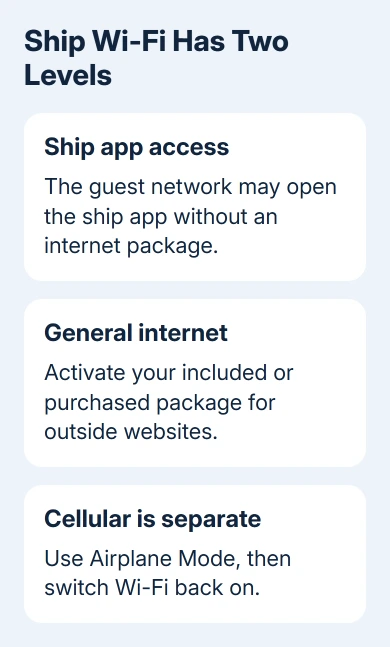
Yes, cruise ships generally offer Wi-Fi, but joining the network doesn't always include internet. Join the official guest network and activate your internet package; some ship apps work on that network without a package.
Keep cellular service separate from ship Wi-Fi. Airplane Mode with Wi-Fi switched back on lets a phone use the wireless network without leaving its cellular radio connected at sea.
In this guide
Check what your booking actually includes
Open the cruise line's app or booking details before boarding. Look for an internet package, its device allowance and any limits on the services it supports. A cabin booking and an internet connection aren't necessarily sold together.
Check the details for your sailing rather than a price quoted for another ship. Packages, included benefits and purchase options can change. Confirm the total and the terms before paying for access you thought was already included.
Royal Caribbean's onboard internet information lists VOOM wireless access across its fleet. Its prices vary; that isn't a promise that every passenger gets free general internet.
Other lines have their own package names and activation process. Use your reservation's connection instructions, especially when internet is part of a fare bundle or loyalty benefit.
Download your cruise app and sign in while you still have a working connection ashore. Keep the booking information accessible so a forgotten account password doesn't become the first task after boarding.
Keep cellular off while enabling Wi-Fi
On an iPhone, open Settings and turn on Airplane Mode. Then open Wi-Fi and turn it on again. The airplane symbol can stay visible while Wi-Fi is enabled; that's how you can use Wi-Fi while keeping cellular off.
Apple explains that Wi-Fi can be used in Airplane Mode. Check both controls instead of assuming that Airplane Mode prevents every type of wireless connection.
On a Pixel, use Settings > Network & internet > Airplane mode, then turn on Wi-Fi under Internet. On Samsung Galaxy phones, use Settings > Connections. Other Android brands can label these controls differently.
I'd set this up before the ship leaves port, while help and your booking details are easy to reach. Keep using ship Wi-Fi with cellular off unless you've chosen a suitable cellular plan for the voyage.
A travel or domestic cellular plan isn't the same purchase as a ship internet package. Ask your mobile carrier about maritime coverage and charges if you want cellular service at sea; don't judge it by the familiar network symbol alone.
Join the ship's official guest network
Ask crew or check the cruise app for the exact network name. Open the phone's Wi-Fi settings and select that network. Don't choose a network just because its name includes the ship's name or the word free.
On iPhone, use Settings > Wi-Fi. On Pixel, open Settings > Network & internet > Internet. On Galaxy, open Settings > Connections > Wi-Fi, then select the crew-confirmed network.
Wait for the network's sign-in page or the app's connection instructions. A Wi-Fi checkmark means the phone joined the local network; it doesn't show that your paid internet session has been activated.
For Royal Caribbean, joining Guest Wi-Fi lets passengers use the ship app without an internet package. Its app connection instructions separate that free access from purchasing and activating internet.
That explains a common confusing result: the daily schedule loads in the ship app while an outside website won't open. Check whether your internet package is active. The ship app can work before general internet access is activated.
Activate the internet session the ship provides
Follow the ship's connection instructions to sign in or activate the package. Use the account or booking details requested by that ship, and check whether the page says the internet session is connected before leaving it.
The login address and form depend on the cruise line and ship. Use the address supplied onboard rather than entering payment details into a page found through an unrelated search.
If a package was bought before the trip, look for its activation option before purchasing again. Ask the onboard internet desk to match the package to your booking if the sign-in page only offers a new purchase.
Check the simultaneous-device allowance if one phone works and a second doesn't. A one-device package can require signing out of the first session before another device can connect; follow the ship's session-switching instructions.
Open an ordinary website once activation finishes. If that works as well as the ship app, the phone has general internet access. Then try the service you actually need, such as messaging or email.
For a laptop, join the same official guest network from its Wi-Fi menu and complete that ship's sign-in process. The laptop counts toward your package's device allowance too; it doesn't get an extra free session.
Handle a missing login page or a connected-without-internet label
On iPhone or iPad, return to Settings > Wi-Fi and tap the network name. Wait for its login screen. If needed, open the information button and select Join Network as described in the captive-network steps.
A captive network is one that asks for a sign-in or agreement after Wi-Fi connects. Its login screen can be the missing step when the phone says it's connected but apps have no outside access.
On Android, open the notification asking you to sign in to the Wi-Fi network. If it doesn't appear, use the ship-provided login address or ask the internet desk to reopen the correct portal.
Don't keep switching back to cellular to make the warning disappear. That switches the phone to a different connection without activating your ship package. The Android Wi-Fi checks help when the phone cannot join the network itself.
If internet works but calls don't, check whether your carrier supports Wi-Fi Calling on that connection. The Android Wi-Fi Calling guide covers that separate service; ship Wi-Fi doesn't automatically enable it.
Ask the onboard internet desk for the specific repair
Tell the desk which device and network you're using, the exact message you see and whether the ship app or other websites work. Ask it to check package activation, the active device session and any ship-wide interruption.
If several passengers' internet connections stop together, ask whether the ship's service is down before resetting your phone's network settings. The crew can check the ship connection and your session in ways a phone restart cannot.
The Short Version
Join the official ship Wi-Fi with cellular off, then activate your included or purchased internet package. Free ship-app access and full internet are different. Check the login session and device allowance before buying access again.
Checked November 13, 2026.