
Right-click a linked cell and choose Remove Hyperlink to keep its text and remove the link. Select a range to remove several links together. Cells made with the HYPERLINK formula need a different step.
Check the formula bar before changing a large worksheet. A linked address and a formula can look alike in the grid. To keep a formula's displayed label without its link, you'll need to replace the formula with its current value.
Remove a link from one cell without erasing its contents
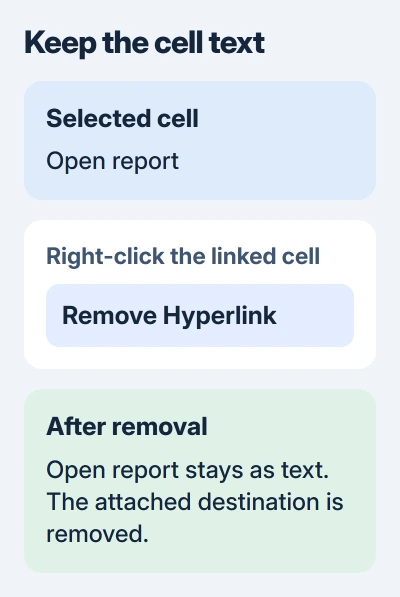
Select the linked cell, right-click it and choose Remove Hyperlink. The name or address stays in the cell, but clicking it won't open the linked destination.
Microsoft explains the difference between keeping text and erasing it in its link-removal instructions. Use the removal command when you're cleaning a contact list or imported report and still need the text.
If clicking keeps opening the destination, select the cell with the keyboard instead. Click a neighboring cell, move to the linked cell with a direction key, then open its context menu with the keyboard's menu key or Shift + F10 on Windows.
Check the cell afterward without opening its address. The formula bar should still show the text you wanted to keep. Font color alone won't tell you whether the link is gone.
If you just removed something by mistake, use Undo before doing more work. You can get it back if the command erased more than the link.
Remove hyperlinks from a selected range
Select the range containing the links. Drag across it, or click the first cell and Shift-click the last. Include the whole area you want to clean, then right-click within your selection.
Choose Remove Hyperlinks. You don't need to handle cells without links separately, so the selection can contain both linked addresses and ordinary text.
For an entire worksheet, use the Select All button at the intersection of the row numbers and column letters. Then open the context menu and remove the hyperlinks from that sheet.
This selects only the active worksheet. Check other tabs separately for their own address lists. Use a smaller range if the sheet has navigation links you want to keep.
I'd save a copy before cleaning a workbook someone else maintains. Their links may lead to supporting documents that the next person still needs, even if you keep the labels.
Check several cells across your selection afterward, including the first and last. The labels should remain, and those ordinary cells should no longer have the same link-editing commands in their context menu.
Convert a HYPERLINK formula to its displayed value
Select a cell that's still clickable and read its formula bar. If it starts with =HYPERLINK(, the formula creates the link. Removing a link attached to ordinary text won't handle this case.
For example, this formula displays a friendly label instead of the destination:
=HYPERLINK("https://example.com","Open report")Copy that cell, then right-click the same cell and choose the Values paste option. The current displayed label replaces the formula, so the cell now contains Open report as ordinary text.
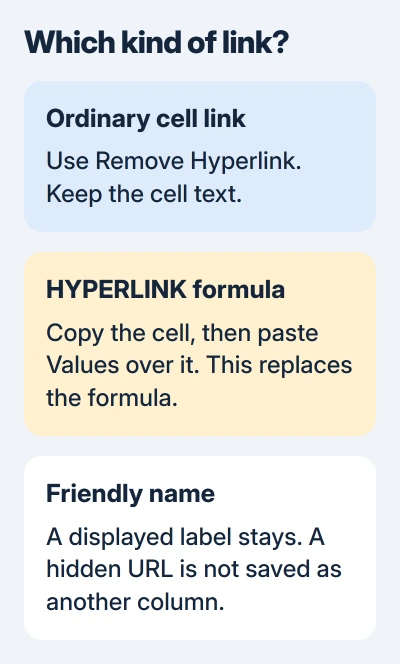
For a range containing those formulas, copy the intended range and paste Values back over that same range. This also replaces any other formulas within the selection, so select only the cells whose calculations you intend to remove.
The HYPERLINK reference explains the destination and friendly-name arguments, the parts inside the parentheses. Pasting the displayed name won't save a hidden URL in a separate column.
If you need both the label and destination for an export, keep the original workbook. Put the destinations in a separate column before converting the formulas, based on what the recipient needs.
The formula-entry guide explains how to recognize and edit a formula. Choose the result you need: a label without a link, or a formula that still works.
Stop newly typed addresses from becoming links
In desktop Excel for Windows, open File > Options > Proofing > AutoCorrect Options. Select AutoFormat As You Type, clear Internet and network paths with hyperlinks, then confirm the dialogs.
This changes automatic conversion as you type. It doesn't remove existing links in the worksheet or replace formulas that were already entered. Clean those cells with the earlier removal method.
Type an example address into an empty cell and finish the entry. It should stay as text without becoming clickable. Undo that entry once you've checked.
An AutoCorrect Options button may also appear just after Excel creates a link. Its Stop Automatically Creating Hyperlinks choice stops that automatic behavior. Use it at the time of conversion, while that button is available.
Check the corresponding Excel preference on other computers too. Sending someone a workbook doesn't mean your typing preferences go with it.
Keep formatting and cell contents separate
Changing the font color or text decoration only changes how the cell looks. Use the hyperlink-removal command to stop it from opening the destination.
Likewise, Clear Contents or the Delete key can erase the address or label you wanted to keep. Avoid those commands when the cleanup is only about links.
For formula conversions, the paste-options reference explains how Values differs from a normal paste. A normal paste can carry the formula into the destination again.
If the cells are locked and the removal command isn't available, ask the workbook owner for editing access. The sheet-protection guide covers the normal Unprotect Sheet controls when you have permission.
If the result still isn't right, check one affected cell's formula bar and context menu before changing the whole workbook again. Share those details and your Excel version with the owner if you need their help.
The Short Version
Use Remove Hyperlink for one cell or Remove Hyperlinks for a range. For HYPERLINK formulas, paste Values only when you're ready to replace the formulas. Turn off automatic conversion separately for addresses you type later.
Checked November 5, 2026.

Isaac Smith is the founder and editor of PC Glance, a website that covers computers, laptops, and technology. He is a tech enthusiast and a computer geek who loves to share his insights and help his readers make smart choices when buying tech gadgets or laptops. He is always curious and updated about the latest tech trends.