
Windows 11 can save a video when its website offers a download or gives you access to the video file. Use that site's Download control, or the browser's video-saving option when available, then wait for the file to finish before opening it.
A playing video isn't always a downloadable file. Some services provide viewing access without offering a local copy, while a work video may require the right account or permission from its owner.
Start with the website's own download option
Open the page containing the video in your usual browser. Look for a download offered by the video's owner or hosting service. Choose the file or quality you need, then select a destination and Save if the browser asks.
A public example is the MDN flower.mp4 sample on GitHub. Open the file page and use Download raw file in its file toolbar to save the video itself.
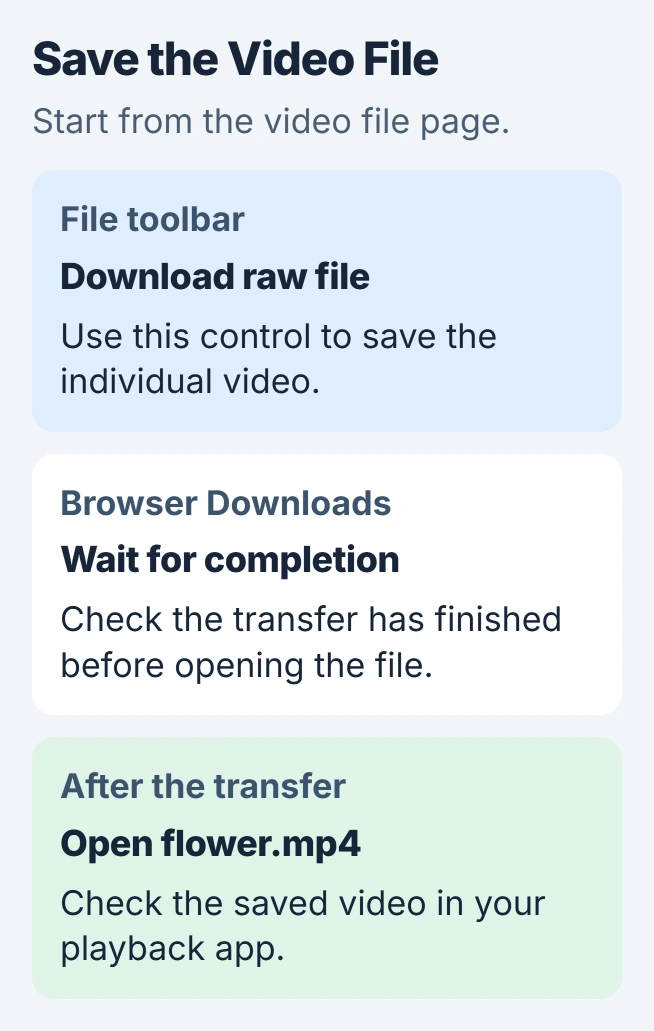
The file-view instructions explain how to download one file from its toolbar. Check the browser's Downloads list once the transfer starts.
Check the filename and stated size before starting a large transfer. A high-resolution original can be much larger than a preview. Choose a smaller download when the site offers one and you only need a copy for a small screen.
Use downloads offered for your own videos or ones you have permission to save. A separate site asking you to paste a private video link isn't necessary for a host that already provides its own download.
Save through Chrome when the video exposes a file
In Chrome, point at the video and look for its Download control. Google's file download instructions explain that the video's owner or hosting site may prevent this option.
For a link pointing straight to a video file, right-click it and choose Save link as. If the video's right-click menu offers Save video as, that can also save the file. Choose whichever option you see.
If the save dialog offers a webpage instead of a video, cancel it and return to the host's download control. Saving the page around a video player doesn't give you a movie file you can watch on its own.
After starting the transfer, open Chrome's download tray or choose More > Downloads. Watch its progress. A file still downloading isn't ready just because its name has appeared in the list.
I'd download one video and check it before queuing a whole collection. That catches the wrong quality, an expired link or an unsupported file format while you still have the source page open.
Choose where Edge or Chrome puts the video
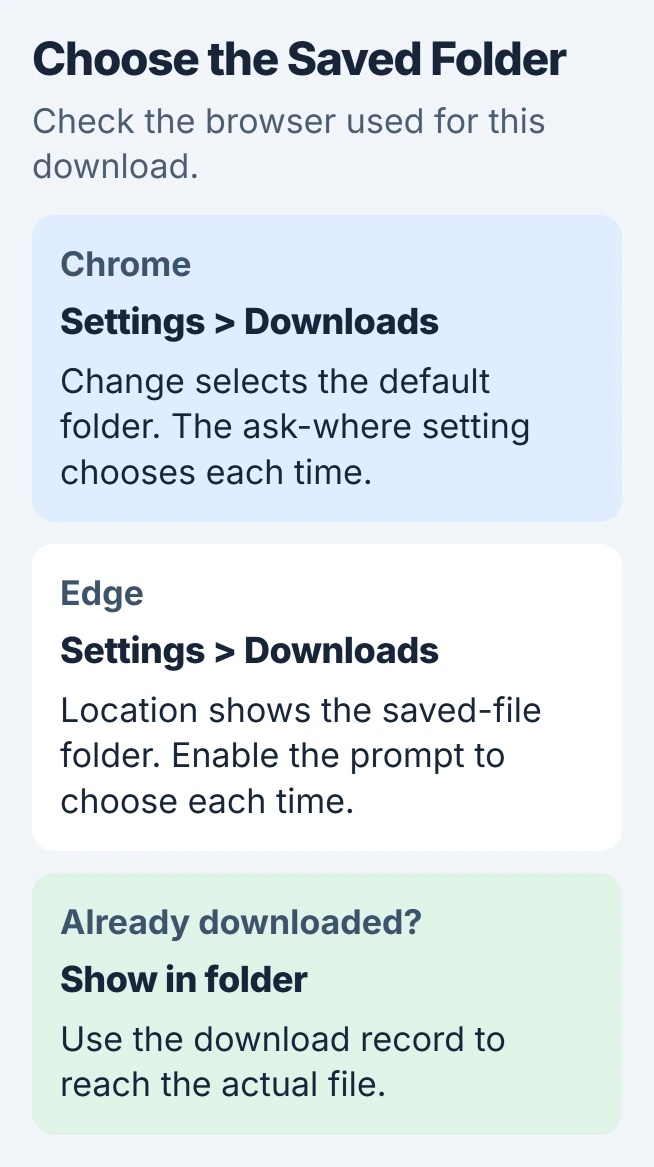
In Edge, open Settings and more > Settings > Downloads and read Location. Use the Edge download-location instructions to change that folder or turn on a prompt for each download.
In Chrome, open Settings > Downloads. Change selects a different default folder. Enable the destination prompt if you want every saved video to have its own folder choice.
For one project, create a recognizable folder and save related videos there. Changing the browser's default afterward affects future transfers; it doesn't gather videos that were previously saved in other places.
If a completed file seems missing, use the Windows Downloads folder checks. The browser's Show in folder action helps when you saved an earlier file to a different folder.
Download a work video from OneDrive or SharePoint
Use the work account that owns the video or was given access. Open its file in OneDrive or SharePoint to reach the player page, then use the top menu's Download control when available.
Or use the file list: select the video and choose Download, or open the three-dot menu beside it and choose Download there. These controls save the stored video file; they don't record your browser window.
The Microsoft 365 video-download procedure is for file owners and people with edit permission. Being able to watch a shared video doesn't always mean you can download it.
If the control is absent, confirm the browser's signed-in account. Ask the owner or administrator whether downloads are allowed and whether they can supply a copy. A download utility doesn't grant permission.
These steps apply to videos stored in Microsoft 365. A personal streaming subscription or another video service can have different download rules, so use that service's controls and account permissions.
Check a completed file before relying on it offline
Open the saved video from File Explorer and play it in your chosen video app. Check both picture and sound, then jump to a later point. A working opening frame doesn't tell you whether a large transfer finished correctly.
For a trip, try the saved file after disconnecting from the internet. This checks the copy you'll actually have available, rather than a browser tab that is still streaming from the source website.
If the file exists but Media Player reports an unsupported format, read the filename extension and exact error. The Media Player codec guide explains which video and audio formats the player can read.
Where the site offers several formats, choose one supported by your playback app. Renaming a file from .webm to .mp4 doesn't convert its contents. Get another offered format or use a player that supports the saved one.
Handle a missing button or a failed transfer
A missing download button can mean the service doesn't allow downloads. Check its device and account requirements. The HBO Max offline-viewing guide explains why a website shortcut differs from an app's offline library.
For a failed Chrome transfer, read the message beside the item. For Disk full, free space or choose another destination. For Forbidden or an authorization error, check your sign-in and permission with the host.
A paused transfer can offer Resume in the download tray. Use the download error instructions for network interruptions, missing files or blocked downloads. Follow the message you see instead of repeatedly saving the same link.
If you have permission but still can't save the video, send the website's support team or file owner the page address, your browser version and error. Ask for a copy you can download or the service's supported way to watch offline.
The Short Version
Use the site's download button or your browser's video-saving option, choose a folder and let it finish. Check cloud-file permissions, then play the saved copy offline before you need it without an internet connection.
Checked November 5, 2026.

Isaac Smith is the founder and editor of PC Glance, a website that covers computers, laptops, and technology. He is a tech enthusiast and a computer geek who loves to share his insights and help his readers make smart choices when buying tech gadgets or laptops. He is always curious and updated about the latest tech trends.