
The Samsung A50 overheating message means the phone is limiting what it can do to protect itself. Stop using it and unplug the charger. Let it cool before restarting or trying another app.
A warning during light use, or when the phone feels cool, needs a different response from warmth during a long game. Don't keep dismissing the message or try to turn off temperature protection.
1. Stop the activity and disconnect the charger
Put the phone in a shaded spot with room for air to move around it, away from heat sources. Stop gaming, video recording, navigation or hotspot use. Unplug the USB charger and remove an ordinary case if you can do that comfortably.
Let it cool naturally in room-temperature air before using it again. Leaving it unused gives it time to return to normal.
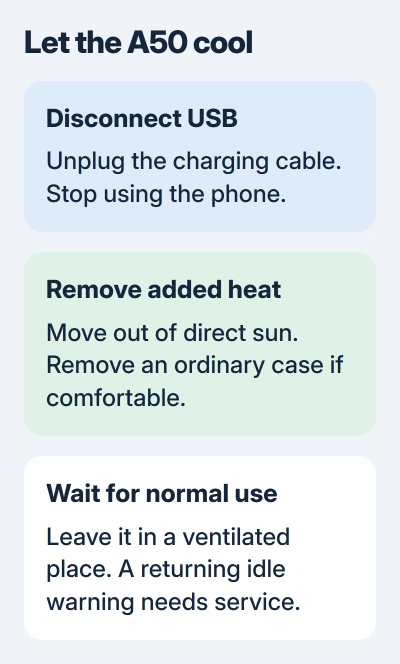
Samsung's overheating guidance explains that protection can reduce brightness and performance, close apps and stop charging. A further temperature rise can turn the phone off.
Wait for the warning to clear and the phone to work normally again. The cooling time depends on the temperature, case and surroundings. If the phone shut itself down, leave it off until it has cooled.
If the case is lifting or the battery area is bulging, stop using and charging the phone. Contact an authorized service center and skip the software checks.
2. Compare charging with ordinary unplugged use
Once the phone has cooled, note which activity triggered the warning. Was it charging, running a demanding app, sitting in direct sun or lying unused?
Briefly try a light task without the charger, such as opening Settings. If the phone stays comfortable and the warning doesn't return, compare that result with the activity that triggered it.
If it happened while charging, check the USB cable and adapter for visible damage. Use a compatible, undamaged pair out of direct sunlight. Leave the screen off instead of gaming while it charges.
Stop if the warning returns. Note whether changing the cable or stopping the demanding activity helped. These details help support without you repeatedly triggering the phone's heat protection.
I'd make this comparison before changing several settings at once. Knowing that the warning appears only during one activity gives you a clearer next step than starting with a factory reset.
3. Restart after cooling, then check the busy app
Once the phone feels comfortable to handle and responds normally, choose Restart from its power menu. This closes what's running so you can check it again after a fresh start.
Try the same light task afterward. If the warning returns before you reopen demanding apps or reconnect the charger, try Safe mode next instead of restarting again.
If one app makes the phone hot again, close it and check for an update in its usual app store. Use it less for now. Long camera sessions, large downloads and weak-signal hotspot use can keep the phone working hard.
Open Settings > Software update > Download and install to check for updates offered to your A50. This older model may have no new update; go by what your phone and carrier offer.
Updates can fix software problems, but a heat warning that keeps returning still needs attention. Wait until the phone has cooled and stays stable during normal use before downloading an update.
4. Use Safe mode to compare downloaded apps
Safe mode stops downloaded apps from running. This helps you tell whether those apps are involved or the warning continues with only the phone's basic software running.
On the A50, open the power menu, touch and hold Power off, then tap Safe mode when offered. Wait for the phone to restart and look for Safe mode at the lower-left corner of the screen.
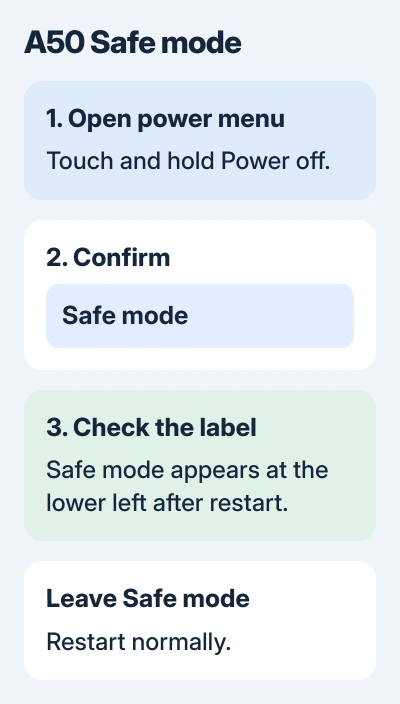
The A50-specific Safe mode instructions also describe opening the power menu with the Power and Volume Down buttons. Use the power-menu method that your software presents.
Try light, unplugged use in the same comfortable room, without pushing the phone to heat up. If it stays normal in Safe mode but gets hot after a regular restart, a downloaded app may be involved.
Restart the A50 normally to exit Safe mode. The Android app-removal checks show the uninstall controls if you need them. Using Safe mode doesn't mean malware caused the heat.
Uninstall the suspect app and check ordinary use. Google's Safe mode guidance recommends checking recent apps individually, restarting after each removal to check the result.
If the warning appears in Safe mode too, stop removing apps. It needs a check beyond the downloaded apps that Safe mode turns off.
5. Arrange service for a warning that keeps returning
An A50 can feel cool and still show a temperature warning. A technician needs to check the temperature readings the phone is using.
Contact support or a reputable phone repair service if the warning keeps appearing at idle, returns in Safe mode or stops the phone charging after it has cooled. Give them the exact message and when it first appeared.
Mention any recent drop, liquid exposure, battery replacement or other repair. These details help the technician decide what to check; the message alone can't tell you which part has failed.
Back up accessible data while the phone is cool and stable. The Android backup guide explains what the account backup includes and which files need separate attention before repair.
Don't open the A50's sealed battery compartment to move a temperature sensor or connector. A technician can check charging, battery and temperature-sensing problems while keeping the phone's heat protection working.
The Short Version
Stop using the A50 and unplug it until it cools. Compare light unplugged use with the activity that triggered the message, then check downloaded apps in Safe mode. A recurring warning at idle or when cool needs service.
Checked November 5, 2026.

Isaac Smith is the founder and editor of PC Glance, a website that covers computers, laptops, and technology. He is a tech enthusiast and a computer geek who loves to share his insights and help his readers make smart choices when buying tech gadgets or laptops. He is always curious and updated about the latest tech trends.