

Dell touchpads can stop responding when disabled, blocked by a mouse receiver or missing a driver. Check the switch first. A Precision Touchpad may use Windows' own driver rather than a separate Dell download.
An empty driver list doesn't mean your laptop is unsupported. Test movement, clicks and gestures separately. A pointer that won't move needs different checks from failed clicks or changed gestures.
1. Remove the mouse receiver and restart the laptop
Unplug any wireless mouse receiver, even if the mouse itself is off. A receiver can still count as a connected mouse and trigger the setting that disables your touchpad while a mouse is attached.
If the pad is raised, the case has separated or the laptop rocks on a flat surface, stop using it and contact Dell about a possible swollen battery. Don't push the pad down.
Save your work, restart, and leave the touchpad untouched until Windows finishes starting. Test moving one finger, tapping and clicking. If removing the receiver restores movement, check the mouse-connected setting in the next section.
For a laptop that still won't respond, shut it down and disconnect the dock and other external devices. Leave its power adapter connected, start it again and test the pad before reconnecting accessories individually.
If one accessory brings the fault back, keep it disconnected while checking that device or dock. If the pad still won't respond with those devices removed, check its settings. An external USB mouse can help you reach them.
For taps on the glass rather than movement on the pad, use the Dell touchscreen checks.
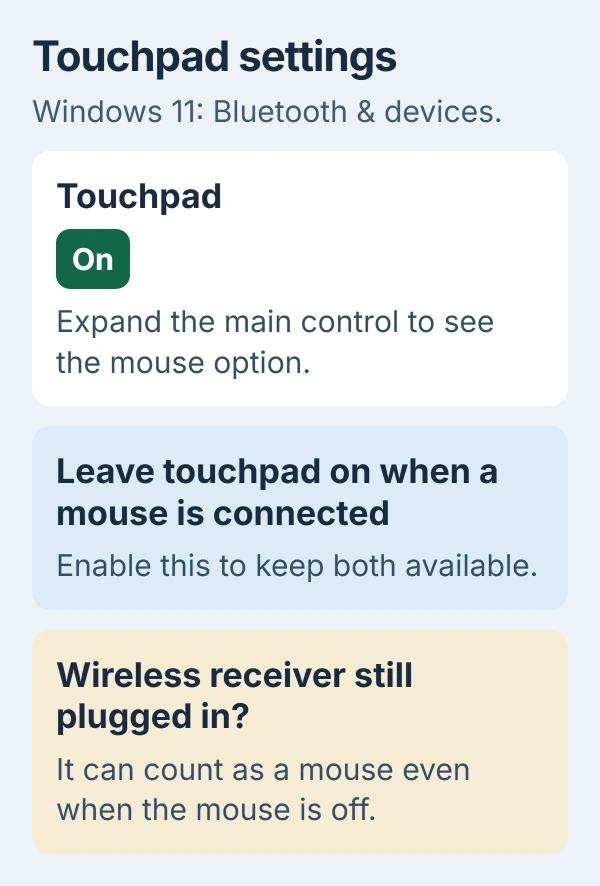
2. Turn on the touchpad using the keyboard if necessary
Press the Windows key, type touchpad settings, and press Enter. In Windows 11, the page is under Bluetooth & devices > Touchpad. Windows 10 uses Devices > Touchpad.
Press Tab until the Touchpad switch is selected, then Space to turn it on if needed. With a working mouse, click the switch. Test the pad immediately so you can tell whether that was the cause.
Dell explains the receiver behavior in its touchpad instructions. Expand the Windows 11 control beside the main switch to find Leave touchpad on when a mouse is connected.
Enable that option if you want to use both devices together. If the pointer moves but scrolling doesn't work, check the touchpad gesture settings instead of treating the whole pad as unresponsive.
If you can't find the Touchpad page, check Device Manager next. You'll be looking for a missing device or driver instead of a switch that's turned off.
3. Check whether Windows already supplies the driver
Right-click Start, open Device Manager, and check Human Interface Devices. Also expand Mice and other pointing devices. Look for HID-compliant touch pad, Dell Touchpad or the matching device for your laptop.
Open the device's Properties and read Device status on the General tab. Note any code or warning symbol so support has details beyond an unresponsive cursor.
Some Dell laptops use a Precision Touchpad with a driver built into Windows. Their model's download page may have no separate touchpad package. The Precision Touchpad guidance explains how that works.
Don't install a Synaptics or ELAN package intended for another laptop just to fill that gap. Match software to your exact model. If a device is present but reports an error, keep its name and code for the update step.
The general touchpad repair guide covers other Windows causes. For your Dell, where you get the replacement depends on whether Windows supplies the driver or the model needs a separate package.
4. Update Windows and check the correct Dell model
In Windows 11, open Settings > Windows Update > Check for updates. Install the updates offered and restart if requested. Then check the touchpad again, including both finger movement and clicking.
Microsoft's touchpad troubleshooting uses Windows Update and Device Manager to repair drivers. You won't need a separate manufacturer download for every touchpad.
For model-specific packages, open Dell Support and identify the affected laptop by its model or Service Tag. Choose Drivers & Downloads, then check the operating system and available input-device packages.
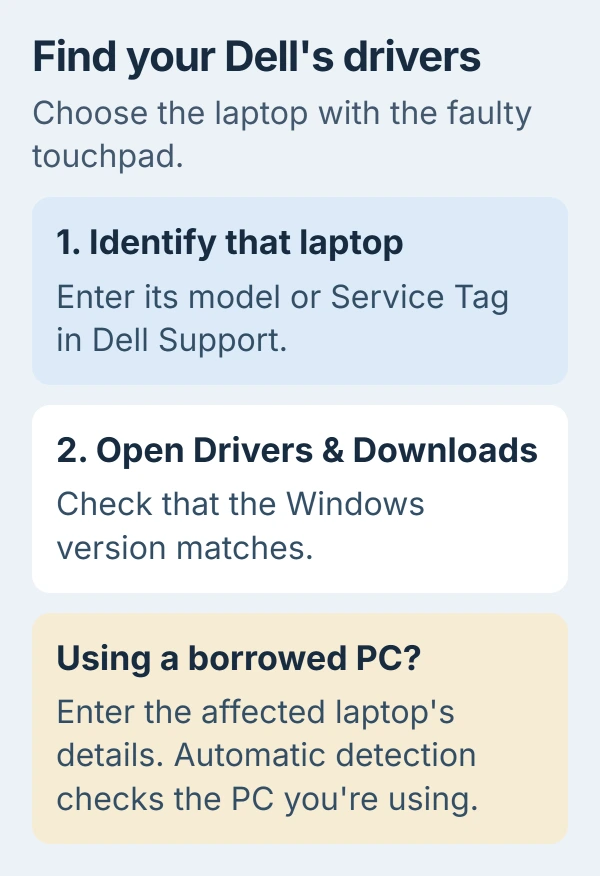
If you're borrowing another PC to download, enter the affected laptop's details yourself. Automatic detection would check the computer you're using. Keep your Service Tag private when sharing screenshots or asking a public question.
Use packages listed for that laptop and Windows version, and restart if asked. If no touchpad driver is listed, use the Windows-supplied driver route. A similar laptop's package isn't a substitute.
5. Reset gestures only when the pad still detects movement
If the pointer moves but taps or gestures behave oddly, open Touchpad settings and inspect Taps and Scroll & zoom. Check that the action you need is enabled before resetting everything.
For a Precision Touchpad, Reset restores the touchpad settings. On Windows 11, expand the main Touchpad section if needed to find it. Note your custom gestures first so you can set them up again afterward.
Try one-finger movement, a tap and two-finger scrolling after the reset. If the pointer moves but one gesture fails, that suggests a problem with its setting. Check that setting before replacing the whole driver again.
6. Reinstall the identified device if updates didn't help
Have a working mouse ready, or use the keyboard to get around. In Device Manager, right-click the touchpad you've found, choose Uninstall device, confirm and restart the laptop. Windows then tries to reinstall its driver.
Test after signing in. If the device returns with the same error, record it rather than removing every HID device. That category also contains other input hardware that isn't part of the touchpad problem.
If the pad stopped working right after a new driver was installed, check Properties > Driver > Roll Back Driver when available. This returns to the earlier driver instead of reinstalling the current one.
7. Run the touchpad test before arranging service
Open SupportAssist if installed. In its menu, choose Support, then Test my hardware > Get started. Find HID-compliant touch pad, choose Run Test, and follow the prompts. The layout can vary by app version.
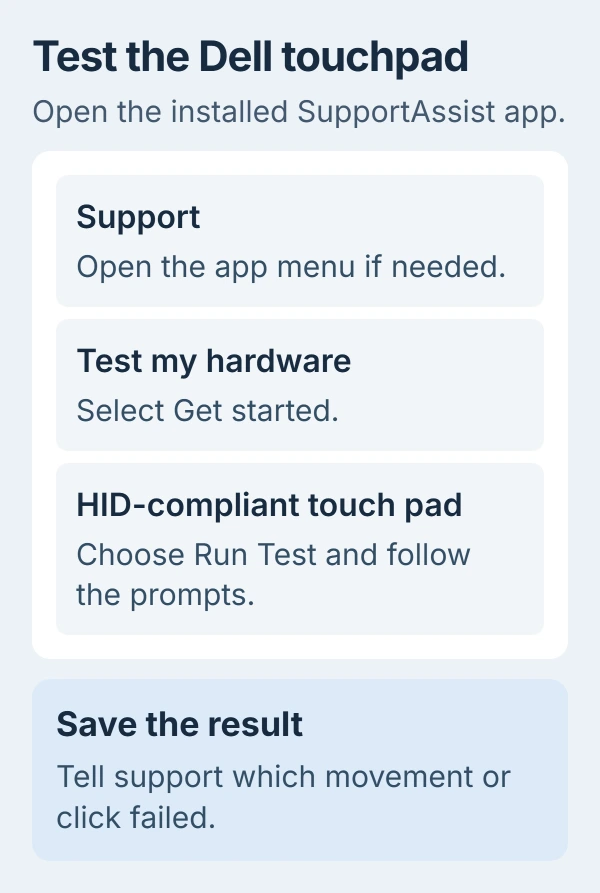
Note whether movement, taps or button presses fail during the test. I'd send those results to support before reinstalling Windows. That gives the repair team something specific to check.
For a pad that remains unresponsive, send support your model, Windows version, device error and SupportAssist result.
Ask support to check your model's chipset drivers and BIOS, the software that starts the laptop, or arrange service. Let them check those requirements instead of trying unrelated driver packages.
The Short Version
Remove the mouse receiver, enable the touchpad and check its driver type. Use Windows Update or the exact Dell model's packages, then test settings and hardware separately. A raised touchpad needs battery service advice immediately.
Checked November 5, 2026.

Isaac Smith is the founder and editor of PC Glance, a website that covers computers, laptops, and technology. He is a tech enthusiast and a computer geek who loves to share his insights and help his readers make smart choices when buying tech gadgets or laptops. He is always curious and updated about the latest tech trends.