
A Dell laptop camera can show nothing when its privacy shutter is closed or Windows blocks access, even if the webcam is working. Open the shutter, close your meeting apps, and test the Windows Camera app before changing drivers.
If the preview works, check your calling app and its permissions. If Windows reports a missing camera, check Device Manager, the camera setting in Dell's BIOS, and the drivers for your model.
1. Open the shutter and try Windows Camera
Check the small lens near the top of the display. Slide its privacy shutter fully open if your Dell has one. Some models also have a camera control on the keyboard; use the camera-marked control described in your model's manual.
Don't assume a particular function key works on every Dell. The controls vary between Latitude, Inspiron, XPS and other families. A shutter can block the image while Windows still sees the camera.
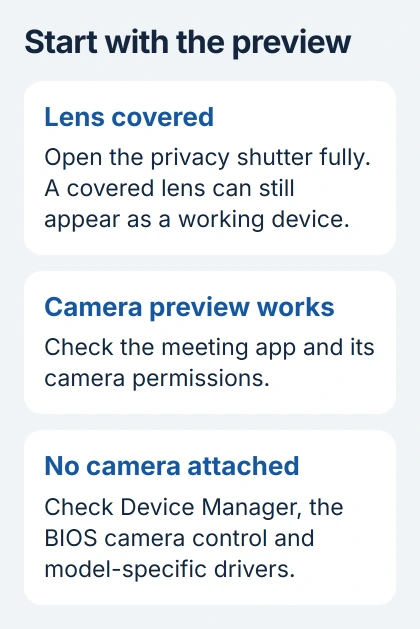
Close Teams, Zoom and any other app that might be using the webcam. Open Start, type Camera, and select the Windows app. Accept a camera-access prompt if one appears, then look for a moving preview.
If that preview works, skip driver removal and check the meeting app in the next section. If Camera shows a black picture, check the lens cover again. Write down any error code before going further.
I'd start with this comparison because it takes very little time. It tells you whether other apps have the same camera problem.
2. Check the camera permissions for your app
In Windows 11, open Settings > Privacy & security > Camera. Enable Camera access. Then switch on Let apps access your camera. In the app list, allow the app you want to use.
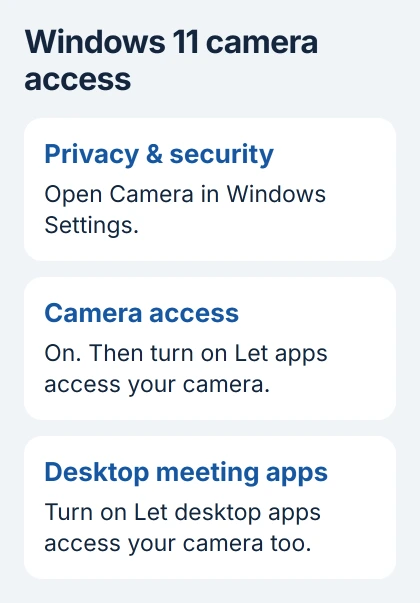
For desktop meeting software, enable the separate desktop-app permission switch too. Desktop apps aren't controlled by the same individual switches as Microsoft Store apps. Microsoft's camera-permission checks explain the difference.
Windows 10 puts these controls under Settings > Privacy > Camera. If a switch is unavailable on a work laptop, ask your administrator which policy controls it.
Reopen the app that isn't working and check its video settings. Select the built-in webcam rather than a virtual camera, an unplugged USB camera or another saved device. Check its preview before joining a call.
If Windows Camera works but Teams still doesn't, follow the Teams camera checks. If neither app gets a picture after you've allowed access, check whether Windows can see the webcam.
3. Check whether Windows detects the webcam
Right-click Start and choose Device Manager. Expand Cameras or Imaging devices and look for the built-in camera. Its name may be Integrated Webcam, Integrated Camera or another model-specific name.
Right-click the camera. If the menu offers Enable device, select it and test Camera again. If it offers Disable device, the camera is already enabled. If you see a warning symbol, check the device's error message.
Open the camera's Properties and read Device status on the General tab. Keep the code so you can give it to support. An error on this tab is about the camera itself, rather than the app's access to it.
If the camera isn't listed, choose Action > Scan for hardware changes. If it reappears, test it again. A gray entry under View > Show hidden devices may be a disconnected device, so look for a current entry too.
A missing camera can mean it's disabled in the BIOS, needs a driver for your model or has a hardware fault. Repairing the Camera app won't make Windows detect a missing webcam.
4. Enable the camera in Dell's BIOS settings
Save any open files, then restart your Dell. Tap F2 at the Dell logo to open BIOS setup, the settings the laptop uses before Windows starts.
Dell's camera-error instructions describe Integrated Devices > Enable Camera. Check that control when your model offers it; menu names can differ between generations.
Enable the camera if it's off, apply the change and exit to restart Windows. Leave unrelated boot, storage and security settings alone. Once Windows starts, test Camera and check Device Manager.
If the camera was already enabled, try the software fixes in the next section. If your work laptop's BIOS asks for a password, give the administrator the camera error and ask them to check this setting.
5. Repair the app or restore the appropriate driver
If Device Manager sees the camera but the Camera app itself fails, search Start for Camera, right-click it and choose App settings. Under Reset, try Repair first, then Reset if repair doesn't help.
When the camera fails right after a driver update, open the camera's Properties > Driver in Device Manager. Use Roll Back Driver if available, restart, and compare the preview. A grayed-out button means no rollback is offered there.
Otherwise, check Windows Update for available updates. Dell's installed SupportAssist app can also find updates for your laptop. Restart if prompted, then test Camera again.
Some newer Dell cameras use a different connection called MIPI. They can need an Intel 2D Imaging/MCU/Visual Sensing Controller Driver for Camera package. Check for that package rather than only a generic USB webcam driver.
Use the package for your model offered through Dell's update tools. If you can't find the right camera package, give Dell your model and Service Tag so they can find it. Don't force a driver intended for another laptop.
6. Arrange service when the camera stays absent
Contact Dell if Windows still can't detect the webcam after you've checked its BIOS setting and updates. Give them the Camera error, Device Manager status, model and any update or damage just before the failure.
An external USB webcam can keep calls working while you arrange service. If its preview works, your calling app can use that camera. That doesn't fix the built-in webcam or its connection.
For a meeting that has a picture but no voice, use the Windows microphone checks. Camera and microphone permissions are separate, even when both are built into the laptop's screen.
The Short Version
Open the shutter and compare Camera with your meeting app. Check permissions, Device Manager and the BIOS camera control. Install updates for your model, including MIPI packages where needed. Seek service if Windows still can't detect it.
Checked November 5, 2026.

Isaac Smith is the founder and editor of PC Glance, a website that covers computers, laptops, and technology. He is a tech enthusiast and a computer geek who loves to share his insights and help his readers make smart choices when buying tech gadgets or laptops. He is always curious and updated about the latest tech trends.