
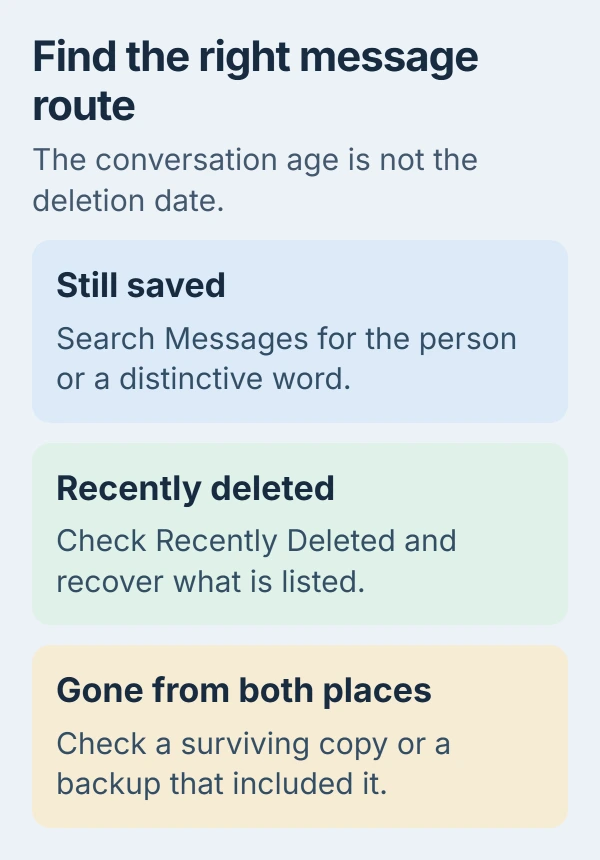
Old iMessages may still be in Messages search, even if the chat is far down your list. If you deleted the conversation recently, check Recently Deleted to recover it. Start with search to see whether it's still saved.
For deleted messages, the deletion date matters more than the conversation's age. Once the recovery period ends, you'll need a surviving copy or a backup containing those messages. Check those options before erasing your phone.
Search saved conversations before trying recovery
Open Messages and go to the main list of chats. In iOS 26, search is at the bottom; tap that field. On iOS 18 and earlier, swipe downward in the chat list to show search at the top.
Enter a distinctive word, the person's name or their phone number. Try something you discussed, such as a street name or appointment. An older number or email address for that contact may be attached to the conversation.
Apple's Messages search instructions explain how to combine filters for a person, content type or keyword. Use them to narrow a long history, then tap a matching result to open the conversation.
For a missing picture or document, open the known conversation and tap the person's or group's name. Browse its Photos, Links or other available attachment categories. That can be faster than scrolling through years of bubbles.
Deleted conversations don't appear in ordinary search results. If the chat is missing, check Recently Deleted next. Searching the same word again won't look in that separate folder.
A sender-recalled bubble follows different reading and recovery limits from a conversation you deleted yourself.
Recover conversations from Recently Deleted
In the Messages conversation list, tap the Filters button, then Recently Deleted. On iOS 18, start with Edit instead. Select the conversation you need and tap Recover, then confirm Recover Message or the displayed message count.
Go back to your chats, then search again. The recovered messages return to their conversation instead of becoming a separate file. Check that the text and attachments you needed are there before leaving the app.
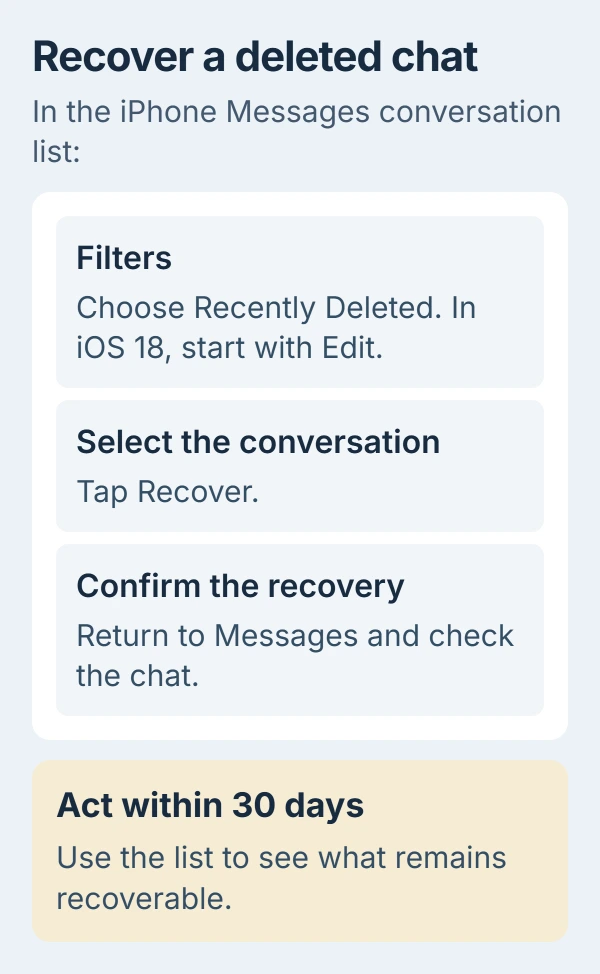
The deleted-message recovery page lists iOS 16 or later as a requirement. It says messages deleted in the last 30 to 40 days can be recovered, while the user guide gives a 30-day recovery period.
Act within 30 days instead of counting on extra time. Your phone's list shows what you can still recover. A conversation from years ago may be recoverable if you deleted it recently; one erased long ago may no longer be there.
Upgrading to a version with recovery won't bring back messages deleted before the upgrade. If your conversation isn't listed, check saved history or backups next. Updating just to retrieve those messages won't help.
Bring existing iCloud history onto the right device
If a new iPhone has recent messages but lacks old history, check Settings > your name > iCloud > See All or Show All. Open Messages in iCloud and inspect Use on this iPhone.
On iOS 16 through 17.1, the older route uses Show All > Messages > Sync this iPhone. Before enabling sync, confirm that the Apple Account is the one that held the conversations you want.
Turn on the switch to download that account's saved history. Keep your iPhone online while it downloads, then check for an old conversation you remember once it's had time to make progress.
The Messages in iCloud setup instructions explain that turning this on gives the device access to saved cloud history. The first download can take time even when new messages already work.
For a Mac missing the same history, use the Mac Messages sync checks to check its account and Sync Now control.
Syncing also carries deletions to your other synced devices. It won't restore a permanently deleted cloud conversation. If another device still has an important copy, save its contents before changing its sync settings.
Check whether an older backup included Messages
With Messages in iCloud on, your synced messages aren't also saved in the daily iCloud device backup. Restoring that backup won't roll back the shared message history.
If Messages in iCloud was off, an iCloud backup can include your messages. The iCloud backup contents explain the difference. Check which setting you were using when that backup was made.
Find a backup dated earlier than the deletion, made on the device that held the conversation. A backup made after the messages disappeared may not help. Check both its date and whether it included Messages.
I'd check those two details before considering a restore. A backup from the right day still needs to contain the missing messages. Don't replace your phone's current contents just because an old backup exists.
Check a computer backup's date in Finder on a Mac, or in Apple Devices on Windows. If you're unsure which backup you're looking at, ask support for help. Keep the existing copy while you check your options.
Restore only after choosing what happens to today's data
A full backup restore affects your phone's contents beyond that one conversation. Save your current information and discuss the old backup with Apple Support first, especially if you have new photos or messages you also need.
For an iCloud restore, you'll first need to erase the iPhone if it's already set up. During setup, choose From iCloud Backup on Transfer Your Apps & Data, sign in and select the backup you want by its date.
For a computer restore, connect your iPhone by USB and select it in Finder or Apple Devices. Choose Restore Backup, select the backup you want and enter its encryption password if asked.
The backup restore procedure covers both routes. Keep the required connection until it finishes. Then check for your conversation; the restore can finish successfully even if the backup didn't contain it.
If no surviving copy or suitable backup contains the messages, ask the other participant to resend the part you need. They might have kept the conversation you removed. That can recover the information without changing your phone.
Keep future conversations for as long as you need them
Open Settings > Apps > Messages > Keep Messages and select Forever if you want to stop automatic age-based removal. On older iOS versions, open Messages on Settings' main page.
The message retention controls also offer 30 Days and 1 Year. Choosing Forever stops the timer from removing future history, but it won't bring back messages already gone.
If the real problem is that new texts never arrive, follow the incoming-message checks. Missing delivery and missing old history need different repairs, even when both leave an empty conversation.
If the history is still missing after sync finishes on the right account, contact Apple Support. Say whether another device has it, Recently Deleted lists it or a backup contained it. That helps support work out what you can still recover.
The Short Version
Search saved history, then check recent deletions and iCloud sync. Confirm that a backup included the missing messages before restoring it, and preserve today's data. Forever prevents future timed removal.
Checked November 5, 2026.

Isaac Smith is the founder and editor of PC Glance, a website that covers computers, laptops, and technology. He is a tech enthusiast and a computer geek who loves to share his insights and help his readers make smart choices when buying tech gadgets or laptops. He is always curious and updated about the latest tech trends.