
The Edit button disappears when a message is too old, has reached its edit limit, or wasn't sent as an iMessage. Check your sent bubble: eligible blue messages can be edited within 15 minutes, up to five times per message.
Check those limits before restarting your phone. A green RCS or SMS message can show delivery information, but that doesn't mean you can edit it.
1. Check the particular message's color and time
Open the conversation and look at the message you want to correct. Blue means iMessage; green means RCS or SMS/MMS. Check that specific bubble, since messages in the same conversation can use different methods.
Apple says its message-editing feature can't change SMS, MMS, or RCS messages. Read receipts on a green message don't turn it into an iMessage.
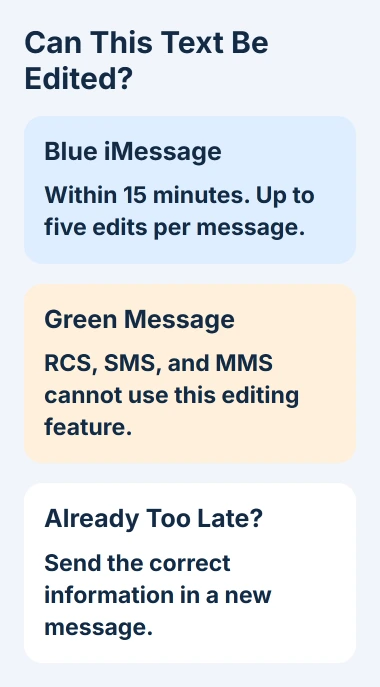
Check how much time has passed since you sent that bubble. The 15 minutes start when the original message is sent. Reopening the conversation or making a correction doesn't restart the clock.
I'd send a separate correction for an old message, especially for an address or meeting time. That gives the recipient the right information without spending time on settings that can't extend the editing window.
If several messages sit close together, check which one you're holding. A newer message can still offer Edit after the older one beside it has lost the option.
If a message you expected to be blue went green, use the iMessage activation checks for future messages. Turning iMessage on afterward won't change the green bubble you already sent.
2. Open the menu on your sent bubble
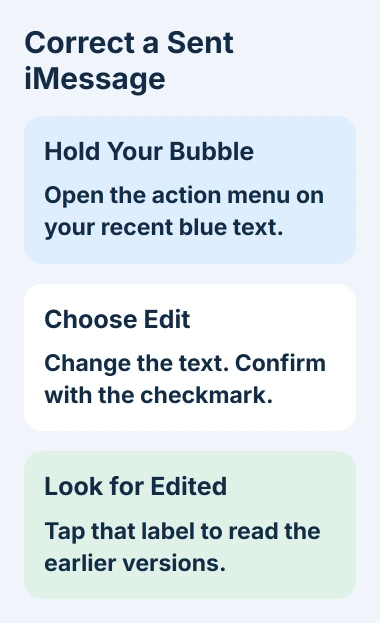
Touch and hold the text bubble you sent. Keep your finger there until the message menu opens, then choose Edit if it appears. Holding a received message doesn't let you rewrite what the other person sent.
Change the text in the editing field, then tap the checkmark to save it. Tap X instead to cancel the correction and keep the original wording.
After you save, the bubble should show Edited. Tap that label to see the earlier versions. Check that your change saved and that you corrected the words you meant to change.
If Edit is missing because that bubble doesn't meet the limits, typing in the normal compose field won't change it. That field sends a separate message, which you can use for a correction.
If holding a message never opens a menu, check whether touch-and-hold works elsewhere on your phone. If the menu opens without Edit, check whether that bubble can be edited before looking for a touch problem.
3. Check whether that bubble has used its five edits
A message gets five edits within its original 15 minutes. Both limits apply: Edit can disappear on a recent message if you've already changed it five times.
Tap Edited to see its history, if that label is present. Check the last saved version before making another correction. Canceling an edit leaves the message as it was.
Each sent bubble has its own limits. Editing another message in the conversation won't give the first one an extra edit. Opening a new chat view won't change that bubble's history either.
The recipient can still read your original text in the edit history. Edit corrects the wording; it doesn't hide what changed.
Once either limit is reached, move on from that bubble. Reinstalling an app or resetting network settings won't give it an extra edit.
4. Check software when a new blue message still lacks Edit
Editing requires iOS 16 or later on iPhone, iPadOS 16.1 or later on iPad, or macOS 13 or later on Mac. Check the software on the device where you're trying to edit.
On iPhone, open Settings > General > About to read the iOS version. If the phone can install a newer supported release, check Settings > General > Software Update and follow the update procedure.
An update can add editing to a supported device running older software, but it can't reopen an expired message. After updating, check a fresh blue message. An old, expired bubble won't tell you whether the update helped.
If you're also checking an iPad or Mac, message synchronization is separate from whether a message can be edited. If a message is missing there, check syncing before looking for its Edit menu.
5. Separate a saved edit from what the recipient sees
With supported software, both people see the corrected bubble and its Edited history. If the recipient has older software, the correction can arrive as another message, so their conversation may look different from yours.
In a group, only iMessage users see the edits. Check the conversation before assuming the correction reached the whole group.
Undo Send has its own limit: two minutes after sending. Deleting a bubble from your conversation is a separate action. Neither lets you rewrite a message after its Edit option expires.
If a fresh blue message on supported iOS is within both limits but still has no Edit option, restart your phone and try again. Note the iOS version and whether the message menu opens for other bubbles.
Contact Apple Support if Edit is still missing. Give the bubble's color and age, your software version, and the missing menu item without sharing private text. That helps support focus on editing rather than a sending problem.
The Short Version
Hold your own recent blue message and choose Edit. The original 15-minute window and five-edit limit both apply. Green messages can't use this feature; send a separate correction when a message is no longer eligible.
Checked November 6, 2026.

Isaac Smith is the founder and editor of PC Glance, a website that covers computers, laptops, and technology. He is a tech enthusiast and a computer geek who loves to share his insights and help his readers make smart choices when buying tech gadgets or laptops. He is always curious and updated about the latest tech trends.