
Jailbreaking an iPhone takes a tool that works with your exact model and iOS version. These palera1n steps are for supported iPhone 6s, original SE, 7, 8 and X models running iOS 15 or 16.
It doesn't work on an iPhone XS or newer. Check Settings > General > About before downloading anything. If your model isn't supported, stop here and check which tools currently support your phone.
Match the phone to the supported hardware
In About, note Model Name and iOS Version. Similar names don't mean the phones use the same hardware. This method supports the original iPhone SE, but not the second- and third-generation SE.
The developer's device list includes iPhone 6s and 6s Plus, SE from 2016, 7 and 7 Plus, 8 and 8 Plus, and X. The software requirement starts at iOS 15.
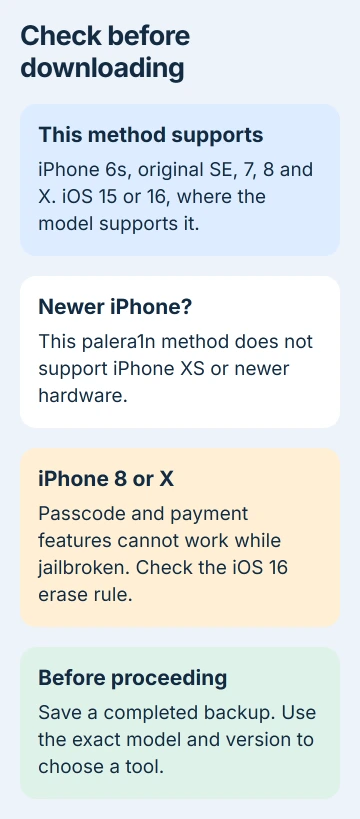
On an iPhone 8, 8 Plus or X, you must leave the passcode off while the phone is jailbroken. Face ID or Touch ID and Apple Pay won't work while it's jailbroken either.
If one of those models runs iOS 16 and has had a passcode set, you'll need to erase it before continuing. Just turning the passcode off isn't enough. Read the backup step before deciding whether to go ahead.
For another model, check its entry in the project's model selection guide. Other tools support different models and versions. Retrying these steps won't make an unsupported phone work with palera1n.
Back up and decide whether the trade is acceptable
Plug the iPhone into your Mac, open Finder and select the phone in the sidebar. Approve Allow on the Mac or Trust on the phone if asked, then open the General tab.
Select the option to back up the iPhone to this Mac. Turn on Encrypt local backup to include Health and Activity data, choose a password you can keep, then click Back Up Now.
Wait for the completed backup's date and time to appear. The computer backup guide explains the process, while the iCloud backup route is another way to preserve supported data.
Apple's modification warning lists security weaknesses, crashes, battery problems and disrupted services. It also says Apple may refuse service for unauthorized software.
I'd use a spare supported iPhone rather than a daily phone that needs payments or sensitive apps. That matters especially on an iPhone 8 or X, where losing the passcode and payment features changes everyday use.
If your model needs an erase, finish the backup first. Then follow the linked installation guide's A11 preparation for iPhone 8, 8 Plus or X. Don't erase it until you've saved your important information somewhere else.
Get the Mac tool from the official download page
Open the official palera1n download page and select macOS. You'll need a Mac and a Lightning cable for these steps. The Linux and Other PC tabs have their own setup instructions.
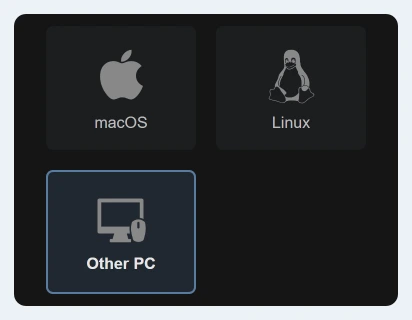
The Mac tab offers an installation command and a program file you can download manually. Open Terminal and use the command currently shown in that tab. Check that its download address belongs to static.palera.in.
That command downloads and runs the project's installer, so use the official page rather than a shortened link or a message from another person. Keep the page open while completing installation.
Installation adds the palera1n command. Try palera1n --version to check it. If Terminal can't find it, finish the installer's PATH prompt or reopen Terminal. PATH tells Terminal where to look for the command.
The tool doesn't run directly in Windows. The project's Other PC route starts a separate operating system. Typing the Mac command in Windows Terminal won't replace that setup.
Connect the iPhone and follow the DFU prompts
Connect your prepared iPhone to the Mac. Use a USB-A to Lightning cable with a USB-C adapter if needed. USB-C to Lightning cables can have trouble getting the phone into the device mode this process needs.
In Terminal, run palera1n. That's the command on the current download page, and its options are in the project's current command help. Follow the tool's prompts instead of adding command options from an older tutorial.
Press Enter when the tool says it's ready, then follow its instructions for DFU mode, the special device mode this process needs. The button timing depends on your supported iPhone model.
Follow the tool's countdown for your connected phone. The recovery screen with a cable and computer isn't DFU mode. If the tool reports the wrong mode, return to its prompts and try again.
On an Apple silicon Mac using a USB-C port, the installation guidance says to unplug and reconnect the phone after Checkmate! appears. Wait for that message before disconnecting it.
If an iPhone 6s or original SE stalls in pongoOS, the temporary boot environment, that guide gives a specific retry: press Control+C in Terminal and rerun the command. Keep any repeated error text for project support.
Finish in the loader and understand the next restart
After the phone starts, open the palera1n loader app and choose Sileo, the app you use to install jailbreak packages. Follow the setup prompts until Sileo appears on your Home Screen.
If setup asks for a password for command-line access, it's separate from your iPhone's lock-screen passcode. On iPhone 8, 8 Plus or X, setting that password doesn't let you turn the lock-screen passcode back on while jailbroken.
After a restart, connect your phone to the computer and run the jailbreak again to use it. The loader alone won't do this for you, so keep access to that computer.
To remove it, follow the project's removal instructions and run palera1n --force-revert with your phone connected. A rootful installation needs another command option. Check which installation type you used first.
If it keeps failing, send project support your phone model, iOS version, Mac type and error messages, with private details removed. Ask which error to address before trying another erase or restore.
The Short Version
Check model support, back up and read the iPhone 8, 8 Plus and X (A11) passcode restrictions. Use the official Mac download, follow DFU prompts and finish in the loader. After a restart, run the jailbreak again from your computer.
Checked November 5, 2026.

Isaac Smith is the founder and editor of PC Glance, a website that covers computers, laptops, and technology. He is a tech enthusiast and a computer geek who loves to share his insights and help his readers make smart choices when buying tech gadgets or laptops. He is always curious and updated about the latest tech trends.